Everyday
  About Company
 Refund Policy
 Privacy Policy
 Terms And Conditions
 Support
 Open Ticket
 Contact Us
 Knowledgebase
 News
News

Best Cheap Laptops for Remote Work 2026 — Under $300
Your remote job probably lives in three windows: a video call, a browser full of tabs, and a chat app pinging in the corner. The good news for 2026 is that the best cheap laptops for remote work handle exactly that trio without stuttering — and you can land one for under $300. No $1,200 MacBook, no company-issued ThinkPad, just a machine that shows up to your 9 a.m. stand-up looking sharp and staying quiet.
This guide is built specifically for the work-from-home crowd. Instead of a generic spec dump, it focuses on what makes or breaks a remote day: webcam and microphone quality for video calls, how much multitasking 8GB of RAM can actually take, battery life that survives back-to-back meetings, and whether a laptop feels at home on a real desk. Budget-focused retailer NXTCORE stocks several models in this range — its lineup spans $179 to $899 and starts at just $179 USD with free shipping to the US and Canada — so we'll use its sub-$300 picks as concrete examples.
Video-Call Readiness: Webcam, Mic, and a Stable Picture
For remote workers, the camera and microphone matter more than raw benchmark scores — you're on Zoom, Teams, or Google Meet far more than you're rendering video. Here's what to expect from budget hardware and how to make it look and sound better.
- The webcam: Budget laptops in this range ship with a built-in 720p HD camera. It's perfectly serviceable for daily calls — colleagues will see you clearly. What it won't do is flatter you in a dim room, so treat lighting as your real upgrade (more below).
- Lighting beats megapixels: A 720p sensor in good light looks better than a 1080p sensor in a shadowy corner. Sit facing a window or a cheap ring light and your picture jumps a tier for free.
- The microphone: The built-in array mic is fine for one-on-ones but picks up keyboard clatter and room echo. On important calls, a $20 USB headset or earbuds with an inline mic makes you sound noticeably more professional.
- Keeping the picture smooth: A modern Intel Celeron or N-series chip encodes a 720p call without breaking a sweat. Stutter almost always comes from Wi-Fi, not the CPU — sit near the router or plug in over Ethernet for screen-share-heavy meetings.
- Background blur and effects: Software backgrounds are the one call feature that leans on the processor. Basic blur works on these chips; heavy virtual-background video can drop frames, so favor a tidy real background over a fancy virtual one.
How Far 8GB of RAM Really Stretches (and Where It Stops)
The single most important number for remote multitasking is RAM, and on a budget laptop that number is 8GB. That's genuinely enough for the everyday remote workflow — but it has a ceiling, and knowing where it sits saves you from frustration.
What 8GB handles comfortably: a live video call, 10–15 browser tabs, a chat client, a music app, and a document — all at once. That covers the vast majority of remote roles built around the browser and cloud apps.
Where it starts to strain: stacking a call and screen sharing and 30-plus tabs and a desktop app like Slack and Photoshop simultaneously. You'll feel the swap-to-disk slowdown. The fix is habit, not hardware — see the tips further down. If your daily load truly is that heavy, that's the signal to step up a tier. Not sure where you land? Our guide on how much RAM you actually need in 2026 walks through it.
Home-Office Fit: Desk, Ports, and All-Day Comfort
- Screen size: A 14 to 15.6-inch panel is the sweet spot for a fixed desk. Big enough for a spreadsheet next to a call, small enough to close the laptop and reclaim the table at 5 p.m.
- External monitor support: Every model here has HDMI out, so you can dock to a second screen for spreadsheet-and-call multitasking — the cheapest, biggest productivity upgrade for a home office.
- Battery for a meeting day: Expect a realistic 6–8 hours of mixed work. Video calls draw more power than documents, so if your calendar is wall-to-wall meetings, keep the charger within reach — a habit, not a dealbreaker.
- Quiet and cool: Low-power N-series chips run cool and often fanless, so there's no whirring fan bleeding into your microphone mid-call.
- Weight and footprint: These are light, compact machines — easy to shift from the home desk to the kitchen table to a co-working day without a second thought.
The Sub-$300 Shortlist for Remote Workers
Every model below is a real, in-stock NXTCORE laptop with a published price, and all three land comfortably under $300. They share the remote-work essentials — 8GB RAM, SSD storage, a 720p webcam, Windows 11, and free US/Canada shipping — and differ mainly in how much multitasking headroom you get.
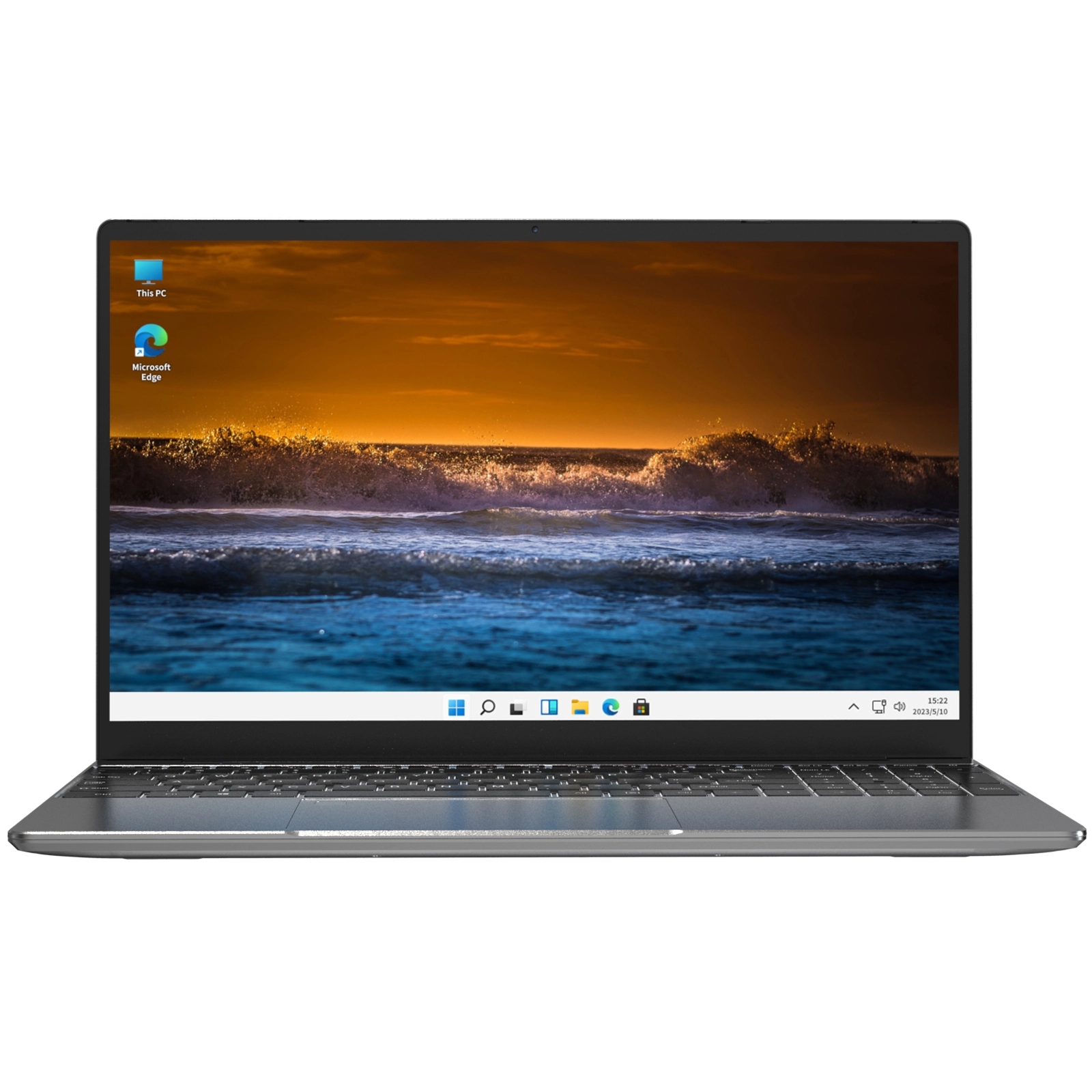
1. NXTCORE Lite F146-4105 — $179 (the meeting-and-email workhorse)
The NXTCORE Lite F146-4105 is the entry point for remote work on a tight budget. At $179, it undercuts most name-brand budget laptops while covering everything a call-and-cloud workday needs.
- Intel Celeron N4105 processor
- 8GB RAM
- 256GB SSD
- 14-inch display
- 720p HD webcam
- Windows 11
- Free shipping to the US and Canada
The N4105 runs Zoom, Google Meet, Slack, and browser-based CRM tools without drama, and its fanless design stays silent on calls. Best for: customer-service reps, data-entry and admin roles, and anyone whose day is meetings plus a browser.
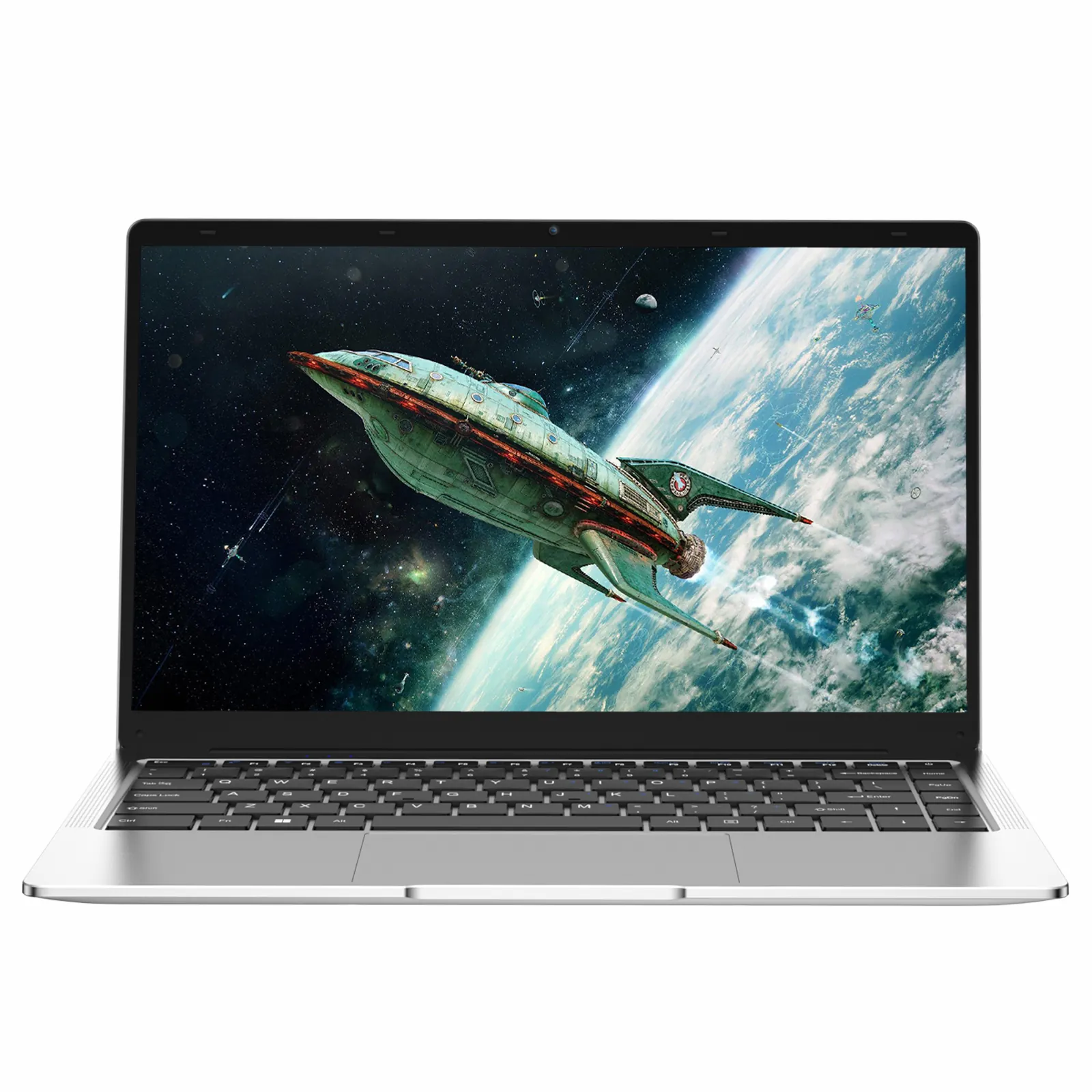
2. NXTCORE Lite G141J-N5095 — $199 (a little more call-plus-tabs headroom)
The NXTCORE Lite G141J-N5095 steps up to the newer Intel N5095, which feels snappier when a video call is running alongside a stack of tabs and a document — still just $199.
- Intel Celeron N5095 processor
- 8GB RAM
- 256GB SSD
- 720p HD webcam
- Windows 11
- Free shipping to the US and Canada
The N5095 gives you a modest but noticeable bump for busier meeting days. Best for: remote workers who routinely juggle a call plus screen-share plus a handful of cloud apps.
3. NXTCORE Lite F152G-5095 — $219 (the most multitasking room under $300)
The NXTCORE Lite F152G-5095 tops the entry line at $219, giving you the most headroom you can get while staying well below $300.
- Intel N5095 processor
- 8GB RAM
- 256GB SSD
- 720p HD webcam
- Windows 11
- Free shipping to the US and Canada
Best for: heavy multitaskers who want the most breathing room available under $300 without paying for features a remote workflow won't touch.
| Model | Price (USD) | Webcam | Best remote-work fit |
|---|---|---|---|
| NXTCORE Lite F146-4105 | $179 | 720p HD | Meetings, email, browser-based work |
| NXTCORE Lite G141J-N5095 | $199 | 720p HD | Call + tabs + cloud apps together |
| NXTCORE Lite F152G-5095 | $219 | 720p HD | Heavy multitasking under $300 |
| NXTCORE Flex S140N | $329 | 720p HD | Touch 2-in-1 for notes & whiteboards (stretch) |
If your budget can flex slightly past $300, the NXTCORE Flex S140N ($329) adds a touchscreen 2-in-1 design that some remote workers love for marking up documents, sketching on a virtual whiteboard, or flipping into tablet mode to read between meetings.
Make Your Budget Laptop Call-Ready in 10 Minutes
A few setup steps turn a fresh budget laptop into a dependable remote-work machine — and most of them are about looking and sounding good on video.
- Run Windows Update first. It pulls the latest webcam and audio drivers, which genuinely improve call quality out of the box.
- Install your call and chat stack: Zoom, Teams or Google Meet, Slack, plus your company VPN client. All are lightweight and run fine on this hardware.
- Fix your lighting and camera angle. Face a window or a cheap ring light and raise the laptop so the camera meets your eyes — this does more for your on-screen presence than any spec.
- Test webcam and mic before your first meeting. If the built-in mic sounds hollow or echoey, a $20 USB headset is the single best call-quality upgrade you can make.
- Set power to "Balanced," and "Best performance" while plugged in for screen-share-heavy or effects-heavy calls.
- Move files to the cloud (Google Drive, OneDrive, Dropbox) so your 256GB SSD stays fast and your work is backed up automatically.
Habits That Keep Calls Smooth on 8GB
Since RAM is the ceiling on a budget machine, a few habits keep your meetings stutter-free:
- Close what you're not using before a big call. Quitting Spotify and a dozen stale tabs frees the memory your video app wants.
- Favor web apps over desktop clients. Web Slack, Google Docs, and the browser version of Teams sip less memory than their installed counterparts.
- Restart daily. Clearing cached memory keeps calls responsive — budget laptops benefit from this far more than high-end ones.
- Keep the SSD under 80% full. 256GB gives you roughly 200GB usable; keep files in the cloud and the drive — and your calls — stay quick.
Why These Cost Less Than the Big-Box Shelf
Reality check: comparable name-brand budget laptops with 8GB RAM, an SSD, and Windows 11 often list higher than direct-to-consumer alternatives, and entry big-box models frequently ship with just 4GB of RAM — a real problem the moment you open a video call and a browser together.
The gap is mostly the distribution model. Selling direct cuts retail markups, shelf fees, and middleman margins, so the same class of hardware reaches you for less. For the wider picture, see our roundup of the 10 best cheap laptops you can buy in 2026 from $179.
When to Spend More Than $300
For most remote workers the honest answer is you don't. If your day runs on video calls, browser tools, chat, and cloud documents — which describes the majority of remote positions — a laptop in the $179–$299 range serves reliably for years.
Step up only if you routinely run resource-heavy desktop software — Photoshop, QuickBooks Desktop, video editing, or full development environments — or need to keep a call running alongside all of it. For those workflows, NXTCORE Performance laptops start at $369. Curious how far entry hardware really goes? Our companion piece covers what a $200 laptop can actually do in 2026.
Remote-Work Laptop FAQ
Is a budget laptop's 720p webcam good enough for daily video calls?
For everyday Zoom, Teams, and Meet calls, yes — a built-in 720p HD camera shows you clearly and is the standard on machines in this range. The biggest quality difference isn't the sensor, it's your lighting: face a window or a small ring light and you'll look a full tier better. For a client-facing polish upgrade, a $30–$50 external 1080p webcam is optional, not required.
How many apps and tabs can I keep open on 8GB during a call?
Comfortably: a live video call plus 10–15 browser tabs, a chat app, and a document. You'll only feel a slowdown if you stack screen sharing, 30-plus tabs, and heavy desktop apps like Photoshop all at once. Closing what you're not using before a big meeting keeps things smooth.
Will screen sharing or virtual backgrounds slow down a cheap laptop?
Basic screen sharing and simple background blur run fine on these N-series chips. Heavy full-video virtual backgrounds are the one feature that can drop frames, so favor a tidy real background. If your call ever stutters, the culprit is usually Wi-Fi — move closer to the router or plug in via Ethernet before blaming the CPU.
Will the battery survive a full day of back-to-back meetings?
Expect a realistic 6–8 hours of mixed remote work. Video calls draw more power than documents, so a wall-to-wall meeting day may need a mid-afternoon top-up. If you work at a fixed desk, keeping the charger plugged in makes battery life a non-issue.
Do I need an external mic or headset for professional-sounding calls?
The built-in array mic is fine for casual one-on-ones, but it picks up keyboard noise and room echo. For client meetings or presentations, a $20 USB headset is the single most cost-effective upgrade — it cleans up your audio far more than any laptop spec would.
Do NXTCORE laptops include free shipping to the US and Canada?
Yes. Every model in the NXTCORE everyday lineup ships free to both the US and Canada, so the listed price is exactly what you pay.
Set Up Your Home Office for Less
Stop overpaying for specs your video calls will never use. NXTCORE everyday laptops start at $179 with 8GB RAM, SSD storage, a 720p webcam, Windows 11, and free US/Canada shipping — call-ready out of the box. Need more muscle for heavy desktop apps? Explore NXTCORE Performance laptops from $369.