Everyday
  About Company
 Refund Policy
 Privacy Policy
 Terms And Conditions
 Support
 Open Ticket
 Contact Us
 Knowledgebase
 News
News
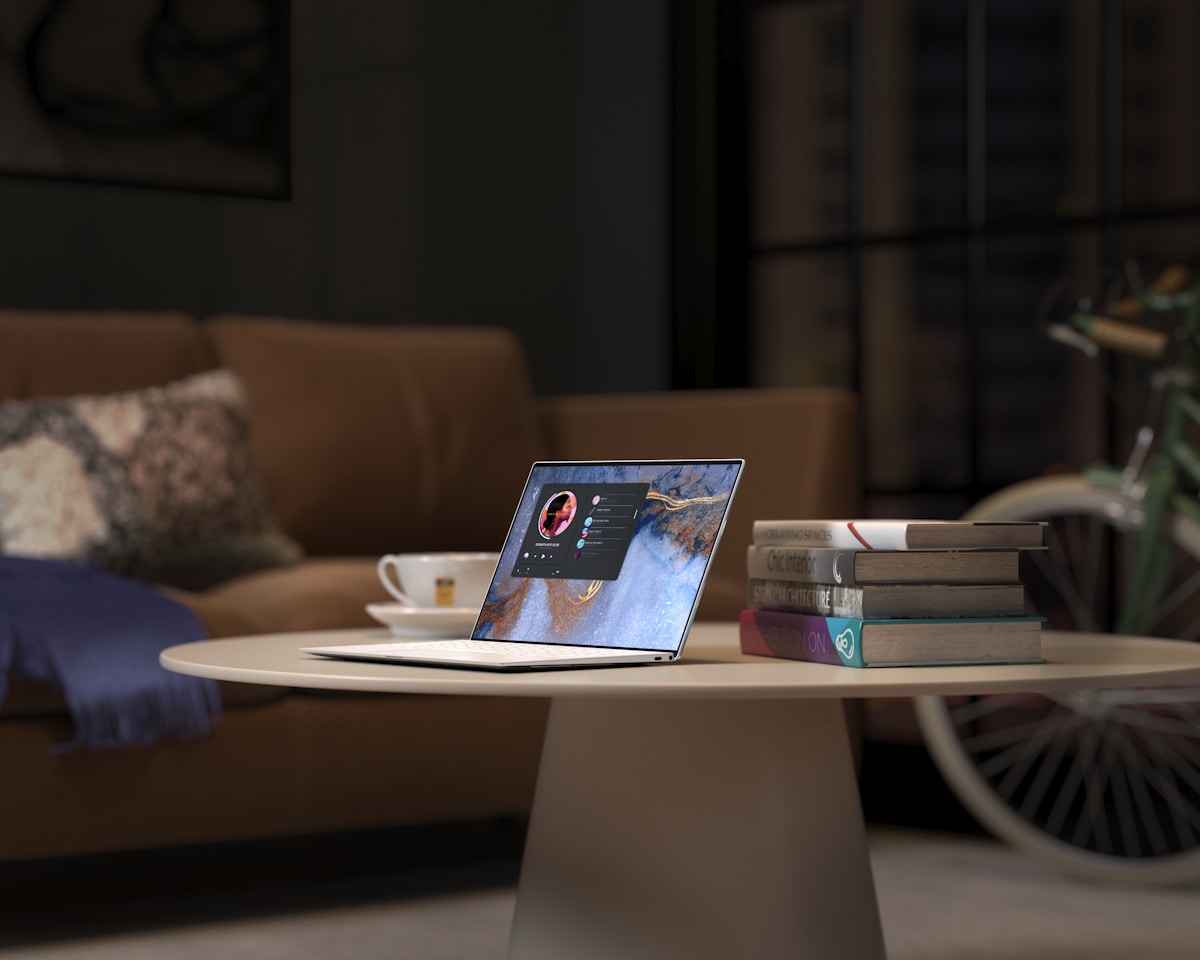
How to Make Your New Laptop Last 5+ Years
A laptop is not a phone — you should not have to replace it every two years. To make your laptop last 5+ years, you need the right habits far more than expensive hardware. With a little regular maintenance, a good laptop can easily last five years or more, and some owners stretch theirs to seven or eight. The difference between a machine that dies in three years and one that keeps going strong is rarely the components. It is almost always how the owner treats it.
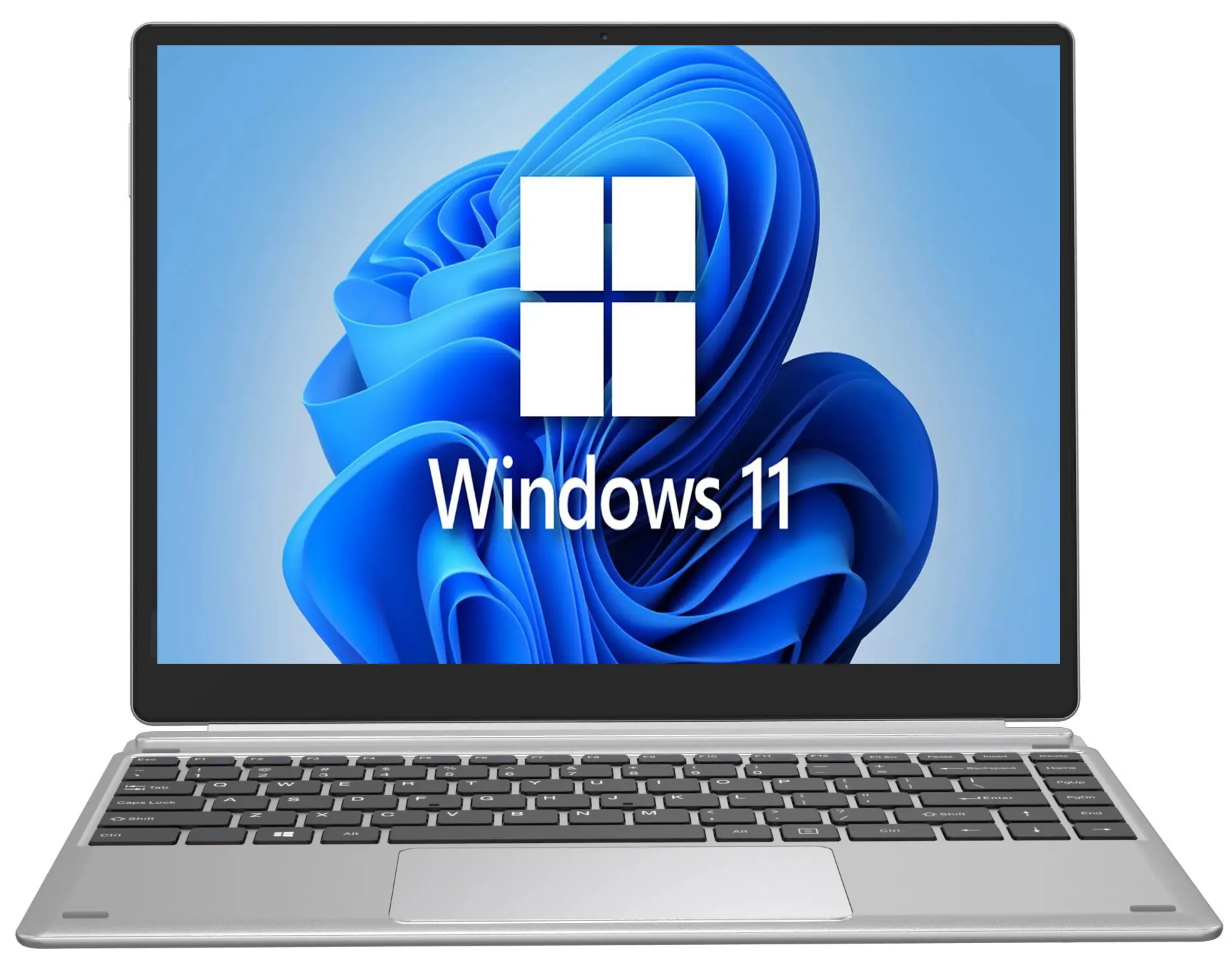
Whether you picked up an affordable NXTCORE Lite everyday laptop (from $179) or a faster NXTCORE Pro performance model, the habits below will protect your investment and keep your laptop running like it did on day one. NXTCORE's own lineup spans $179 to $899, so these tips apply whether you spent a little or a lot.
Take Care of the Battery
The battery is usually the first component to degrade on a laptop, and it is one of the hardest parts to replace. Lithium-ion batteries have a finite number of charge cycles, but how you charge matters more than how often you charge.
Battery Best Practices
- Avoid keeping it plugged in at 100% all the time. If you mostly work at a desk, many laptops include a battery charge limit feature (usually in the manufacturer's system utility) that caps charging at 80%. Use it.
- Do not let it regularly drain to 0%. Deep discharges stress the cells. Try to plug in around 20-30%.
- The sweet spot is 20-80%. Keeping the battery in this range most of the time typically maximizes its lifespan.
- Avoid extreme temperatures. Heat is the enemy of lithium-ion batteries. Do not leave your laptop in a hot car, and keep the vents clear while charging.
- Calibrate occasionally. Every 2-3 months, let the battery drain from 100% to about 5%, then charge back to 100% to keep the battery gauge accurate.
For more everyday habits that extend battery and hardware life, see our 7 essential laptop care tips.
Keep It Clean — Inside and Out
Dust and grime are not just cosmetic. Dust buildup inside the chassis blocks airflow, forcing the CPU and GPU to run hotter, throttle performance, and age faster. On the outside, oils from your fingers wear down key-cap printing and trackpad coatings over time.
Monthly Cleaning Routine
- Wipe the screen with a microfiber cloth. For stubborn smudges, dampen the cloth slightly with distilled water. Never spray liquid directly on the screen.
- Clean the keyboard by turning the laptop upside down and gently shaking out debris, then use compressed air to blow crumbs and dust from between the keys.
- Clean the trackpad with the same slightly damp microfiber cloth.
- Wipe down the exterior — the lid, bottom panel, and palm-rest areas.
Annual Deep Clean
Once a year, use compressed air to blow out the vents and fan intakes, holding the can at an angle and using short bursts. If you are comfortable opening the back panel, you can clean the fans directly — just hold the fan blade still while blowing so it does not over-spin and damage the bearing. Keeping vents clear is one of the simplest ways to prevent thermal throttling and premature wear.
Manage Your Storage
A full SSD is a slow SSD. When your drive climbs above 85-90% capacity, performance drops noticeably, because Windows needs free space for temporary files, virtual memory, and updates. Make storage management a regular habit:
- Enable Storage Sense — Settings → System → Storage. It automatically clears temporary files, empties the recycle bin, and removes old downloads.
- Uninstall apps you no longer use. That editing suite you tried once can be quietly eating gigabytes.
- Move large media libraries to external storage. Old photos and videos do not need to live on your SSD — archive them to an external drive or cloud storage.
- Clear your browser cache periodically. Browsers can accumulate gigabytes of cached data over time.
Keep Software Updated
This sounds basic, but it is one of the most impactful things you can do. Updates are not just new features — they patch security vulnerabilities and fix bugs that cause crashes and performance issues.
- Windows Update: check at least monthly, and enable automatic updates if you trust the process.
- Driver updates: keep GPU, Wi-Fi, and Bluetooth drivers current via Windows Update → Advanced options → Optional updates.
- App updates: update your browser, security software, and critical work apps regularly.
- Firmware updates: some manufacturers push BIOS/UEFI updates that improve stability and battery life. Check your support page occasionally.
Protect It Physically
The most common way laptops die early is physical damage — drops, spills, and cracked screens. A few simple precautions go a long way:
- Use a padded sleeve or bag whenever you transport it. Even a bump against a doorframe can crack a screen or hinge.
- Never pick it up by the screen. Always grip the base — screen hinges are a common failure point.
- Keep liquids away. Use a sealed water bottle at your desk, not an open mug next to the keyboard. A single spill can destroy a motherboard.
- Do not stack heavy objects on it. Textbooks on a closed laptop can crack the screen.
- Use a laptop stand at your desk. Elevating the laptop improves airflow, reduces heat, and gives you a more ergonomic screen height.
Manage Startup Programs
Over time, more apps sneak into your startup sequence, each adding seconds to boot time and consuming RAM in the background. Every few months, open Task Manager (Ctrl+Shift+Esc), click the Startup apps tab, and disable anything you do not need at boot. Common offenders include Spotify, Discord, Adobe updaters, and various manufacturer utilities. Disabling a startup app does not uninstall it — you can still open it manually.
Do Not Skip Backups
A backup will not make your laptop last longer, but it will save you when something goes wrong. Hardware failures, accidental deletions, and ransomware are all covered by a good backup routine.
- Cloud backup — sync Documents, Desktop, and Pictures to OneDrive or Google Drive. Set it and forget it.
- Local backup — keep an external drive and back up monthly using Windows' built-in tool or a free option like Macrium Reflect Free.
- The 3-2-1 rule — 3 copies of your data, on 2 types of media, with 1 copy off-site. Overkill for most people, but worth it if your data matters.
Consider Upgrades Instead of Replacement
When your laptop starts feeling slow after a couple of years, the answer is not always a new machine. Two upgrades can breathe new life into most laptops:
- Add more RAM — if your laptop supports it, going from 8GB to 16GB makes a dramatic difference for multitasking. Not sure what you need? See how much RAM you actually need in 2026.
- Replace an HDD with an SSD — if an older laptop still has a mechanical hard drive, an SSD is the single biggest performance upgrade you can make. To understand which components matter most, read laptop specs explained for beginners.
Not every laptop supports upgrades — many ultrabooks have soldered RAM and storage. That is one reason it pays to buy the right specs from the start.
Avoid These Common Mistakes
- Using it on a bed or pillow — soft surfaces block the bottom vents and cause overheating. Always use a hard, flat surface or a lap desk.
- Ignoring updates for months — security vulnerabilities pile up and performance patches are missed.
- Installing "PC cleaner" or "optimizer" software — most of these are scams or borderline malware. Windows has the tools you need built in.
- Running without antivirus — Windows Defender is fine, but make sure it is actually enabled. One bad download can compromise everything.
- Force-shutting down regularly — holding the power button to power off can corrupt files. Always shut down through the Start menu.
The Year-by-Year Maintenance Calendar
| Frequency | What to do |
|---|---|
| Monthly | Run Windows Update, clean the screen and keyboard, review startup programs. |
| Quarterly | Clear browser cache, run Storage Sense, uninstall unused apps, run a full malware scan. |
| Annually | Deep-clean vents and fans, review your backup strategy, update drivers and firmware, calibrate the battery. |
| Every 2-3 years | Re-apply thermal paste (or take it to a shop). Consider RAM or SSD upgrades if performance has declined. |
Start With Hardware That Is Built to Last
The longevity equation starts at purchase. A laptop with an SSD and adequate RAM has a far better chance of lasting five years than a bargain-bin machine with a spinning hard drive and 4GB of RAM. If you are choosing a new machine, our guide on how to choose the perfect laptop walks through the specs that matter most for longevity.
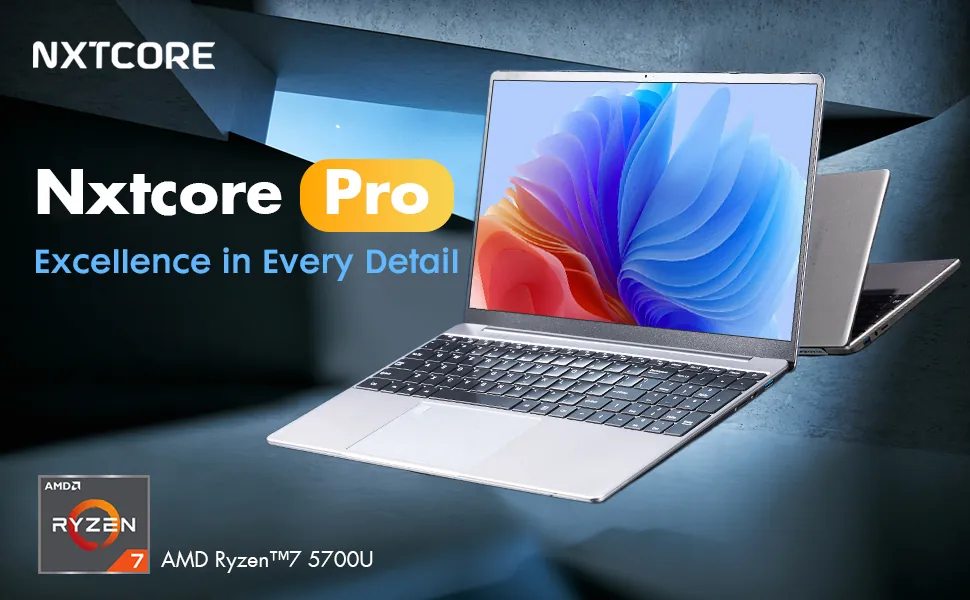
At NXTCORE, every laptop ships with an SSD and enough RAM for real-world multitasking. The NXTCORE Pro G1568-R7 — an AMD Ryzen 7 laptop with NVMe SSD storage and configurable RAM (up to 32GB) at $459 is the kind of machine that will handle today's workloads and still feel responsive years from now. For lighter budgets, the NXTCORE Lite F146-4105 at $179 and the NXTCORE Flex S140N at $329 pair SSD storage with everyday-ready specs — and because NXTCORE sells direct, you get those specs at prices the big brands rarely match.
Frequently Asked Questions
How long should a laptop last?
With regular maintenance, a well-specced laptop commonly lasts five years or more, and many owners keep theirs going seven or eight years. The biggest factors are an SSD, adequate RAM, good battery habits, and physical protection — not the price tag.
Does leaving my laptop plugged in all the time hurt the battery?
Constantly holding a charge at 100% accelerates lithium-ion wear. As a general rule, keep the battery between 20% and 80% when you can, and use a manufacturer charge-limit feature if your laptop has one.
Is it worth upgrading an old laptop instead of replacing it?
Often, yes. Adding RAM or swapping a mechanical hard drive for an SSD can transform a slow laptop for a fraction of the cost of a new one — as long as your model allows those upgrades. See how much RAM you actually need before you buy parts.
What is the single best habit for laptop longevity?
Managing heat. Keeping vents clear, cleaning dust yearly, and using the laptop on a hard surface prevents the thermal wear that quietly shortens the life of the CPU, GPU, and battery.
Take care of your laptop and it will take care of you. None of these steps are complicated — they are simple habits that add years to the life of your machine, and your wallet will thank you. Ready for a fresh start? Browse affordable, SSD-equipped models in the NXTCORE everyday laptops collection.