Everyday
  About Company
 Refund Policy
 Privacy Policy
 Terms And Conditions
 Support
 Open Ticket
 Contact Us
 Knowledgebase
 News
News

Laptop Running Out of Storage? Here's What to Do
The dreaded "Low disk space" warning. Your laptop is full, and it's starting to show — downloads fail, updates won't install, apps crash, and everything feels sluggish. A laptop running out of storage is more than just annoying; it actually slows down your entire system because Windows and macOS need free space to operate properly (for temporary files, virtual memory, and system updates).
The good news: freeing up space is usually straightforward, and if you need more storage, upgrading is one of the easiest and cheapest laptop improvements you can make. Let's walk through everything from quick space recovery to hardware upgrades.
How Much Free Space Do You Actually Need?
Before we dive into freeing space, here's a benchmark: your laptop should always have at least 15-20% of its total storage free for optimal performance. On a 256GB drive, that's about 40-50GB free. On a 128GB drive (common in budget laptops), that's 20-25GB free.
Why? Windows uses free space for virtual memory (the swap file), temporary files during updates, system restore points, and search indexing. When free space drops below 10%, you'll notice real slowdowns — and below 5%, the system can become unstable.
| Total drive size | Recommended free space (15-20%) |
|---|---|
| 128GB | 20-25GB |
| 256GB | 40-50GB |
| 512GB | 75-100GB |
| 1TB | 150-200GB |
Quick Wins: Free Up Space in 10 Minutes
These steps are fast and safe. You won't lose anything important.
1. Empty the Recycle Bin / Trash
You'd be amazed how many people never empty this. On Windows, right-click the Recycle Bin on your desktop and select "Empty Recycle Bin." On Mac, right-click the Trash icon in the dock and select "Empty Trash." For heavy downloaders, this single step alone can recover 20-30GB.
2. Run Disk Cleanup (Windows)
- Search for "Disk Cleanup" in the Start menu
- Select your main drive (usually C:)
- Click "Clean up system files" for the full cleanup
- Check all boxes, especially: Windows Update Cleanup, Temporary files, Thumbnails, Previous Windows installations
- Click OK and confirm
The "Previous Windows installations" option alone can free up 10-20GB after a major Windows update. The "Windows Update Cleanup" option often frees another 3-8GB of old update files.
3. Clear Browser Cache and Downloads
Your browser cache and downloads folder are silent space hogs:
- Clear browser cache: In Chrome, press Ctrl+Shift+Delete → select "Cached images and files" → Clear data. This typically frees 500MB-2GB
- Clean Downloads folder: Open your Downloads folder and sort by size. Delete installers, ZIP files, and documents you've already saved elsewhere. Most people have 5-15GB of forgotten downloads
- Clear browser downloads list: The download history itself doesn't use space, but it helps you find large files you've forgotten about
4. Delete Temporary Files
Windows stores temporary files in multiple locations. The easiest way to clean them all:
- Go to Settings → System → Storage
- Click "Temporary files"
- Windows will scan and show categories with sizes
- Select everything you're comfortable deleting (all options are safe — Windows won't let you delete critical system temps)
- Click "Remove files"
On Mac, use the built-in "Manage" feature: Apple menu → About This Mac → Storage → Manage. It categorizes your storage and offers recommendations for what to clean.
Deep Clean: Find the Real Space Hogs
If the quick wins weren't enough, you need to find out what's actually eating your space. These tools give you a visual map of your storage:
- Windows: WinDirStat or TreeSize Free — shows a visual treemap of every file and folder by size
- Mac: DaisyDisk or GrandPerspective — same concept, beautiful visual representation
- Built-in: Windows Settings → System → Storage → "Show more categories" breaks down usage by type
Common space hogs people discover using these tools:
- Old game installations: A single game can use 30-100GB. Uninstall games you haven't played in months
- Video files: A 1-hour 1080p video is 3-5GB. Check your Videos and Documents folders
- Duplicate photos: Cloud sync often creates duplicates. Use a tool like dupeGuru to find them
- Offline music: Spotify and Apple Music offline downloads can accumulate to 10-20GB
- App data folders: Some apps store massive caches — Slack, Teams, and Discord can each use 1-5GB
- Old backups and disk images: .iso, .img, and .bak files you forgot about
Move Files to the Cloud
If you have files you want to keep but rarely access — old photos, completed projects, tax documents from previous years — moving them to cloud storage frees up local space without losing access:
- Google Drive: 15GB free
- OneDrive: 5GB free (1TB with Microsoft 365 subscription)
- iCloud: 5GB free (50GB for $0.99/month)
- Dropbox: 2GB free
Pro tip: Both OneDrive and Google Drive offer "Files On-Demand" or "Stream files" mode. Files appear in your file explorer but are only downloaded when you open them. This gives you access to everything without using local storage. It's the best of both worlds.
Use an External Drive
For large media collections — photos, videos, music — an external drive is the simplest solution:
- USB flash drive (64-256GB): $8-25. Great for documents and small media
- External SSD (500GB-2TB): $40-100. Fast, compact, durable. Best for regular use
- External HDD (1-4TB): $40-80. Slower but much cheaper per gigabyte. Good for archival
- MicroSD card (256-512GB): $20-40. If your laptop has a card slot, this adds storage without any bulk
Move your large media files, old projects, and archives to the external drive. Keep your laptop's internal storage for the operating system, active applications, and current work files.
Upgrade Your Internal Storage (The Best Fix)
If you're constantly fighting for space, the best long-term solution is upgrading your internal drive. On most laptops made in the last 5-7 years, this is surprisingly easy and affordable:
- M.2 NVMe SSD (most modern laptops): 500GB for $35-50, 1TB for $60-90
- 2.5" SATA SSD (older laptops): 500GB for $30-45, 1TB for $55-80
- M.2 SATA SSD (some ultrabooks): Similar pricing to 2.5" SATA
The upgrade process is straightforward:
- Back up your data to an external drive or cloud storage
- Buy the correct type of SSD for your laptop (search your model + "SSD type" or check Crucial.com's compatibility tool)
- Clone your existing drive to the new SSD using free software like Macrium Reflect or Clonezilla
- Swap the drives (usually 4-8 screws to open the bottom panel, 1 screw to swap the drive)
- Boot up and enjoy 2-8x more storage
This is one of the highest-value upgrades you can do on a laptop. Going from 128GB to 512GB transforms the experience — no more "low disk space" warnings, no more agonizing over what to delete, and SSDs are faster than the drives that shipped with most laptops 3+ years ago.
Uninstall Apps You Don't Use
This is basic but overlooked. Go to Settings → Apps → Installed apps (Windows) or Applications folder (Mac) and sort by size. You'll likely find:
- Games you haven't played in months (10-100GB each)
- Trial software that came with the laptop (bloatware)
- Old versions of apps alongside new ones
- Apps you installed once for a specific task and forgot about
- Microsoft Office alternatives you don't use (if you have both LibreOffice and Office installed, pick one)
Be aggressive here. If you haven't used an app in 3 months, uninstall it. You can always reinstall later if you need it.
When Storage Problems Mean It's Time for a New Laptop
Storage upgrades are great when your laptop is otherwise healthy. But sometimes, limited storage is just one symptom of an aging machine:
- Your laptop only has 32-64GB of eMMC storage (common in cheap Chromebooks and older budget laptops) — this can't be upgraded on most models
- The laptop is also slow, overheating, or suffering from poor battery life on top of the storage crunch
- The SSD slot is soldered and not upgradeable (common in ultra-thin laptops)
- You need more than just storage — the RAM, processor, and display are all outdated
- The cost of an SSD upgrade + battery replacement + other fixes exceeds 60% of a new laptop's price
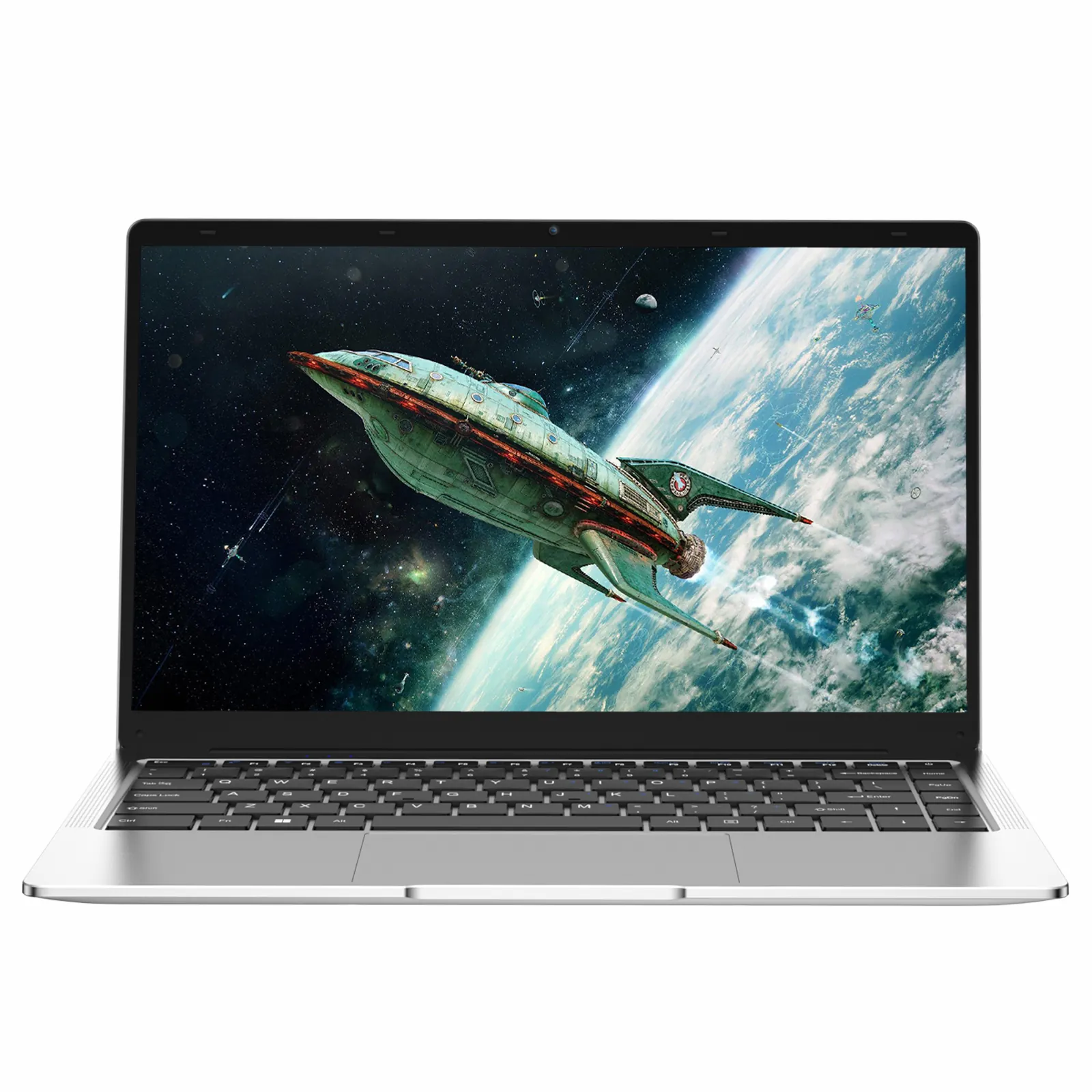
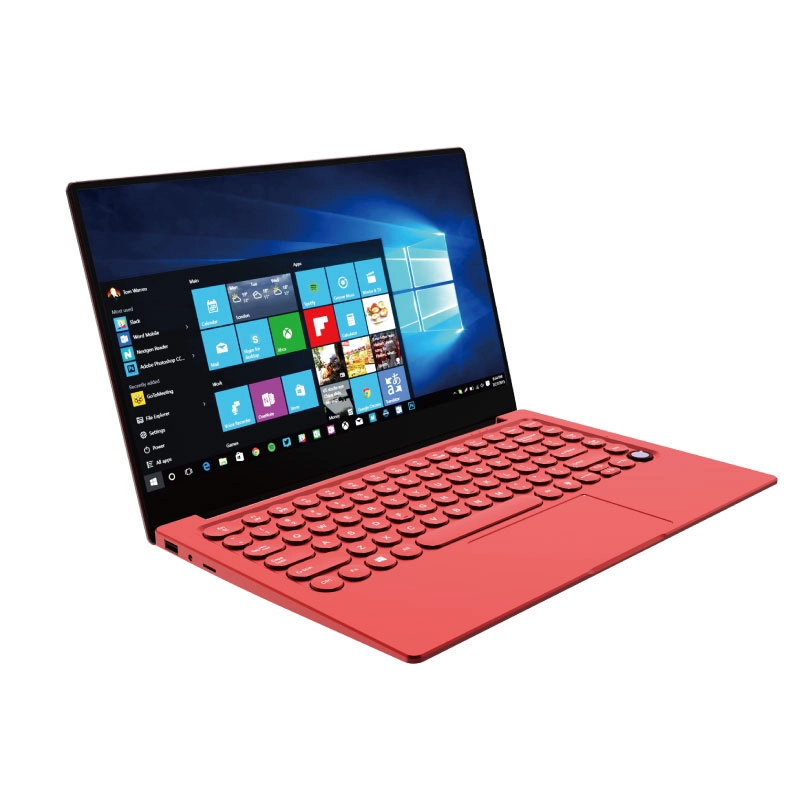
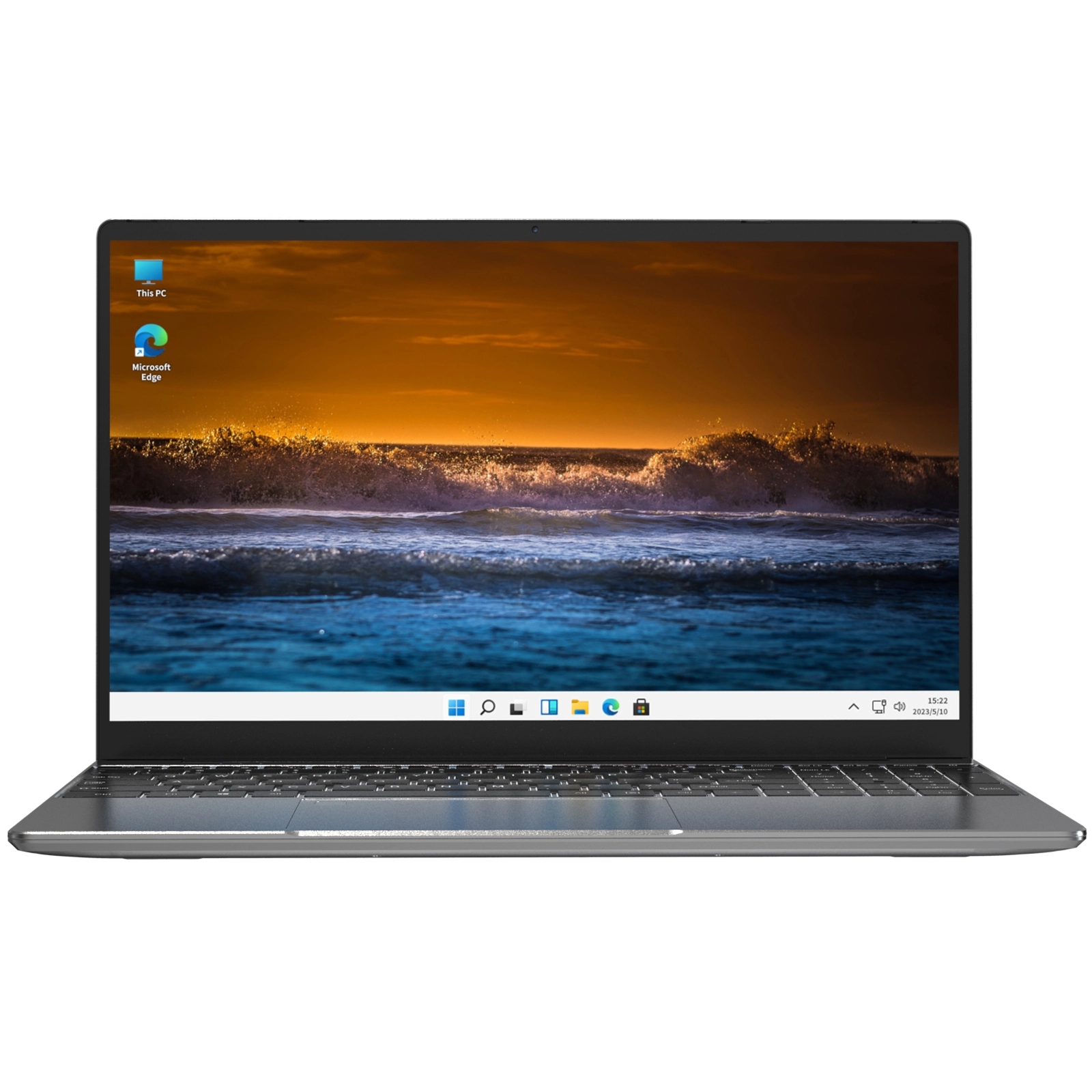
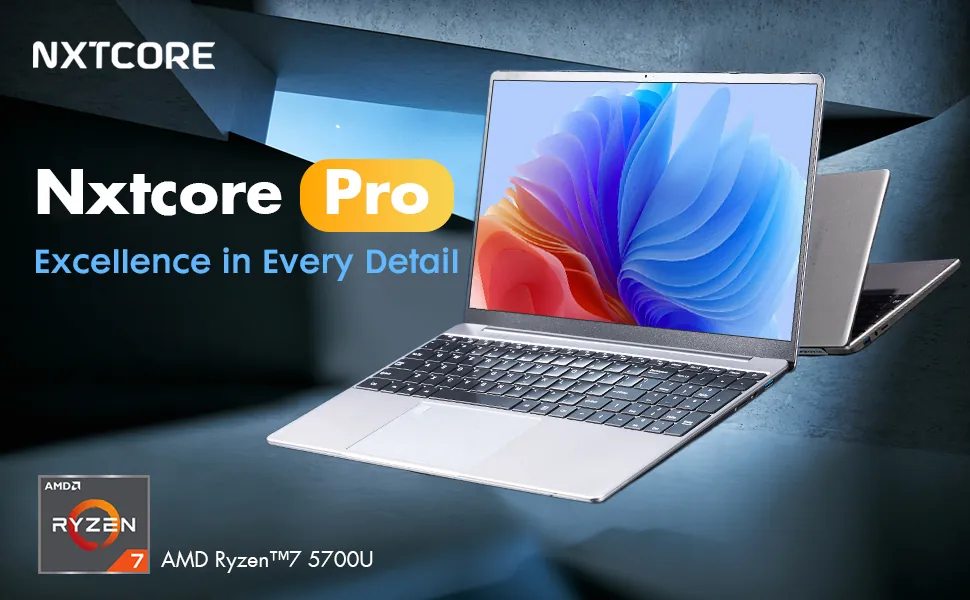
Modern budget laptops often come with 256GB SSDs as standard — enough for most people's needs without constantly managing space. Among NXTCORE's everyday laptops, the NXTCORE Lite G141J-N5095 at $199 pairs SSD storage with a modern Intel processor, while the NXTCORE Flex Y156N at $359 adds a larger 15.6-inch display for comfortable daily use.
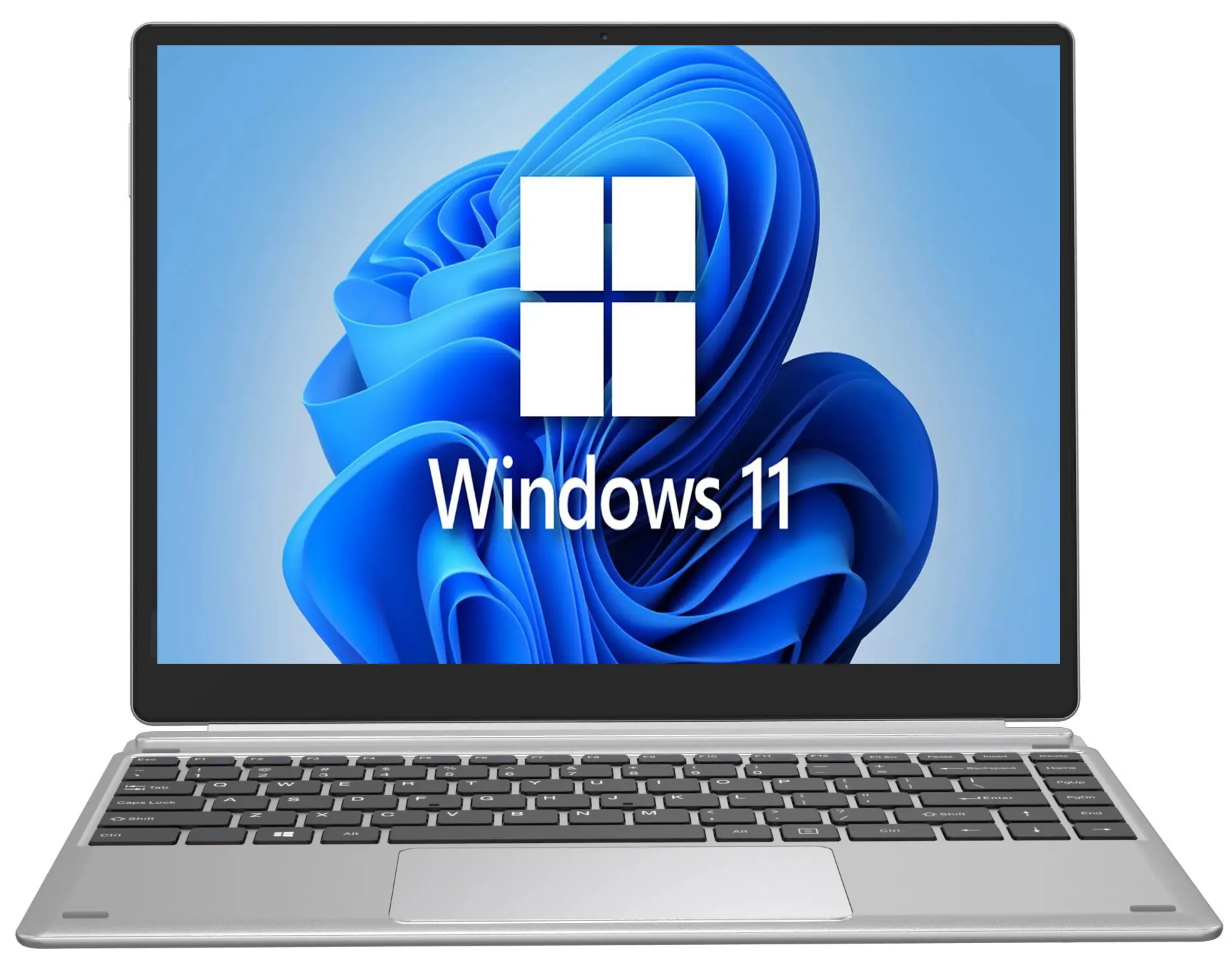
If you need serious storage and performance headroom, the NXTCORE Ultra GLT163Max at $899 sits at the top of NXTCORE's performance laptops — a lineup that spans $179 to $899 and averages about $396 — with configurations built for demanding workloads that won't run out of space.
Prevent Storage Problems Going Forward
- Set up OneDrive or Google Drive Files On-Demand to keep files in the cloud but accessible
- Empty the Recycle Bin monthly (or set it to auto-empty after 30 days in Windows Storage Settings)
- Run Disk Cleanup quarterly
- Set your browser to ask where to save downloads (prevents the Downloads folder from becoming a dumping ground)
- Unsubscribe from apps you don't use — some apps download content automatically in the background
- When buying a new laptop, aim for at least 256GB — our beginner's specs guide explains why
Frequently Asked Questions
How much free space should a laptop have?
As a general rule, keep at least 15-20% of your drive free. On a 256GB SSD that's roughly 40-50GB. Performance starts to suffer below 10% free, and the system can become unstable below 5%.
Does freeing up storage make a laptop faster?
Often, yes. Windows and macOS rely on free space for virtual memory, temporary files, and updates, so recovering headroom can stop the slowdowns, failed updates, and crashes that come with a nearly full drive.
Should I upgrade my SSD or buy a new laptop?
If the laptop is otherwise healthy, an SSD upgrade (around $35-90 for 500GB-1TB) is one of the best-value fixes. If the storage is soldered or the machine is also slow and aging, a modern affordable laptop is usually the smarter move — NXTCORE's best cheap laptops of 2026 start at $179.
What's the cheapest way to add storage without opening my laptop?
Combine cloud storage with Files On-Demand and an external SSD or microSD card. An external SSD (500GB-2TB) runs about $40-100 and needs no installation, and a microSD card adds space instantly if your laptop has a slot.
The Bottom Line
Running out of storage is frustrating but very fixable. Start with the quick wins — empty the recycle bin, run Disk Cleanup, clear your downloads folder. Use a tool like WinDirStat to find hidden space hogs. Move large files to cloud storage or an external drive. And if you need a permanent fix, upgrading your internal SSD is cheap, fast, and transformative.
But if your laptop is too old to upgrade, or storage is just one of many problems, browse our affordable laptops starting at $179. Modern machines with 256GB+ SSDs eliminate storage anxiety right out of the box — and our best cheap laptops 2026 guide walks through the top picks.