Everyday
  About Company
 Refund Policy
 Privacy Policy
 Terms And Conditions
 Support
 Open Ticket
 Contact Us
 Knowledgebase
 News
News

Laptop Battery Draining Fast: Causes and Fixes That Work
Your laptop used to last all day. Now it barely makes it through a two-hour meeting. The battery indicator is dropping like a countdown timer, and you're constantly hunting for outlets. A laptop battery draining fast is one of the most frustrating tech problems because it turns a portable computer into an expensive desktop.
Here's what most people don't realize: fast battery drain is usually a software problem, not a hardware one. Before you spend $50-150 on a battery replacement (or more on a whole new laptop), work through the fixes below — they address the causes that account for most sudden battery drain.
First: Check Your Battery's Actual Health
Before troubleshooting, find out whether your battery is genuinely degraded or something else is draining it. On Windows, open Command Prompt as Administrator and run:
powercfg /batteryreport
This creates a detailed HTML report (usually saved to C:\Users\YourName\battery-report.html). Open it and look for two key numbers:
- Design Capacity: what the battery was rated for when new (e.g., 45,000 mWh)
- Full Charge Capacity: what the battery can actually hold now (e.g., 32,000 mWh)
Divide the full charge capacity by the design capacity to get your battery health percentage. Use the table below to interpret the result and decide your next move.
| Battery Health | What It Means | What To Do |
|---|---|---|
| Above 80% | Battery hardware is fine | Focus on the software fixes below |
| 60-80% | Gray zone / aging | Optimize now, plan for replacement |
| Below 60% | Significantly degraded | Replace the battery (or the laptop) |
Fix 1: Find and Kill Power-Hungry Apps
This is the fix that helps most people. Some apps drain battery like a hole in a bucket, and you might not even know they're running.
On Windows
- Go to Settings → System → Power & Battery → Battery usage
- Sort by "Battery usage" to see which apps consumed the most power in the last 24 hours
- Look for anything unexpected using more than 5% — especially apps you weren't actively using
- Common culprits: Chrome (with many tabs), OneDrive syncing, antivirus scanning, Spotify, Discord, game launchers (Steam, Epic)
- Right-click problem apps in Task Manager → End Task, then decide if you really need them running
On Mac
- Click the battery icon in the menu bar — it shows apps using significant energy
- Open Activity Monitor → Energy tab for a detailed breakdown
- Look for the "Preventing Sleep" column — apps that prevent sleep drain battery constantly
- Common Mac culprits: Chrome, Spotlight indexing, Photos syncing, Backblaze/Time Machine
Fix 2: Optimize Your Power Settings
Your laptop's power settings might be configured for performance instead of battery life. Here's how to optimize them:
- Windows: Settings → System → Power & Battery → Power mode: set to "Best battery life" when unplugged
- Screen brightness: reducing brightness is one of the single biggest battery savers — drop it to 40-60%
- Screen timeout: set the screen to turn off after 2-3 minutes of inactivity, not 10-15
- Sleep timer: set the laptop to sleep after 5 minutes of inactivity on battery
- Keyboard backlight: turn it off on battery — it draws more power than you'd think
Fix 3: Turn Off Background App Refresh and Sync
Cloud sync services are silent battery killers. OneDrive, Google Drive, Dropbox, and iCloud constantly check for changes and sync files in the background. Each sync cycle wakes up the Wi-Fi radio, the CPU, and the storage drive — three of the biggest power consumers in your laptop.
- Pause cloud sync when on battery (most apps have a "Pause syncing" option in their tray icon)
- Disable email auto-sync or set it to check every 30-60 minutes instead of continuously
- Turn off Windows background app permissions: Settings → Privacy → Background apps
- Disable automatic Windows Updates when on battery: Settings → Windows Update → Advanced options
Fix 4: Manage Your Browser Tabs
This deserves its own section because it's that impactful. Each open browser tab is essentially a mini application running JavaScript, animations, and network requests. A screen full of open tabs can drain your battery noticeably faster than keeping just a handful open.
- Close tabs you're not actively using (bookmark them instead)
- Use a tab-suspender extension like "Auto Tab Discard" to freeze inactive tabs
- On Windows, Edge is generally more battery-efficient than Chrome for the same browsing
- Disable hardware acceleration in your browser if you're not watching videos (Settings → System → Hardware acceleration)
- Block auto-playing videos with a browser extension
Fix 5: Update (or Roll Back) Your Drivers
Buggy drivers — especially GPU and Wi-Fi drivers — can cause major battery drain. A bad GPU driver might keep a dedicated graphics card active even for simple tasks, using far more power than the integrated graphics.
- Update all drivers through your manufacturer's support page (Dell SupportAssist, Lenovo Vantage, HP Support Assistant)
- For NVIDIA laptops: open NVIDIA Control Panel → Manage 3D Settings → Preferred graphics processor → Auto-select (not "High-performance NVIDIA processor")
- If drain started after a recent driver update, roll back: Device Manager → right-click the device → Properties → Driver → Roll Back Driver
Fix 6: Disable Wi-Fi and Bluetooth When Not Needed
Your Wi-Fi and Bluetooth radios constantly scan for networks and devices, even when connected. If you're working on a document offline, switching to Airplane Mode can meaningfully extend your battery life. If you're not using wireless headphones or a mouse, turn Bluetooth off too.
Fix 7: Calibrate Your Battery
Sometimes the battery isn't actually draining fast — your laptop just thinks it is. The battery gauge can become inaccurate over time, especially if you always keep it plugged in. Calibration fixes this:
- Charge your laptop to 100% and leave it plugged in for 2 more hours
- Unplug and use it normally until it dies completely (let it hibernate on its own)
- Leave it dead for 3-5 hours (don't charge it during this time)
- Charge it back to 100% without interruption
- The battery gauge is now recalibrated
This won't fix a genuinely degraded battery, but if your laptop shows 20% then dies immediately, or jumps from 50% to 10% suddenly, calibration often restores reporting accuracy.
Fix 8: Replace the Battery (DIY)
If your battery health report shows less than 60% capacity, replacing the battery is the right move. It's easier than most people think:
- Search your laptop model + "replacement battery" from a reputable parts retailer ($25-60 for most models)
- Watch a disassembly video for your specific laptop — most batteries are held in by a connector and 2-4 screws
- The whole replacement typically takes 10-20 minutes with a basic screwdriver
- Buy from a reputable seller with good reviews — cheap knockoff batteries can be unsafe
One caveat: if your laptop is very thin or has a glued-in battery (common in ultrabooks and MacBooks), DIY replacement is harder and may require a heat source to loosen adhesive. In that case, a repair shop will typically charge $50-100 for labor on top of the battery cost.
When It's Time to Replace the Whole Laptop
Battery replacement makes sense when the rest of your laptop is still working well. But there are situations where a new battery is just a Band-Aid on a bigger problem:
- Your laptop is also overheating — heat destroys new batteries too, so you'll be replacing it again within a year (our laptop care tips explain how to keep it cool)
- The laptop is already slow and frustrating even when plugged in
- A replacement battery costs more than $80 and your laptop is 4+ years old
- Your laptop also has screen problems or other unreliable hardware
- The battery is proprietary and no longer manufactured (replacement options are unreliable third-party)
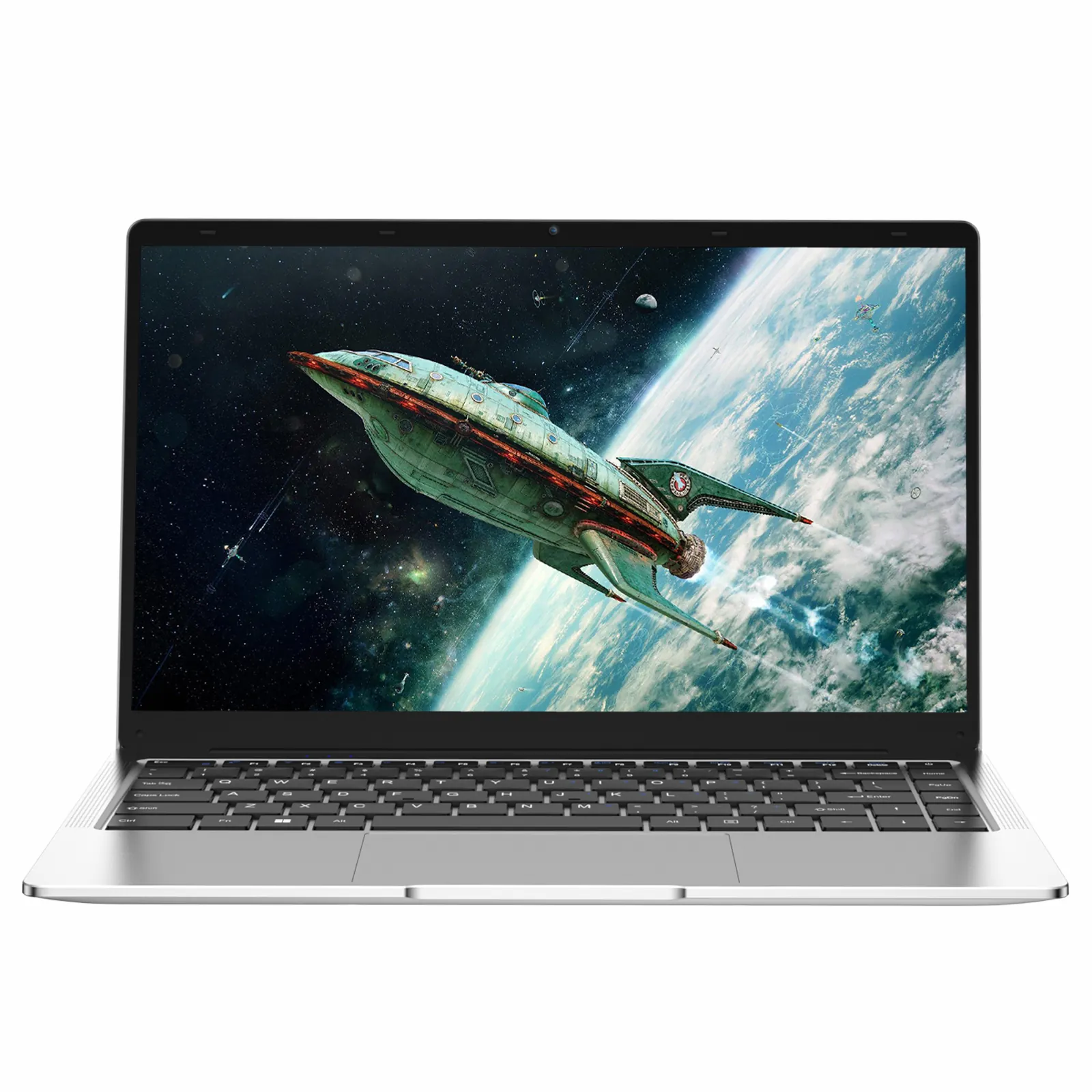
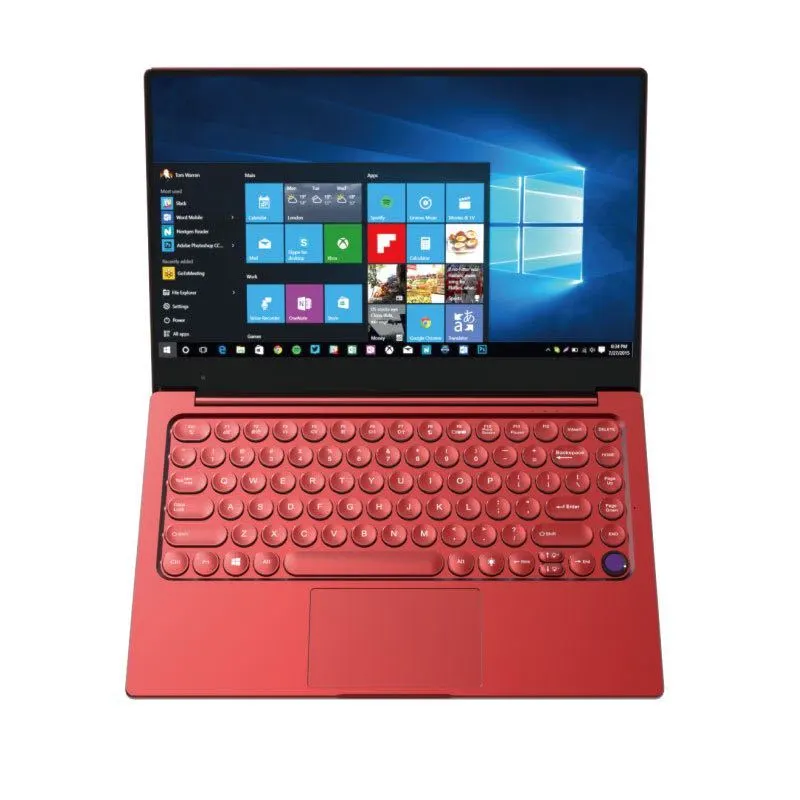
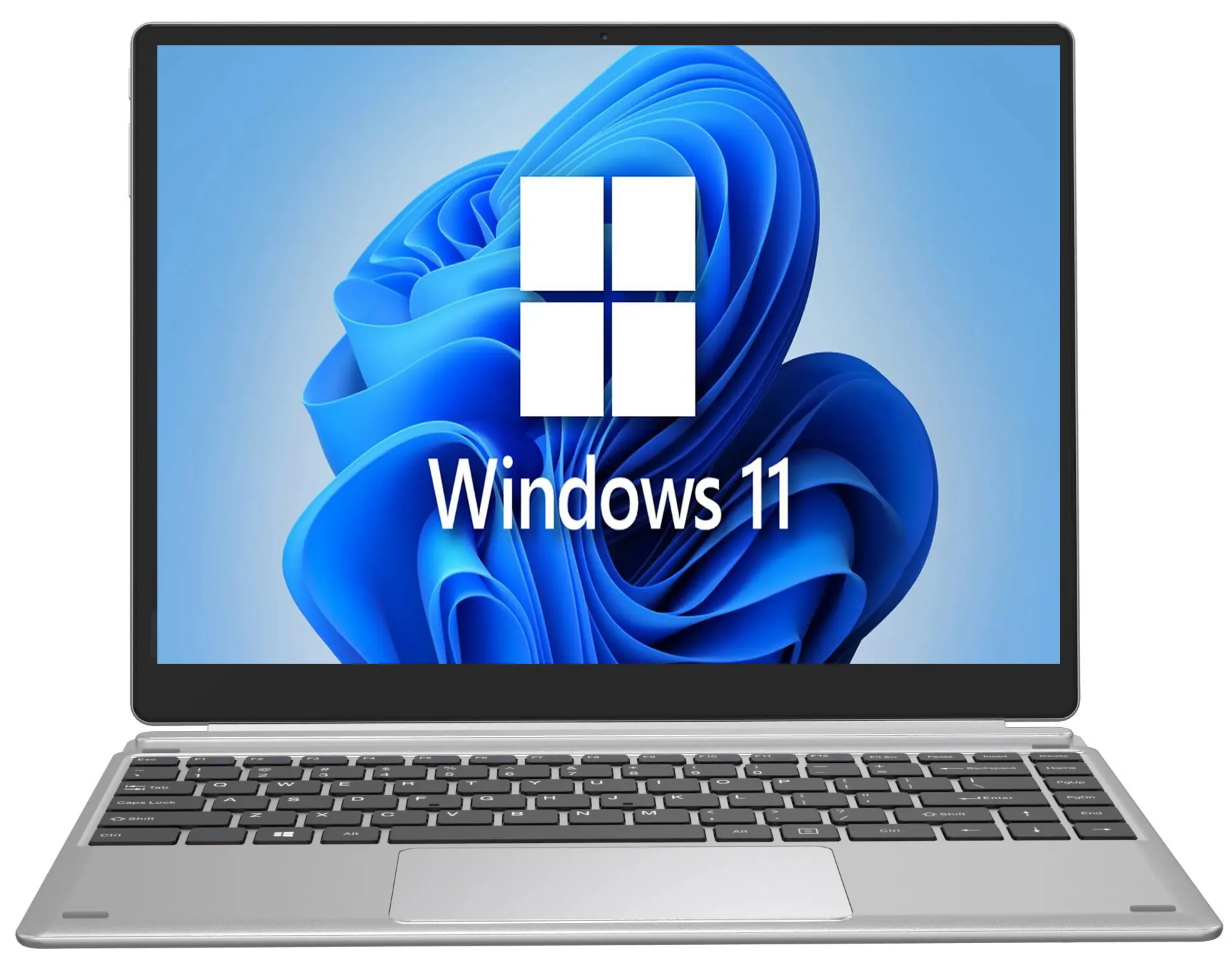
Here's what surprises most people: a new budget laptop often costs less than repeatedly repairing an old one. The NXTCORE Lite F146-4105 starts at just $179 and gives you a brand-new battery plus a modern, power-efficient processor. Step up to the NXTCORE Flex S140N ($329) or the 15.6-inch NXTCORE Flex Y156N ($359) for more screen and everyday headroom — every model ships new, so you get better battery life and better performance.
How to Make Your Battery Last Longer (Prevention)
Whether you fix your current battery or get a new laptop, these habits will keep any battery healthy longer:
- Don't sit at 100% all the time: if your laptop is always plugged in, many manufacturers offer a charge limiter that caps charging at 80% — this significantly extends battery lifespan
- Avoid deep discharges: plug in before hitting 20% rather than running to zero
- Keep it cool: heat is battery enemy #1 — don't leave laptops in hot cars or on beds and pillows that trap heat
- Use the right charger: chargers with the wrong wattage can stress the battery
- Update your OS: Windows and macOS regularly ship power-management improvements
Frequently Asked Questions
Why is my laptop battery draining so fast all of a sudden?
Sudden drain is most often software: a background app, cloud sync, a runaway browser tab, or a buggy driver keeping the CPU or GPU awake. Check Battery usage in your power settings first, then optimize power mode and background sync before assuming the battery hardware is dead.
How do I check my laptop battery health?
On Windows, run powercfg /batteryreport in Command Prompt and divide Full Charge Capacity by Design Capacity. Above 80% is healthy; below 60% means the battery is worn out. On a Mac, check Battery health under System Settings → Battery.
Is it worth replacing a laptop battery or buying a new laptop?
Replace the battery if the rest of the laptop is fast and reliable. If the machine is also slow, overheating, or 4+ years old, a new budget model is often the better value — NXTCORE's lineup spans $179 to $899, averaging about $396, so a fresh laptop can cost little more than a repair. See our best budget laptops guide to compare.
Does lowering screen brightness really save battery?
Yes — the display is one of the largest power draws in any laptop, so lowering brightness to 40-60% is one of the fastest ways to extend runtime. Pair it with a shorter screen timeout and "Best battery life" power mode for the biggest gain.
The Bottom Line
Fast battery drain is usually fixable with software tweaks — killing background apps, optimizing power settings, and managing browser tabs can dramatically improve runtime. If the battery itself is degraded, a DIY replacement is cheap and straightforward for most laptops.
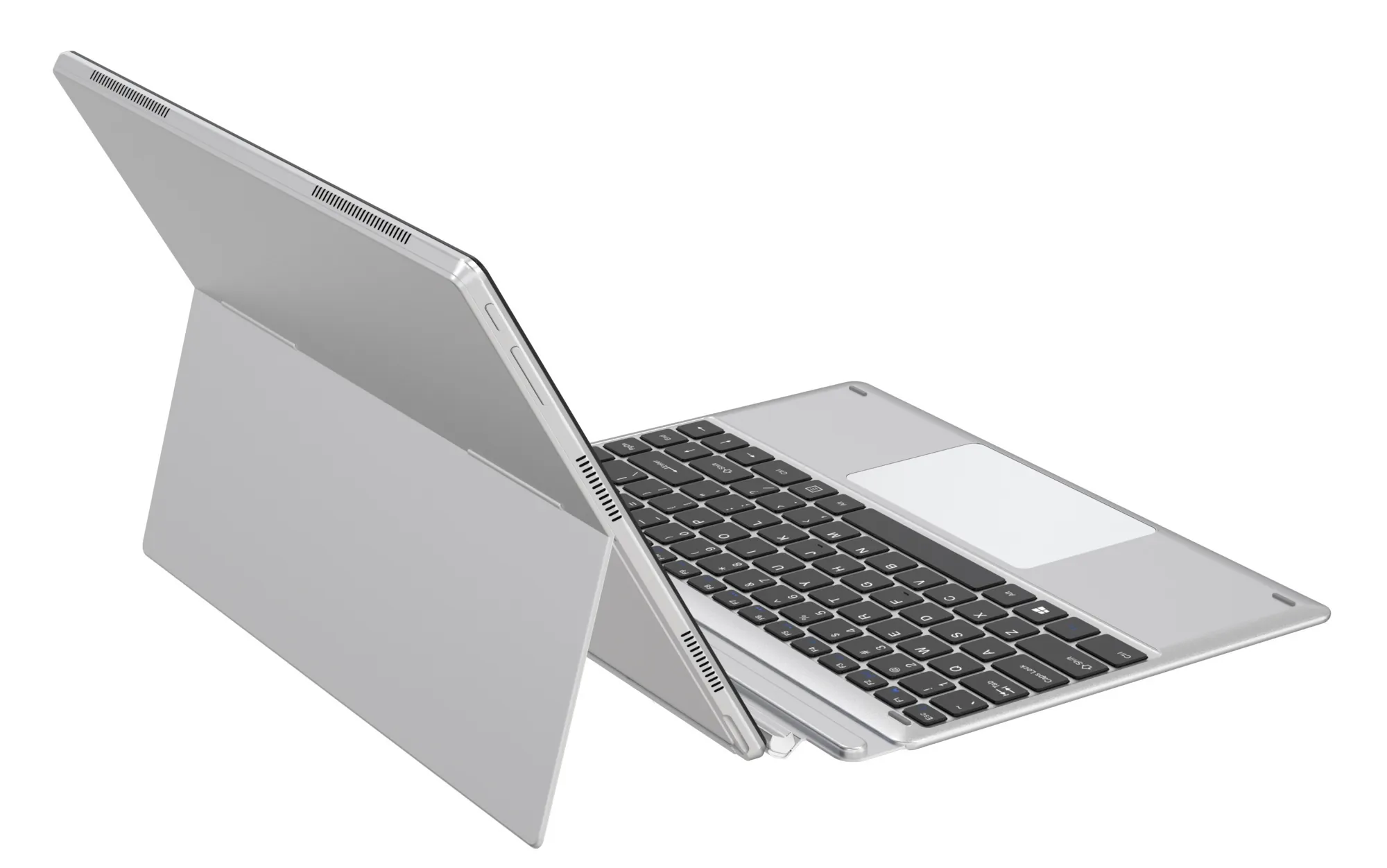
But if your laptop has multiple aging problems — poor battery, overheating, sluggish performance — it's often smarter to invest in something new than to keep playing whack-a-mole with repairs. Browse our affordable everyday laptops starting at $179, or read our best budget laptops guide for detailed recommendations.