Everyday
  About Company
 Refund Policy
 Privacy Policy
 Terms And Conditions
 Support
 Open Ticket
 Contact Us
 Knowledgebase
 News
News
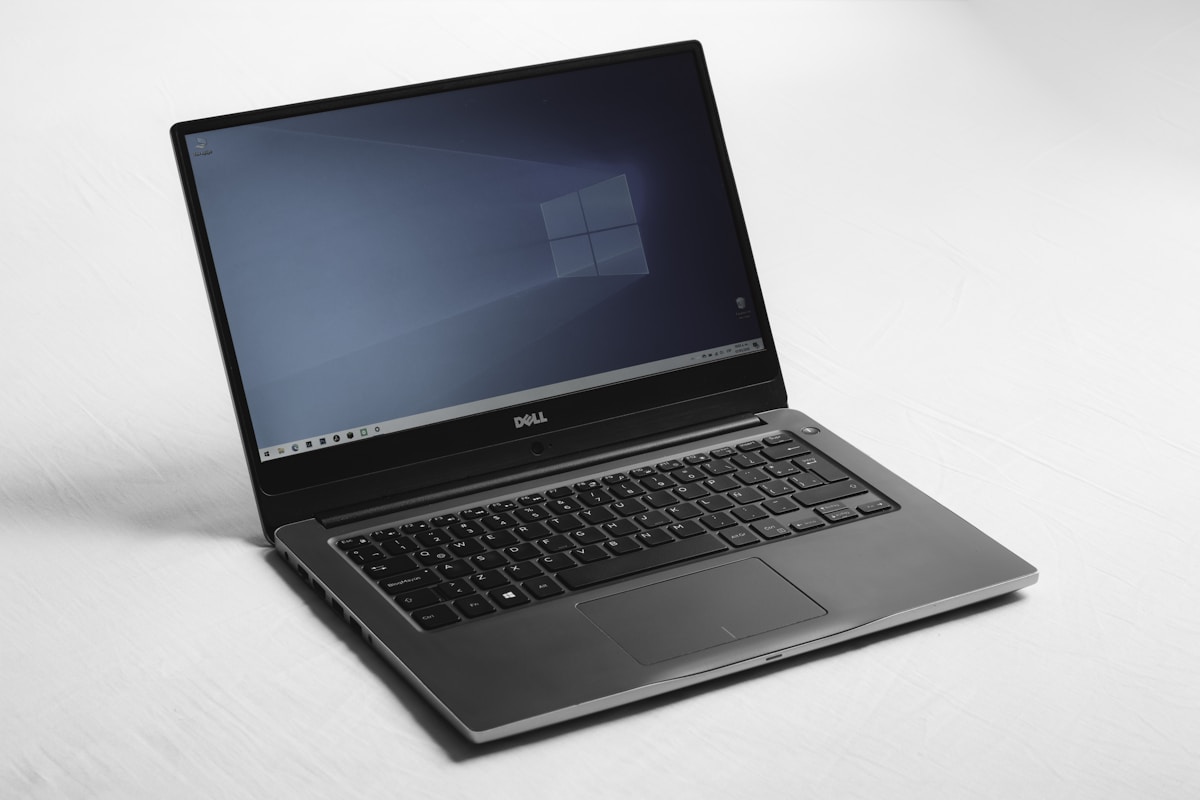
Laptop Won't Turn On? 10 Fixes to Try Before Buying a New One
You press the power button and... nothing. No lights, no fan spin, no startup sound. A laptop that won't turn on is one of the most stressful tech problems you can face — especially when your work, photos, or school assignments are trapped inside. But before you assume the worst, take a breath. In the vast majority of cases, a laptop that won't power on has a straightforward fix that doesn't require a new computer.
Independent repair guides and manufacturer support documentation consistently point to the same conclusion: the large majority of "dead laptop" cases come down to something simple — a drained battery, a loose cable, or a software glitch. This guide walks you through 10 proven fixes, ordered from easiest to most advanced, so you can systematically figure out what's going on.
| Symptom | First fix to try |
|---|---|
| No lights at all | Check the charger and outlet (Fix 1), then hard reset (Fix 2) |
| Lights or fan, but black screen | Adjust screen brightness (Fix 6) or connect an external monitor |
| Powers on, then dies | Disconnect all USB devices (Fix 4) |
| No lights after a memory upgrade | Reseat the RAM (Fix 7) |
1. Check Your Power Adapter and Cable
This sounds obvious, but it's the #1 cause of "dead" laptops. Your charger might be plugged into a dead outlet, the cable could be damaged, or the connection to your laptop might be loose. Here's what to do:
- Try a different wall outlet — power strips can fail silently
- Inspect the entire cable for fraying, kinks, or bite marks (pets love charger cables)
- Make sure the barrel connector or USB-C plug is fully seated in the laptop port
- Check for a green/white LED on the charger brick — if it's off, the charger may be dead
- If possible, try a different compatible charger
A dead charger is the single most common reason a laptop won't power on. If you've been using the same charger for 3+ years, there's a real chance it has failed internally even if it looks fine.
2. Perform a Hard Reset (Power Drain)
Residual electrical charge can prevent your laptop from starting. A hard reset clears this out:
- Unplug the charger completely
- Remove the battery if it's removable (skip this step if your battery is built-in)
- Hold the power button down for 30 full seconds — yes, count to 30
- Release the power button
- Plug the charger back in (leave the battery out for now)
- Press the power button normally
This fix works more often than you'd expect. The 30-second hold drains residual capacitor charge from the motherboard, which can resolve phantom power states where the laptop is technically "on" internally but not displaying anything.
3. Look for Signs of Life
Sometimes a laptop IS turning on — you just can't see it. Pay close attention when you press power:
- Do any LEDs light up, even briefly? (power, charging, caps lock, hard drive)
- Can you hear the fan spin or feel air from the vents?
- Does the hard drive make a clicking or whirring sound?
- Does the screen show anything at all — even a brief flash?
If you notice any of these signs, your laptop is powering on — the problem is likely a display issue rather than a power failure. Try connecting an external monitor via HDMI to confirm whether the screen or the graphics output is at fault.
4. Disconnect All External Devices
USB devices, external drives, docking stations, and even SD cards can occasionally prevent a laptop from booting. A faulty USB device can short-circuit the power rail, making it look like the laptop is dead.
Unplug everything — USB drives, mice, keyboards, monitors, headphones, SD cards. Then try powering on with just the charger connected. If it works, plug devices back in one at a time to identify the culprit.
5. Try a Different Charging Method
If your laptop has USB-C charging, try a different USB-C charger — even a phone charger can sometimes deliver enough power to get it started. Many modern laptops can charge through multiple USB-C ports, so try each one. If your laptop only has a barrel-plug charger, see if a friend or coworker has a compatible one you can borrow.
6. Check the Screen Brightness
It sounds silly, but it's a genuinely common oversight: the laptop is working perfectly, but the screen brightness is turned all the way down. This happens when kids press buttons or you accidentally hit the brightness shortcut. Try pressing the brightness-up key (usually Fn + F5 or F6, or a sun icon) several times.
7. Reseat the RAM
If your laptop has a removable back panel, a loose RAM stick can prevent booting entirely — no lights, no fan, nothing. The laptop's POST (Power-On Self-Test) fails immediately if it can't find memory.
- Power off and unplug everything
- Remove the bottom panel screws (look for a maintenance hatch)
- Locate the RAM sticks — small green circuit boards clipped into angled slots
- Gently press the side clips outward to release each stick
- Reseat the RAM by pressing it firmly back into the slot at a 30° angle until it clicks
- Replace the panel and try powering on
If you have two RAM sticks, try booting with just one at a time. A single bad stick can prevent the whole system from starting. (Not sure how much memory you actually need? See our guide to how much RAM you need in 2026.)
8. Check for BIOS/UEFI Recovery
A corrupted BIOS can make your laptop appear completely dead. Many manufacturers have emergency recovery methods:
- HP: Hold Win + B, then press power while holding both keys for 3 seconds
- Dell: Hold Ctrl + Esc, then press the power button
- Lenovo: Look for a tiny reset pinhole on the bottom or side (use a paperclip)
- ASUS: Hold Ctrl + R, then press power
These key combos trigger a BIOS recovery flash. If the BIOS chip itself is OK, the laptop will restart and reflash the firmware automatically. It's worth trying even if you're not sure it'll work — it can't cause additional damage.
9. Listen for Beep Codes
When you press power, listen carefully. Some laptops emit beep patterns that tell you exactly what's wrong:
- 1 beep: Usually means POST passed (normal)
- 2 beeps: Often a memory (RAM) error
- 3 beeps: Motherboard or chipset failure
- 5 beeps: CPU failure (rare)
- Continuous beeping: RAM not detected or not seated properly
Search your laptop's brand + model + "beep codes" online for the exact meaning. Some newer laptops blink the power LED in patterns instead of beeping.
10. Test with Minimal Hardware
If you're comfortable opening your laptop, try booting with the absolute minimum hardware: one RAM stick, no hard drive, no Wi-Fi card, no battery (charger only). If it starts, add components back one by one to find the failing part. If it still doesn't start with minimal hardware, the motherboard or CPU is likely the problem.
When to Just Get a New Laptop
After working through all 10 fixes, here's the honest truth: some laptops are past saving. It's probably time for a replacement if:
- The motherboard has failed (repair costs $200-$400+ and takes weeks)
- Your laptop is over 5 years old and the repair cost exceeds 50% of a new machine
- You've had recurring power issues — they tend to get worse, not better
- The laptop was already slow before it stopped working (why fix something that frustrated you?)
- Liquid damage is involved — corrosion spreads over time even after drying
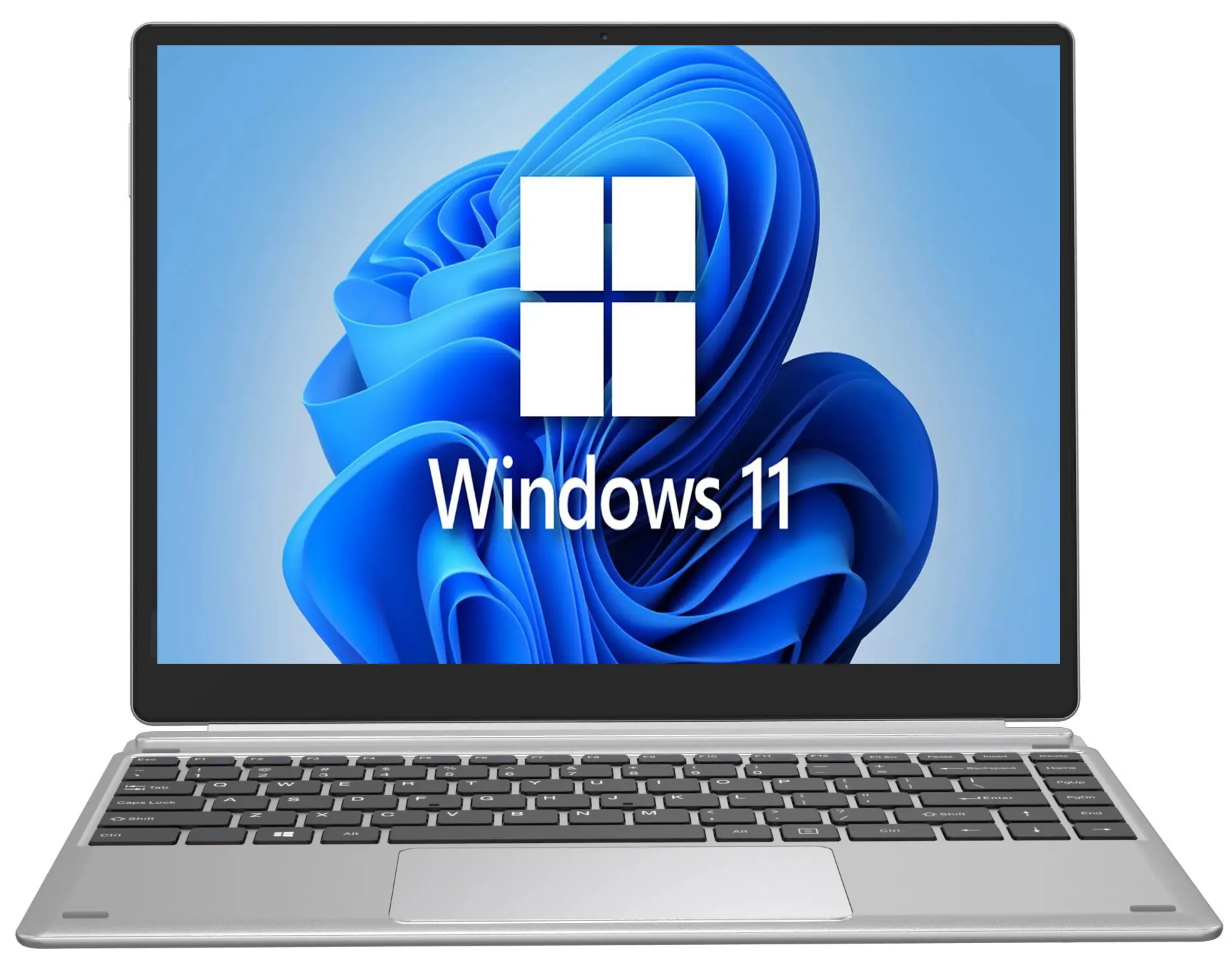
Here's the thing most people don't realize: a brand-new laptop doesn't have to cost a fortune. The NXTCORE Lite F146-4105 starts at just $179, and the NXTCORE Lite G141J-N5095 at $199 gives you a full Windows laptop for everyday tasks. Need a little more speed for multitasking? The NXTCORE Flex S140N is $329. In fact, NXTCORE's entire lineup spans $179 to $899, averaging about $396 — often less than a repair shop would charge to replace a motherboard on your old machine.
If your laptop was already struggling with fast battery drain or overheating on top of power problems, that's a strong signal that multiple components are aging out simultaneously. Our laptop care guide explains why these issues compound — and a new laptop solves all of them at once.
How to Save Your Data from a Dead Laptop
Even if your laptop is truly dead, your data is almost certainly fine. The hard drive or SSD is an independent component — it doesn't need the laptop's motherboard to be read. Here's how to recover your files:
- Remove the hard drive or SSD from the dead laptop (usually 1-4 screws)
- Buy a USB-to-SATA adapter or external enclosure ($10-20 online)
- Connect it to any working computer
- Copy your files to the new computer or an external drive
In most cases this works without any special skills. The only exception is if the drive itself failed — which usually shows different symptoms, such as clicking noises or extremely slow performance before the crash, rather than a sudden "won't turn on" problem.
Frequently Asked Questions
Why won't my laptop turn on even when it's plugged in?
A laptop that won't turn on while plugged in is usually caused by a failed charger, a dead outlet, or residual charge in the system. Test a different outlet and charger, then perform a 30-second hard reset (Fix 2) before assuming the hardware has failed.
How do I know if it's the battery or the laptop itself?
Remove the battery if it's removable and try running on the charger alone. If the laptop powers on, the battery is the culprit. If it still won't start with a known-good charger and no battery, the issue is more likely the adapter, RAM, or motherboard.
Is it worth repairing a laptop that won't turn on?
It depends on the fault and the machine's age. A charger or RAM fix is cheap and worthwhile. But a failed motherboard can cost $200–$400 to repair — often more than an affordable replacement like the $179 NXTCORE Lite F146-4105. If the laptop is over five years old, replacement usually makes more financial sense.
Will I lose my files if my laptop is dead?
Almost never. Your storage drive is a separate component and can be removed and read on another computer using a USB-to-SATA adapter. Follow the data-recovery steps above to copy everything off safely.
Final Thoughts
A laptop that won't turn on is scary, but it's rarely as catastrophic as it feels. Work through these fixes systematically — charger first, then hard reset, then deeper troubleshooting. Most of the time, you'll find a solution within the first three steps.
But if you've tried everything and your laptop is genuinely done, don't pour money into repairing an aging machine. Browse our affordable everyday laptops — with prices starting at $179, a reliable replacement costs less than you'd think. For help choosing, read our guide to the best cheap laptops in 2026 or learn how to choose the perfect laptop.