Everyday
  About Company
 Refund Policy
 Privacy Policy
 Terms And Conditions
 Support
 Open Ticket
 Contact Us
 Knowledgebase
 News
News
Your laptop is so hot it could grill a cheese sandwich. The fans sound like a jet engine preparing for takeoff. It's slow, it freezes randomly, and you're half-convinced it's about to catch fire. Sound familiar? Laptop overheating is one of the most common problems people face, and it only gets worse over time if you ignore it.
The good news: most overheating issues can be fixed at home with zero special tools. The bad news: if you've been ignoring it for months, heat may have already shortened your laptop's lifespan. Let's walk through exactly what causes a laptop to overheat and how to fix it, step by step.
Why Laptops Overheat (The Real Causes)
Every laptop generates heat - that's normal. The CPU and GPU produce heat when they work, and the cooling system (fans + heat pipes + thermal paste) is designed to move that heat out. Overheating happens when this system can't keep up. Here's why:
- Dust buildup: The number-one cause. Dust clogs the intake vents and coats the fan blades, sharply reducing airflow and trapping heat inside the chassis
- Dried-out thermal paste: The heat-conductive paste between your CPU/GPU and the heatsink degrades after 2-3 years, becoming an insulating barrier instead of a conductive one
- Blocked vents: Using your laptop on a bed, pillow, or blanket blocks the air intake vents on the bottom
- Too many background processes: Software bloat keeps your CPU running hot even when you're not doing anything demanding
- Aging hardware: Older processors run less efficiently, generating more heat for the same tasks
- Failed fan: If your fan has died or is barely spinning, your laptop has no active cooling at all
How to Check Your Laptop's Temperature
Before fixing anything, confirm you actually have an overheating problem. Download a free temperature-monitoring tool:
- Windows: HWMonitor, Core Temp, or HWiNFO (all free)
- Mac: iStat Menus or Macs Fan Control
- Linux: lm-sensors (command line)
As a general guide based on manufacturer specifications, normal idle temperatures sit around 35-50°C (95-122°F). Under heavy load, up to 80-85°C (176-185°F) is acceptable. If your laptop is hitting 90°C+ at idle or 95°C+ under load, you have a serious overheating problem that needs immediate attention.
Fix 1: Clean the Dust Out
Independent repair technicians widely report that this single fix resolves the majority of overheating cases. Here's how to do it properly:
Quick Clean (No Disassembly)
- Shut down your laptop completely (not sleep mode)
- Get a can of compressed air ($5-8 at any office supply store)
- Locate the exhaust vents (usually on the side or back edge)
- Hold the can upright and give short bursts into the exhaust vents
- You'll likely see a cloud of dust blow out - that's normal and satisfying
- Do the same for any intake vents on the bottom
Deep Clean (Requires Opening)
If the quick clean doesn't bring temperatures down, you'll need to open the laptop. Search YouTube for your exact model + "fan cleaning" for a visual guide. Generally:
- Remove the bottom panel (usually 6-10 Phillips screws)
- Use compressed air to blow dust off the fan blades and heatsink fins
- Use a soft brush (an old toothbrush works) to remove stubborn dust
- If the fan doesn't spin freely, it may need replacement ($10-25 online)
- While you're in there, check that no cables are pressed against the fan
Fix 2: Replace the Thermal Paste
If your laptop is 3+ years old and cleaning didn't help enough, the thermal paste has probably dried out. Fresh thermal paste can typically drop temperatures by 10-20°C - it's one of the most impactful upgrades you can do.
- Buy good thermal paste - Arctic MX-6 or Noctua NT-H2 ($8-12)
- Open the laptop and remove the heatsink (usually 4 screws over the CPU)
- Clean off the old paste from both the CPU and heatsink with isopropyl alcohol (90%+) and a coffee filter
- Apply a pea-sized dot of new paste to the center of the CPU
- Reattach the heatsink, tightening screws in a cross pattern
Important: Don't use too much paste - more is not better. A small pea-sized amount spreads to the right thickness under heatsink pressure. Too much can actually insulate rather than conduct heat.
Fix 3: Use a Laptop Cooling Pad
A cooling pad with fans underneath your laptop can lower temperatures by a few degrees. They're especially helpful if you use your laptop on a desk all day. Look for one with adjustable fan speed and a mesh surface for maximum airflow; good options run $20-35. Pro tip: even a simple laptop stand that tilts the back up by an inch improves airflow significantly by creating space under the intake vents.
Fix 4: Stop Using Your Laptop on Soft Surfaces
This one is simple but critical. Most laptops have air intake vents on the bottom. When you set your laptop on a bed, couch cushion, or your lap (ironic, right?), you're suffocating it. The fabric blocks airflow and traps heat like a blanket.
Always use your laptop on a hard, flat surface. If you must use it in bed, get a lap desk ($15-25) with a hard surface. This alone can drop temperatures noticeably, depending on how soft your previous surface was.
Fix 5: Reduce CPU Load
Sometimes the problem isn't hardware - it's software keeping your CPU unnecessarily busy. Open Task Manager (Ctrl + Shift + Esc on Windows) and sort by CPU usage:
- Disable startup programs you don't need (Task Manager → Startup tab)
- Uninstall bloatware and toolbars
- Check for malware - crypto-mining malware runs your CPU at 100% constantly
- Update your operating system and drivers (outdated GPU drivers cause excessive heat)
- In Windows Power Settings, switch from "High Performance" to "Balanced"
If your laptop runs hot even at idle with minimal software, the problem is almost certainly hardware-related (dust, thermal paste, or fan failure).
Fix 6: Undervolting (Advanced but Effective)
Undervolting reduces the voltage supplied to your CPU without reducing performance. Less voltage means less heat. Tools like ThrottleStop (Windows) make this relatively easy. A modest undervolt can typically drop temperatures by several degrees with no performance loss. This is an advanced technique, though - going too far causes system instability (blue screens), so start with small changes and stress-test with Prime95 or Cinebench after each adjustment.
When Overheating Means It's Time for a New Laptop
You've cleaned the dust, replaced the thermal paste, tried a cooling pad, and your laptop still runs hot enough to cook an egg. At this point, you're dealing with one or more of these situations:
- The heat pipes are damaged or corroded internally (replacement costs $100-200 in parts + labor)
- The motherboard has heat-damaged solder joints causing intermittent failures
- The laptop is 5+ years old and the cooling system was never designed for modern software demands
- You're experiencing thermal throttling so severe that your laptop is slower than a new budget machine
- Repeated overheating has already shortened the battery life (a related problem - see our guide to laptop care tips that extend its lifespan)
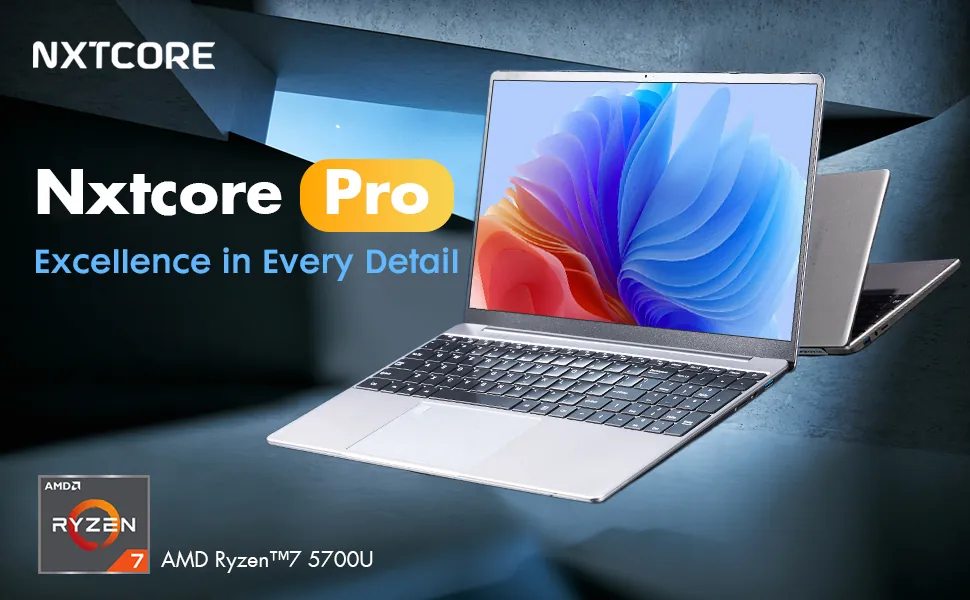
Modern budget laptops run significantly cooler than older machines because newer processors are far more power-efficient. The NXTCORE Lite F152G-5095 at $219 uses an Intel N5095 processor that sips power and stays cool - no jet-engine fan noise and no scorched thighs. If you need more headroom, the NXTCORE Pro G1568-R7 at $459 pairs an AMD Ryzen 7 with modern thermal design that handles heat properly. Across the board, NXTCORE's lineup spans $179 to $899, averaging about $396.
Can Overheating Permanently Damage a Laptop?
Yes - and this is why you shouldn't ignore it. Sustained overheating causes:
- Battery degradation: Heat is the number-one killer of lithium-ion batteries. A laptop that runs 10°C hotter will have noticeably worse battery life within a year
- SSD/HDD failure: Storage drives have temperature operating limits, and sustained heat accelerates wear
- Solder joint failure: Repeated thermal cycling weakens solder connections, causing intermittent crashes that get progressively worse
- Screen damage: Excessive heat can contribute to screen flickering or dead pixels, especially on laptops with the display cable routed near the heatsink
The longer you let overheating continue, the more components it damages. If you can't fix it with the steps above, replacing the laptop sooner rather than later prevents a total failure that takes your data with it.
Prevention: Keep Your Laptop Cool Long-Term
- Clean the vents with compressed air every 3-6 months
- Always use a hard, flat surface
- Don't leave your laptop in direct sunlight or in a hot car
- Close resource-heavy browser tabs when not using them (yes, Chrome tabs count)
- Consider a laptop stand for permanent desk setups
- Replace thermal paste every 3-4 years
Bottom Line
Most overheating issues come down to dust and old thermal paste - both cheap and easy to fix. Start with a compressed-air cleaning, and if that's not enough, fresh thermal paste is your next move. But if your laptop is old, damaged, or the cooling system is beyond repair, don't throw good money after bad.
Explore our affordable laptops starting from just $179 - modern machines that run cool, quiet, and fast. And if you're not sure what to look for, our best cheap laptops guide breaks down exactly what you need.
Frequently Asked Questions
Why does my laptop overheat and shut down?
A sudden shutdown is a thermal-protection safety feature: when internal temperatures cross a critical threshold, the laptop powers off to prevent damage. The usual culprits are clogged vents, dried thermal paste, or a failing fan. Work through the fixes above, starting with a compressed-air cleaning.
What temperature is too hot for a laptop?
As a general guide based on manufacturer specifications, idle temperatures of 35-50°C are normal and up to 80-85°C under heavy load is acceptable. Sustained readings above 90°C at idle or 95°C under load signal a real overheating problem worth addressing right away.
Can I fix laptop overheating myself?
Yes. Most overheating comes down to dust and aged thermal paste, both of which you can address at home with a can of compressed air and a few dollars of thermal paste. Only heat-pipe or motherboard damage typically requires a professional repair.
Does a laptop cooling pad really help?
A cooling pad can lower temperatures by a few degrees and improves airflow under the intake vents, which helps most on a desk. It's a supplement, though - it won't rescue a laptop that's clogged with dust or running on dried-out thermal paste.
When should I replace an overheating laptop instead of fixing it?
If you've cleaned the vents, replaced the thermal paste, and added a cooling pad but the machine still throttles or overheats - and it's five or more years old - replacement is usually the smarter spend. Browse affordable everyday laptops that run cool out of the box, or compare options in our best cheap laptops guide.