Everyday
  About Company
 Refund Policy
 Privacy Policy
 Terms And Conditions
 Support
 Open Ticket
 Contact Us
 Knowledgebase
 News
News

What Laptop Specs Actually Matter for Students in 2026
Choosing the right laptop specs for students feels overwhelming. Manufacturers throw around spec sheets full of numbers and acronyms, every retailer says their pick is "best for students," and your budget is... well, a student budget. Let's cut through the noise.
Based on manufacturer specifications and widely published buying advice, the pattern is consistent: most students overspend on specs they don't need and underspend on the things that actually matter for day-to-day use. This guide explains exactly which specs to prioritize, which to ignore, and where your money is best spent.
What Students Actually Do on Laptops (Be Honest)
Before looking at any specs, let's identify what 90% of college and high school students actually do on their laptops:
- Writing papers in Google Docs or Microsoft Word
- Researching with 10-20+ browser tabs open
- Watching lecture recordings and YouTube
- Video calls for online classes (Zoom, Teams, Google Meet)
- Checking email and messaging apps
- Taking notes in class
- Light spreadsheet work
- Streaming Netflix/Spotify during study breaks
Notice what's not on that list for most students: video editing, 3D modeling, machine learning, or running intensive simulations. If you're a CS or engineering major who needs those capabilities, your department will list specific requirements. For everyone else — the vast majority — you need much less than you think.
The Laptop Specs That Actually Matter (Ranked)
1. Storage Type: An SSD Is Non-Negotiable
This is the single most important spec for a good student experience. A laptop with an SSD boots in seconds, opens apps instantly, and doesn't make you wait while you're already running late for class. A laptop with an HDD (mechanical hard drive) will make you want to throw it out a window.
The difference is dramatic — independent benchmarks widely report SSDs as 10 to 100 times faster than hard drives for common operations. In 2026, there's no excuse for a student laptop to ship with an HDD. Period.
What you need: a 256GB SSD minimum. That gives you enough room for Windows, your apps, and all your schoolwork. If you store lots of media files, step up to 512GB.
2. RAM: 8GB Is Your Magic Number
RAM determines how many things you can do simultaneously. With 4GB, you'll struggle with more than a few browser tabs. With 8GB, you can comfortably run your browser with 15-20 tabs, a Word document, Zoom, and Spotify all at once — which is basically a typical study session.
There's a detailed breakdown in our how much RAM do you need guide, but the short version: 8GB is perfect for virtually every student. Don't let anyone upsell you to 16GB unless you're in a program that specifically requires it.
3. Display Size: Bigger Isn't Always Better
This is where personal preference matters most:
| Screen Size | Best For | Trade-Off |
|---|---|---|
| 11-12" | Maximum portability, commuters | Can feel cramped for long papers |
| 13-14" | Best balance of portability + usability | The sweet spot for most students |
| 15.6" | Comfortable for long study sessions | Heavier to carry around campus |
| 17" | Desktop replacement, rarely moved | Too bulky for backpacks |
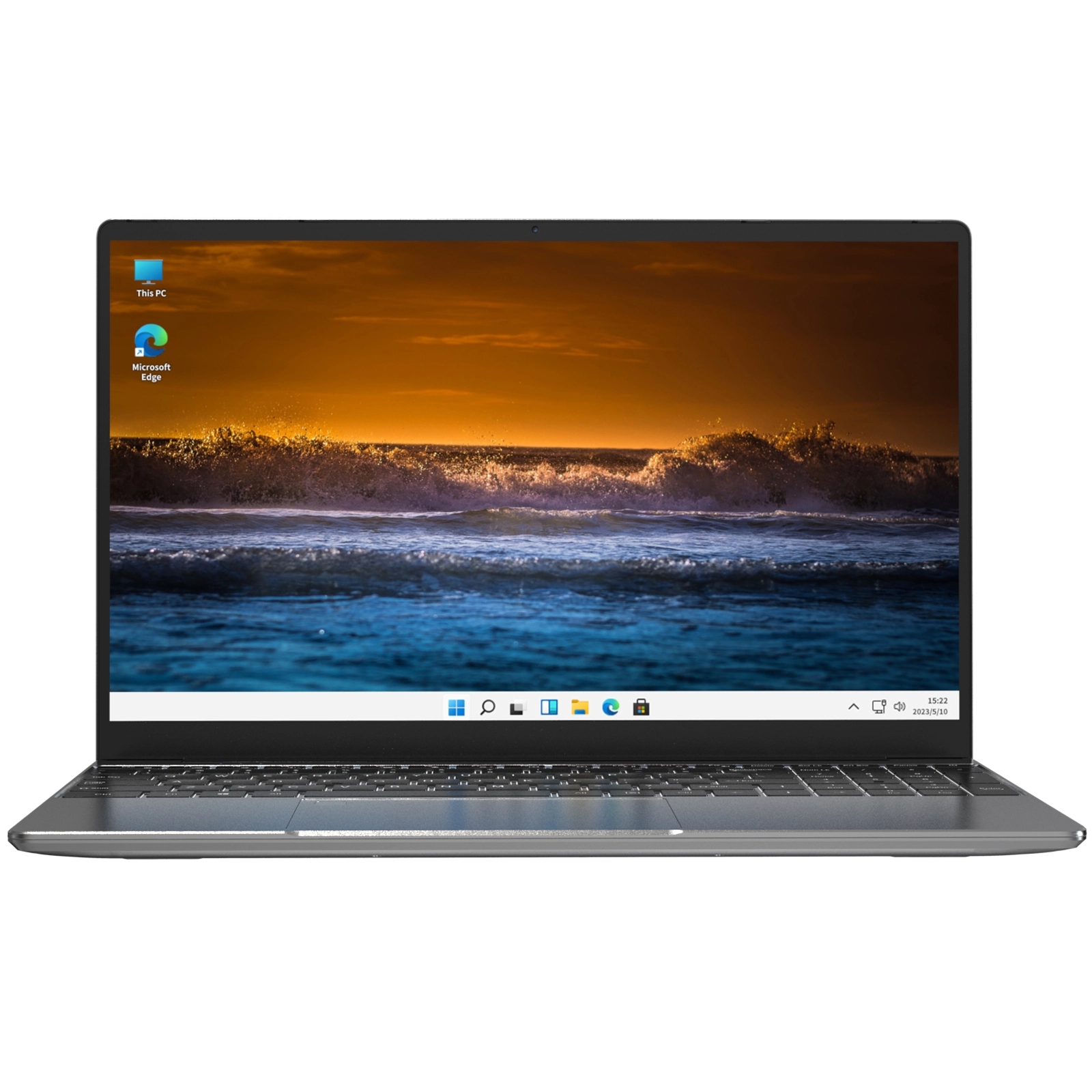
If you commute to campus and carry your laptop all day, a compact 13-14" machine is the move. The NXTCORE Lite G141J-N5095 ($199) is an easy-to-carry, budget-friendly pick for exactly this. If your laptop mostly stays in your dorm or home office and you want more screen real estate for long sessions, step up to the NXTCORE Flex Y156N ($359).
Also look for an IPS display if possible. IPS panels have better colors and viewing angles than TN panels — important when you're studying with friends or presenting in class.
4. Processor: Don't Overthink This
Here's an unpopular opinion: for typical student tasks, the processor matters less than you think. Any modern processor from the last 3-4 years handles Word, Chrome, Zoom, and streaming without breaking a sweat. The days when you needed to carefully compare processor benchmarks for everyday tasks are behind us.
What to look for:
- Budget range ($179-$249): Intel Celeron N5095 or similar — handles everyday student tasks smoothly. This is what powers the NXTCORE Lite line.
- Mid-range ($329-$549): AMD Ryzen 5/7 or Intel Core i5/i7 — more than enough for basic student tasks, and great if you also do light creative work.
- Premium ($549+): Latest-gen Ryzen 7 or Intel Core i7 — only if your program specifically demands it.
5. Battery Life: The Underrated MVP
Nothing kills productivity like hunting for an outlet in a packed lecture hall. Look for at least 6-8 hours of real-world battery life. "Real-world" is key — manufacturers often quote 10-12 hours based on tests with the screen at minimum brightness playing a local video file. As a general rule, cut those claims by 30-40% for actual usage with Wi-Fi, multiple apps, and reasonable brightness.
If your laptop's battery is already degrading, read our laptop care tips to extend its lifespan before giving up on it.
Specs That Don't Matter Much for Students
- Dedicated graphics card (GPU): Unless you're gaming or in a design/engineering program, integrated graphics are fine. Skip the gaming laptop — save money and battery life.
- 4K display: On a 14" or 15" screen, the difference between 1080p and 4K is barely noticeable at normal viewing distance. 4K just drains your battery faster.
- Thunderbolt ports: Nice to have, not a dealbreaker. Regular USB-C works perfectly for everything students do.
- Fingerprint reader / Windows Hello: Convenient but not worth paying extra for. You'll type your password and survive.
The Chromebook Question
Chromebooks are tempting because they're cheap and simple. And honestly? For some students, they're perfectly fine. But there are real limitations to know about — especially for college students who might need specialized software. Our thorough Chromebook vs Windows laptop comparison breaks down the trade-offs.
The short version: if everything you do lives in a browser, a Chromebook works. If you need to install any desktop software at all, get a Windows laptop.
Best Laptop Specs by Major or Field of Study
| Field | RAM | Storage | CPU Priority |
|---|---|---|---|
| Liberal Arts / Humanities | 8GB | 256GB SSD | Low — any modern CPU |
| Business / Accounting | 8GB | 256GB SSD | Low-Medium |
| Science / Pre-Med | 8-16GB | 256-512GB SSD | Medium |
| Graphic Design / Art | 16GB | 512GB SSD | Medium-High |
| Computer Science | 16GB | 512GB SSD | High |
| Engineering / Architecture | 16-32GB | 512GB+ SSD | High + GPU |
Our Student Laptop Recommendations
NXTCORE's lineup spans $179 to $899, averaging about $396, so there's a right-sized pick for every student budget. Based on everything above, here's what we'd recommend at each price point:
- Ultra-budget ($179): NXTCORE Lite F146-4105 ($179) — the most affordable pick, ideal for note-taking, Google Docs, and browser-based coursework.
- Best value ($199-$219): NXTCORE Lite G141J-N5095 ($199) or the NXTCORE Lite F152G-5095 ($219) — dependable everyday machines for note-taking, research, and browser-based coursework.
- Everyday all-rounder ($329-$359): NXTCORE Flex S140N ($329) or NXTCORE Flex Y156N ($359) — roomier picks that are more comfortable for long study sessions.
- Power student ($459): NXTCORE Pro G1568-R7 ($459) — a step up into the performance line for CS, engineering, and creative majors who need real headroom.
For more options across all price ranges, browse our everyday laptops collection or check out our best budget laptops for 2026 roundup.
Frequently Asked Questions
How much RAM does a student laptop need?
For the vast majority of students, 8GB of RAM is the sweet spot. It comfortably handles a browser with 15-20 tabs plus Word, Zoom and music at the same time. Only step up to 16GB if you're in computer science, engineering, or a heavy design program.
Is an SSD really necessary for students?
Yes. An SSD is the single biggest factor in how fast and responsive a laptop feels. A 256GB SSD is the practical minimum in 2026, so prioritize solid-state storage over a slow mechanical hard drive when you compare options.
How much should a student spend on a laptop?
Most students are well served in the $179 to $359 range for typical coursework. NXTCORE's lineup starts at $179 and averages around $396, so you can buy exactly what you need today rather than overspending on specs you may never use.
Do students need a gaming laptop or dedicated GPU?
Almost never. Unless you're gaming or enrolled in a design or engineering program, integrated graphics are perfectly sufficient for writing, research, video calls and streaming. Skipping a dedicated GPU also saves money and improves battery life.
Final Advice: Buy What You Need Now, Not What You Might Need Later
The biggest mistake students make is "future-proofing" — spending $800 on specs they don't need because they might need them in two years. Technology changes fast. A $200 laptop that perfectly fits your needs today is a smarter buy than a $600 laptop with specs you never use. If your needs change, you can upgrade then — and the technology will be even better and cheaper.
Start with what you actually need. Save the rest. Your future self (and your bank account) will thank you.