Everyday
  About Company
 Refund Policy
 Privacy Policy
 Terms And Conditions
 Support
 Open Ticket
 Contact Us
 Knowledgebase
 News
News
Laptop Specs Explained for Beginners — What Actually Matters in 2026
Shopping for a laptop means confronting a wall of technical jargon: Intel Core i5, AMD Ryzen 7, 8GB DDR5, 256GB NVMe SSD, 15.6" FHD IPS, 45Wh battery. If you're not a tech enthusiast, having laptop specs explained in plain English matters — because manufacturers use confusing specifications to push you toward expensive models you probably don't need.
This beginner's guide cuts through the noise. We'll break down every major laptop specification, explain what actually matters for your use case, and help you avoid overpaying for specs that won't improve your experience. By the end, you'll be able to read any laptop listing and know exactly what you're getting. If you're still deciding on a category first, our complete guide to choosing the perfect laptop in 2026 is a great companion read.
The CPU (Processor): Your Laptop's Brain
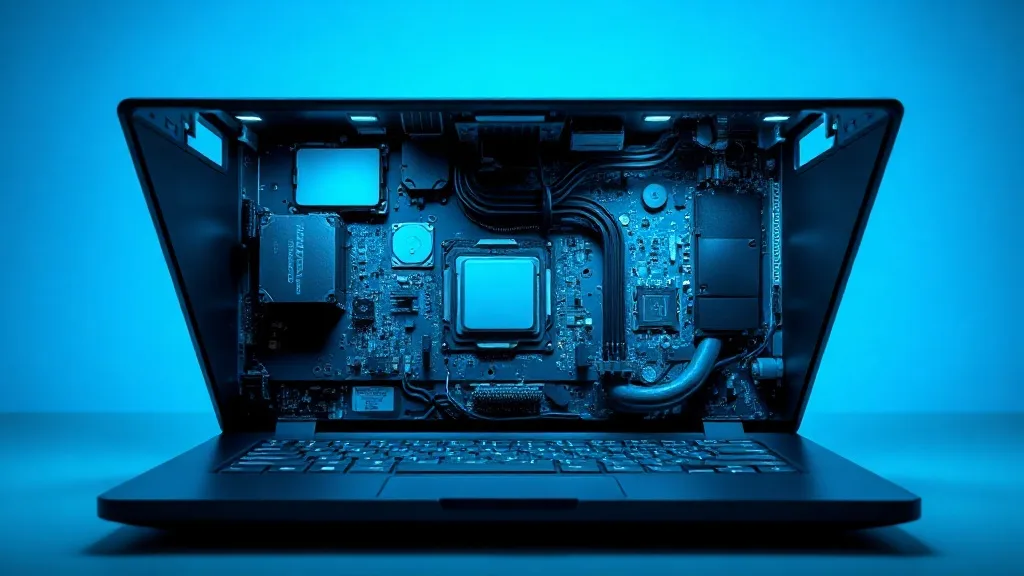
The CPU (Central Processing Unit) is the chip that executes every instruction your laptop carries out. It determines how fast your laptop can process tasks — from opening apps to running calculations to rendering web pages.
What the Names Mean
The two main laptop CPU manufacturers are Intel and AMD. Their naming conventions follow similar tiers:
- Budget tier: Intel Celeron/Pentium, AMD Athlon — handles basic tasks (web browsing, documents, email)
- Mid-range: Intel Core i3/i5, AMD Ryzen 3/5 — handles everyday work, multitasking, video calls, light creative work
- High-end: Intel Core i7/i9, AMD Ryzen 7/9 — handles heavy creative work, gaming, software development, video editing
What You Actually Need
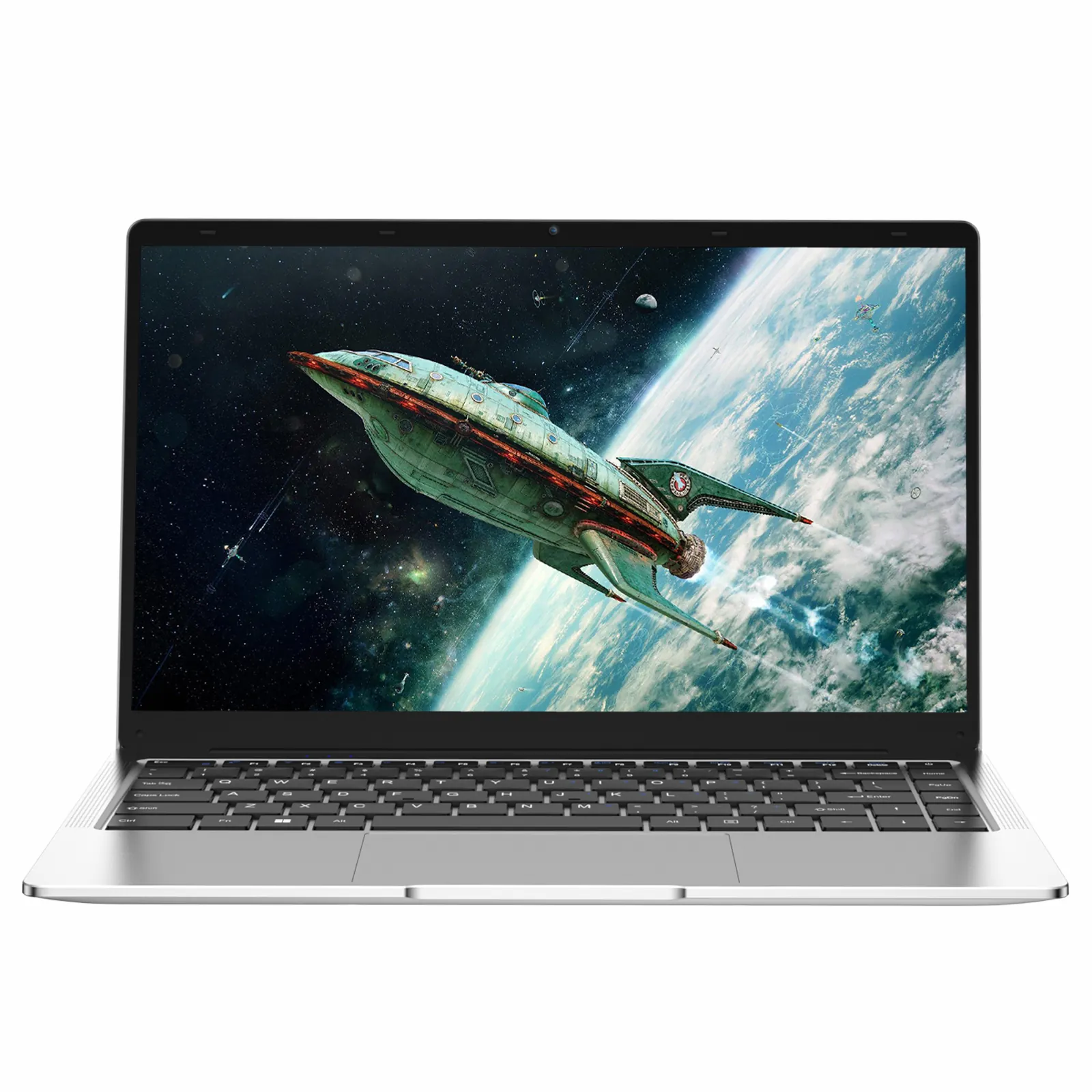
For everyday use — web browsing, email, documents, streaming, video calls — a budget or mid-range processor is perfectly fine. You don't need an Intel Core i7 to write essays, attend Zoom meetings, or manage spreadsheets. The NXTCORE Lite F146-4105 at $179 USD uses an efficient processor that handles daily tasks smoothly while keeping the price low.
You only need a high-end processor if you're doing CPU-intensive work: video editing, 3D rendering, compiling code, or running simulations. If those terms don't describe your workflow, save your money on the CPU and invest in RAM or storage instead.
RAM (Memory): Your Multitasking Capacity
We have a full guide to how much RAM you need, but here's the summary: RAM is your laptop's short-term working memory. It determines how many things you can do at once without your laptop slowing down.
- 4GB: Bare minimum. Usable for very light tasks only. Avoid if possible
- 8GB: The sweet spot. Handles web browsing, Office, video calls, and everyday multitasking
- 16GB: Ideal for creative work, development, heavy multitasking, and gaming
- 32GB+: Professional workstation use (video editing, 3D rendering, VMs)
For most people, 8GB is the right amount. It's enough for everything a typical student, remote worker, or casual user does. Don't pay extra for 16GB unless you have a specific reason — you can always upgrade later if your laptop has accessible RAM slots.
Storage: SSD vs HDD and How Much You Need
Storage is where all your files, programs, photos, and documents live permanently (unlike RAM, which clears when you shut down). There are two types:
- SSD (Solid State Drive): Fast, silent, no moving parts, durable. Your laptop boots in seconds, apps open instantly, and file transfers are quick. This is the standard in 2026
- HDD (Hard Disk Drive): Older technology with spinning metal platters. Cheaper per gigabyte but much slower, noisy, and fragile. Only found in the cheapest laptops — avoid if possible
You may also see NVMe vs SATA SSD. NVMe is newer and faster (roughly 3-5x faster read/write speeds). For everyday use, you won't notice the difference in daily tasks, but NVMe is nice to have and increasingly standard.
How Much Storage Do You Need?
- 128GB: Enough for light users who keep most files in cloud storage (Google Drive, OneDrive). Tight if you download lots of files or install many programs
- 256GB: The comfortable minimum. Room for Windows, your programs, documents, photos, and some media. Best value for most users
- 512GB: Ideal if you store lots of photos, videos, or games locally
- 1TB+: For people who work with large video files, extensive photo libraries, or many games
Display: Size, Resolution, and Panel Type
The display is what you'll stare at for hours every day, so it matters more than most people realize. Here are the three things to check:
Screen Size
- 11-13": Ultra-portable. Great for travel and light use. Can feel cramped for long work sessions or multitasking
- 14": The best balance of portability and usability. Increasingly the most popular size
- 15.6": The traditional standard. Comfortable for work and entertainment, but heavier
- 17": Desktop replacement. Great screen real estate but heavy and not truly portable
Resolution
- HD (1366x768): Low resolution by 2026 standards. Text looks fuzzy, and you can see individual pixels. Avoid for laptops 14" and larger
- Full HD / FHD (1920x1080): The standard. Sharp, clear text and images. This is what you want for most use cases
- QHD (2560x1440) / 4K (3840x2160): Extremely sharp. Useful for creative professionals who need color accuracy. Drains battery faster. Overkill for document work and web browsing
Panel Type
- IPS (In-Plane Switching): Good viewing angles and color accuracy. The standard for mid-range and above laptops. This is what you want
- TN (Twisted Nematic): Cheaper, but colors wash out when viewed from an angle. Common in the cheapest laptops. Acceptable for budget machines if you're usually sitting directly in front of the screen
- OLED: Beautiful deep blacks and vivid colors. Found in premium laptops. Nice for media consumption and creative work, but expensive and can have burn-in issues over time
The bottom line: aim for a Full HD IPS display if your budget allows it. It's the best bang for your buck in terms of visual quality.
Battery Life: Real-World vs Advertised
Every manufacturer advertises battery life in hours, but independent reviewers consistently report that these numbers are overstated. A laptop advertised as "10 hours" typically delivers 6-7 hours in real-world mixed use (browsing, typing, video calls, some streaming).
Here's a realistic rule of thumb:
- Advertised 6-8 hours: Expect 4-5 hours of real use. You'll need to charge during a full work or school day
- Advertised 10-12 hours: Expect 6-8 hours. Enough to get through most of a day without a charger
- Advertised 14+ hours: Expect 8-10 hours. True all-day battery — but typically only found in premium ultrabooks or Chromebooks
Battery capacity is measured in Watt-hours (Wh). Higher Wh means more capacity. Look for at least 40Wh in a budget laptop. Key tip: screen brightness is the biggest battery drain — lower it to 50-70% and your battery will last significantly longer.
Ports: The Connections That Matter
Ports are the physical connectors on the sides of your laptop. In the age of Bluetooth and wireless everything, ports might seem less important — but they still matter. Here's what to look for:
- USB-A: The standard rectangular USB port you've used for years. Still used by most flash drives, mice, keyboards, and printers. Make sure your laptop has at least one
- USB-C: The newer, smaller, reversible port. Can carry data, video output, and power (charging). Increasingly standard, but USB-A is still more universal for accessories
- HDMI: Connects to monitors, TVs, and projectors. Essential for presentations and dual-monitor setups. Many budget laptops include mini-HDMI, which requires a cheap adapter
- 3.5mm audio jack: For wired headphones and earbuds. Not all laptops still have this, so check if you prefer wired audio
- SD card reader: Useful for photographers or anyone who works with camera memory cards
A common mistake with ultra-thin laptops: they cut ports to save space, then you spend $50-$100 on USB-C dongles and hubs. The NXTCORE Flex range includes practical port selections so you can plug in your devices without extra adapters.
Build Quality and Weight
These specs don't show up in comparison charts, but they matter:
- Weight: Budget laptops typically weigh 1.5-2.5 kg (3.3-5.5 lbs). If you carry your laptop daily, aim for under 2 kg. If it mostly stays on a desk, weight matters less
- Hinge quality: A good hinge opens smoothly, stays at the angle you set, and doesn't wobble. Cheap hinges are the first thing to break on budget laptops
- Keyboard feel: Key travel (how far keys press down) and feedback matter for typing comfort. Look for at least 1.2mm key travel if you type a lot
- Chassis material: Plastic is standard for budget laptops and perfectly fine. Metal (aluminum) is more rigid and premium-feeling but adds cost
Which Specs Matter Most? A Priority Guide
If you're on a budget and can't maximize everything, here's where to allocate your money — in order of priority:
- RAM (8GB minimum): The single biggest impact on everyday smoothness
- Storage type (SSD over HDD): An SSD makes everything feel faster — boot times, app launches, file access
- Display (Full HD if possible): You stare at the screen all day, so sharpness matters for eye comfort
- CPU (mid-range is fine): A budget or mid-range processor handles everyday work perfectly
- Battery life (check Wh rating): Important if you're often away from an outlet
- Ports (at least 2 USB + HDMI): Saves you from buying adapters
| User type | Priority spec | Sensible target | Real NXTCORE match |
|---|---|---|---|
| Student / everyday | RAM + SSD | 8GB RAM, 256GB SSD | NXTCORE Lite F146-4105 — $179 |
| Remote worker | RAM + display | 8GB RAM, Full HD IPS | NXTCORE Flex S140N — $329 |
| Creative / power user | CPU + RAM | Core i5/Ryzen 5+, 16GB | NXTCORE Pro 1165G7 — $549 |
| Heavy multitasker | CPU + storage | Higher-tier CPU, 512GB+ | NXTCORE Ultra GLT163Max — $899 |
Putting It All Together: Smart Spec Shopping
Now that you understand what every spec means, here's the practical takeaway: buy for how you actually use a laptop, not for the highest numbers. A $1,200 laptop with an i7 processor and 16GB of RAM is wasted on someone who browses the web, writes documents, and attends video calls. The NXTCORE Lite F146-4105 at $179 USD handles all of those tasks smoothly — at a fraction of the price.
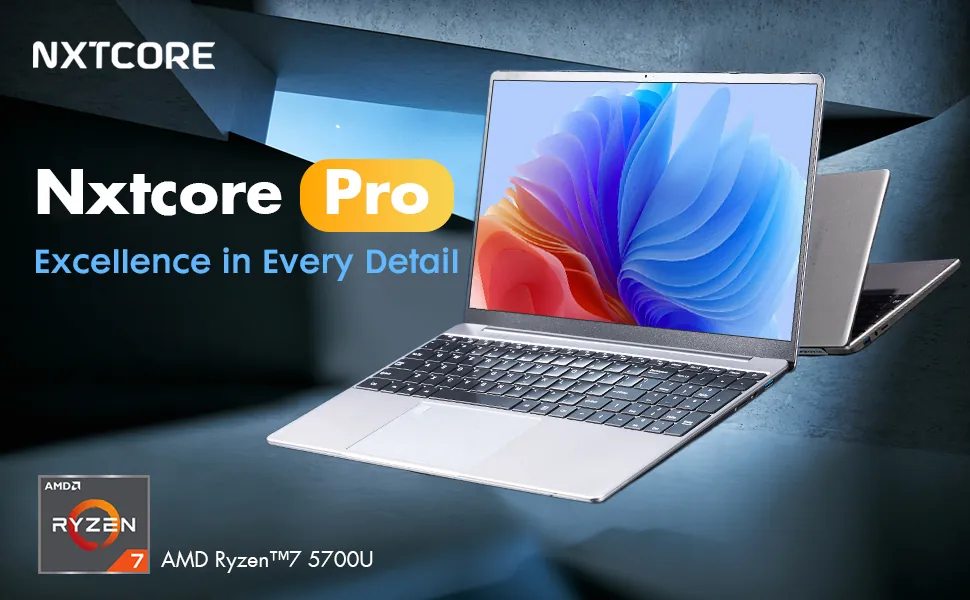
For heavier workloads — creative work, development, intensive multitasking — the NXTCORE Performance range, from the Pro 1030NG7 ($369) up to the Ultra GLT163Max ($899), offers higher specs where it counts, without the markup of major brands. Want ranked value picks first? See our roundup of the best budget laptops of 2026.
Every NXTCORE laptop ships with free shipping to the US and Canada, configurable specs so you choose exactly what you need, and pricing that reflects fair value — not brand-name inflation.
Frequently Asked Questions
What laptop specs matter most for beginners in 2026?
For most beginners, RAM and storage type matter most. Aim for at least 8GB of RAM and an SSD (not an HDD), then a Full HD IPS display. A mid-range CPU is plenty for everyday browsing, documents, and video calls.
How much RAM does a laptop need?
8GB is the sweet spot for everyday use and light multitasking. Choose 16GB for creative work, development, or gaming. Our full RAM guide breaks it down further.
Is an SSD or HDD better?
An SSD is far better for almost everyone. It boots in seconds, launches apps instantly, and is more durable. HDDs are cheaper per gigabyte but slow and fragile — only worth it if you need very large local storage on a tight budget.
Do I need an Intel Core i7 for everyday tasks?
No. A budget or mid-range processor (Intel Core i3/i5 or AMD Ryzen 3/5) handles browsing, email, documents, streaming, and video calls with ease. Save the i7 for video editing, 3D rendering, or heavy development.
How much should I spend on a good beginner laptop?
You can get a capable everyday laptop for well under $400. NXTCORE's lineup spans $179 to $899 (averaging about $396), so a machine like the NXTCORE Lite F146-4105 at $179 covers everyday needs without overspending on specs you won't use.