Everyday
  About Company
 Refund Policy
 Privacy Policy
 Terms And Conditions
 Support
 Open Ticket
 Contact Us
 Knowledgebase
 News
News

Essential Laptop Care Tips: 7 Ways to Extend Your Laptop's Lifespan
Good laptop care is the cheapest upgrade you'll ever make. Your laptop is a significant investment, and with the right maintenance habits it can serve you reliably for years. Whether you own a performance machine or a slim everyday ultrabook, these seven laptop care tips will keep your device running at peak performance and help you avoid costly repairs — or an early replacement.
| Maintenance Task | How Often | Why It Matters |
|---|---|---|
| Blow dust from vents & fans | Monthly | Prevents overheating and thermal throttling |
| Wipe screen & keyboard | Quarterly | Protects surfaces and hygiene |
| Update OS, drivers & firmware | Monthly / as released | Security patches and stability |
| Check storage is 15–20% free | Monthly | Keeps the SSD fast and healthy |
| Restart fully | Weekly | Clears memory and applies updates |
1. Keep Your Laptop Clean — Inside and Out
Dust is your laptop's silent enemy. Over time it accumulates in vents, fans, and heat sinks, blocking airflow and causing your laptop to run hotter. Higher temperatures lead to thermal throttling, where the processor slows down to protect itself — meaning your laptop gets slower over time not because it's aging, but because it's overheating.
- Monthly: Use compressed air to blow dust out of vents and keyboard gaps. Hold the can upright and use short bursts
- Quarterly: Wipe the screen with a microfiber cloth and distilled water (never spray directly on the screen). Clean the keyboard with isopropyl alcohol and a cotton swab
- Annually: If you're comfortable, open the back panel and clean internal fans and heat sinks. On laptops that run hot under load, this makes a noticeable difference
Pro tip: Never use a vacuum cleaner on your laptop — it can generate static electricity that damages components.
2. Protect Your Battery Health
Lithium-ion batteries degrade over time, but your charging habits strongly influence how quickly. As a general rule, a well-maintained battery may retain roughly 80% of its capacity after a few years, while a neglected one can fall much faster.
- Avoid extremes: Don't routinely drain to 0% or sit plugged in at 100% for days. A 20–80% range is widely recommended
- Use a charge limiter: Many modern laptops offer a BIOS setting or software tool to cap charging at 80%. Enable it if you mostly use your laptop plugged in
- Avoid heat: Degradation accelerates at high temperatures. Don't use your laptop on soft surfaces (beds, pillows) that block airflow, and never leave it in a hot car
- Calibrate occasionally: Every 2–3 months, let the battery drain to about 10% then charge to 100% to keep the battery gauge accurate
3. Manage Your Storage Wisely
A nearly full SSD doesn't just mean you're running out of space — it can actually perform worse. SSDs need free space to manage wear leveling and garbage collection, and once a drive exceeds about 85–90% capacity, write speeds can drop noticeably. If your storage is constantly full, it may also be a sign you're ready for a machine with more headroom — our guide to how much RAM and storage you actually need can help you plan.
- Keep 15–20% free: This helps your SSD maintain optimal performance and longevity
- Uninstall unused applications: Review your installed programs quarterly and remove anything you haven't opened in months
- Use cloud storage: Move photos, videos, and documents you don't access daily to a cloud service
- Empty the recycle bin: Deleted files still occupy space until the bin is emptied
- Clear browser cache: Browsers can quietly accumulate gigabytes of cached data over time
4. Keep Your Software Updated
Software updates aren't just about new features — they patch security vulnerabilities and often include performance improvements. Running outdated software exposes you to malware and can cause compatibility issues.
- Operating system: Enable automatic Windows or macOS updates. These include critical security patches
- Drivers: Keep GPU, chipset, and network drivers current. Outdated GPU drivers are a common cause of graphics glitches and crashes
- BIOS/firmware: Check your manufacturer's website periodically for BIOS updates, which can improve stability, battery life, and even fan behavior
- Applications: Enable auto-updates for browsers, productivity apps, and security software
5. Use a Laptop Stand or Cooling Pad
Elevating your laptop improves airflow under the chassis. Independent reviewers consistently report that better airflow can lower operating temperatures by several degrees, and cooler components mean better sustained performance, quieter fans, and longer lifespan.
- Laptop stand: Simple, portable, and raises the laptop for better ergonomics and airflow. Ideal for everyday and general-use laptops
- Cooling pad: Adds built-in fans for active cooling. Worth it for heavier workloads like video editing, 3D rendering, or gaming
- DIY alternative: Even propping the back of your laptop up by half an inch (with a book or bottle cap) improves airflow noticeably
This matters most for performance laptops that generate substantial heat during extended work or gaming sessions.
6. Protect Against Physical Damage
Laptops are portable by nature, which means they face physical hazards that desktops never encounter. A few precautions can prevent expensive repairs.
- Use a quality laptop bag: A padded sleeve or a bag with a dedicated laptop compartment protects against bumps and drops in transit
- Never carry it open: The hinge and display are vulnerable when the laptop is open. Always close the lid before moving it
- Watch your liquids: Keep drinks away from your laptop. A spill can destroy a motherboard in seconds. If a spill happens, immediately power off, flip it upside down, and let it dry completely before turning it on
- Don't stack things on it: Placing heavy objects on a closed laptop can crack the display panel
- Handle with clean hands: Skin oils accumulate on the keyboard, trackpad, and screen over time
7. Optimize Your Startup and Background Processes
Over time, software installations add startup programs and background services that consume RAM and CPU resources, gradually slowing your laptop. Regular cleanup keeps things responsive.
- Review startup programs: Open Task Manager (Ctrl+Shift+Esc) → Startup tab. Disable anything you don't need immediately at boot
- Check background processes: Some apps run background services even when closed. Review and disable unnecessary ones in Settings → Apps → Startup
- Browser extensions: Each extension consumes memory. Remove ones you don't actively use
- Restart regularly: A weekly restart clears temporary files, flushes memory, and applies pending updates. Don't just close the lid for weeks on end
When It's Time for an Upgrade
Even with perfect maintenance, every laptop eventually reaches the end of its practical lifespan. Here are the signs it's time to consider a replacement:
- Battery lasts less than 2 hours despite good charging practices
- It can't run the software you rely on at an acceptable speed
- Repairs would cost more than 40–50% of a new laptop's price
- It no longer receives security updates from the manufacturer
- Frequent crashes or hardware failures despite proper care
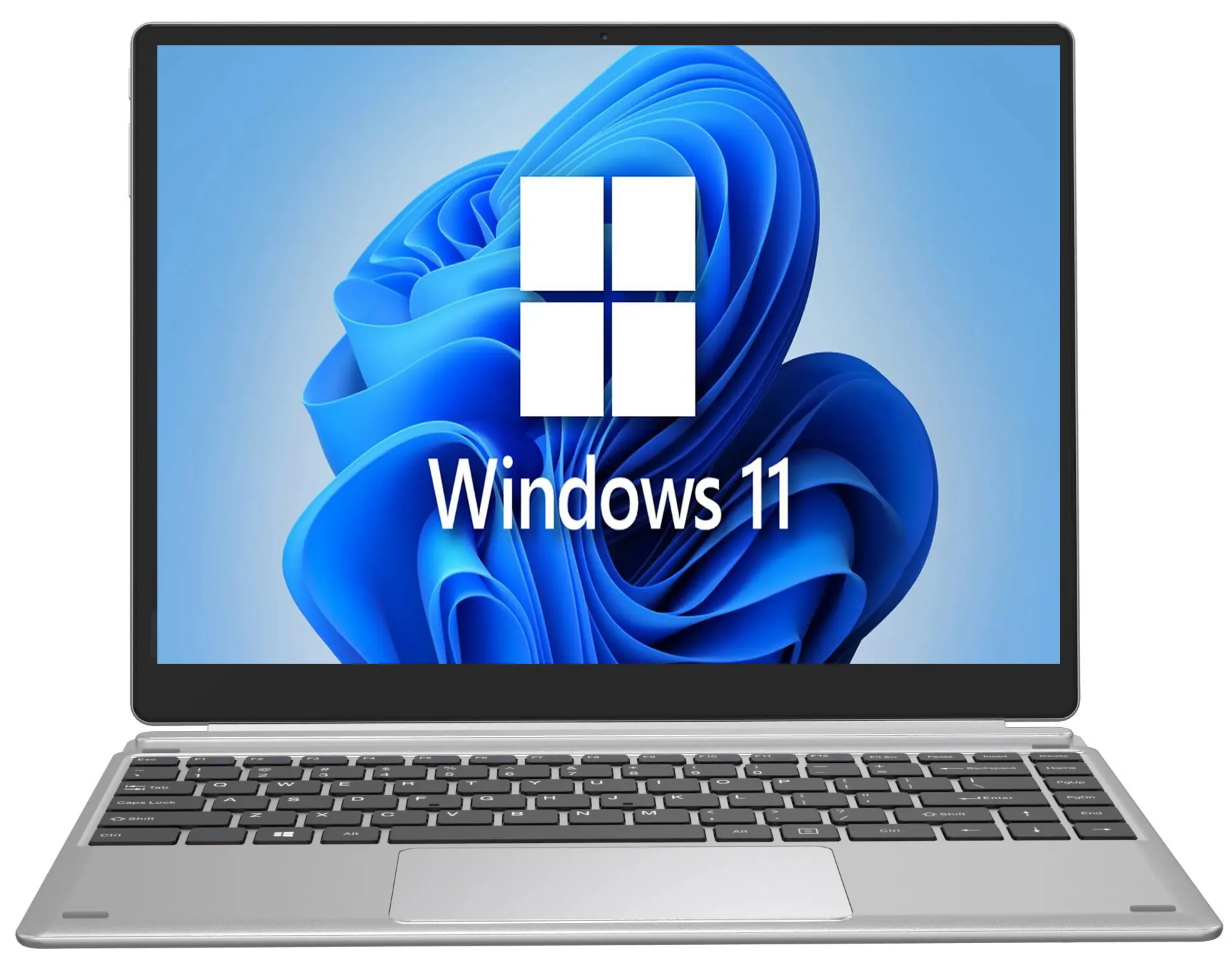
When that time comes, NXTCORE's lineup spans $179 to $899, averaging about $396. For dependable daily use, the NXTCORE Flex S140N ($329) is a strong everyday pick, while the NXTCORE Pro 1030NG7 ($369) steps up for heavier multitasking. On the tightest budget, the entry-level NXTCORE Lite F146-4105 ($179) covers the basics. Not sure what to buy? Read our guide on how to choose the perfect laptop, or compare formats with gaming laptop vs desktop. You can also browse the full catalog at the NXTCORE store.
Frequently Asked Questions
How often should I clean my laptop's fans?
Blow dust from the vents with compressed air about once a month, and do a deeper internal cleaning roughly once a year if you're comfortable opening the back panel. Laptops used in dusty rooms or under heavy load may need more frequent attention.
Should I keep my laptop plugged in all the time?
It's fine to work plugged in, but avoid sitting at 100% for days at a time. If your laptop offers a charge limiter, capping charging around 80% is widely recommended to slow lithium-ion battery wear.
How much free storage should I leave on my SSD?
Aim to keep at least 15–20% of your SSD free. Once a drive climbs past roughly 85–90% capacity, write performance can drop and the drive works harder to manage wear leveling.
How long should a well-maintained laptop last?
With consistent care, many laptops remain useful for several years before software demands or battery wear make an upgrade worthwhile. When repairs approach half the cost of a new machine, replacement usually makes more sense — see our advice on choosing the perfect laptop.