Everyday
  About Company
 Refund Policy
 Privacy Policy
 Terms And Conditions
 Support
 Open Ticket
 Contact Us
 Knowledgebase
 News
News

You just got a new laptop. Windows is installed, updates are done, and that blank desktop is staring back at you. Now what? You need software — but the best free software in 2026 means you do not need to spend a dime to get a fully loaded machine. The free-software ecosystem is stronger than ever, and most people can handle 90% of their computing needs without paying for a single app.
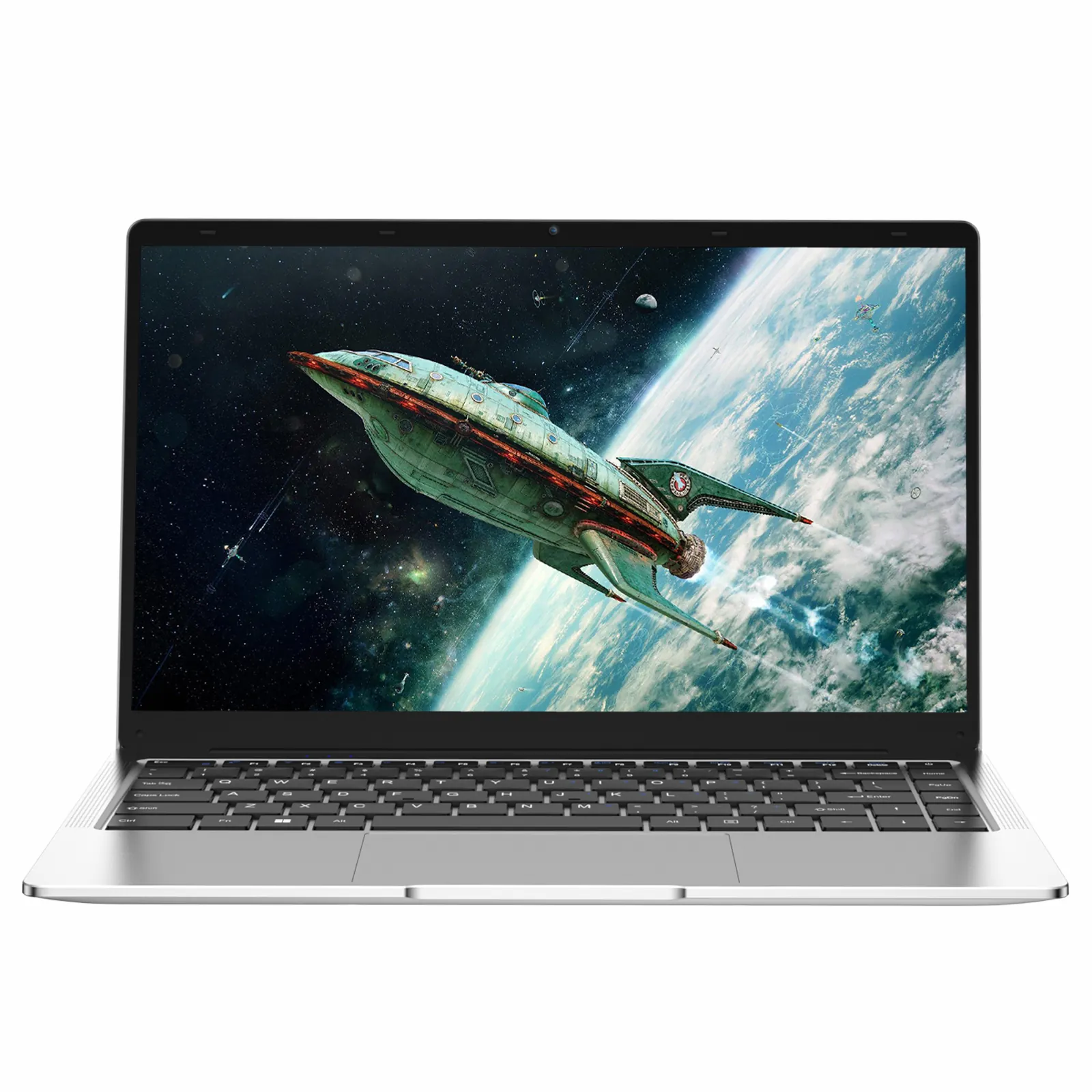
Whether you are setting up a budget-friendly everyday laptop like the NXTCORE Lite F152G-5095 ($219) or a higher-performance NXTCORE Pro, here are the best free programs to install right away. New to picking hardware? Start with our guide to laptop specs explained for beginners.
The Best Free Software to Install First
Web Browsers
Your browser is probably the app you will use most. While Microsoft Edge comes pre-installed and has improved dramatically, here are the best free alternatives:
- Google Chrome — The most popular browser. Massive extension library, excellent sync across devices, and strong developer tools. Uses more RAM than alternatives but unmatched in compatibility.
- Mozilla Firefox — Best for privacy. Open-source, blocks trackers by default, and uses less memory than Chrome. The container tabs feature is brilliant for separating work and personal browsing.
- Brave — Built-in ad blocker, great performance, Chromium-based so it runs all Chrome extensions. Ideal if you are tired of ads everywhere.
Productivity and Office Software
You do not need to pay for Microsoft Office to create documents, spreadsheets, and presentations.
- LibreOffice — The gold standard of free office suites. Writer, Calc, and Impress handle Word, Excel, and PowerPoint files beautifully. Fully offline, open-source, and regularly updated.
- Google Docs / Sheets / Slides — Free with any Google account. Works entirely in your browser, auto-saves to the cloud, and collaboration features are best-in-class. Perfect for students and team projects.
- Notion — More than a note-taking app. Combines documents, databases, task management, and wikis into one tool. The free plan is generous enough for personal use.
- Obsidian — A powerful markdown-based note-taking tool that stores everything locally. Great for writers, researchers, and anyone building a personal knowledge base.
Security and Privacy Tools
Windows Defender handles antivirus, but these free tools fill the gaps:
- Bitwarden — The best free password manager, period. Open-source, end-to-end encrypted, syncs across all devices. Stop reusing passwords — this makes it easy.
- Malwarebytes Free — Run occasional on-demand scans to catch anything Windows Defender might miss. The free version does not run in the background, so it will not slow things down.
- ProtonVPN — Free tier with no data limits and no ads. Slower than paid VPNs but perfectly fine for securing public Wi-Fi connections at coffee shops or airports.
Media Players and Entertainment
- VLC Media Player — Plays absolutely everything. Every video format, every audio format, DVDs, streaming URLs. No codecs to install, no nonsense. This should be on every laptop.
- Spotify — Free tier with ads gives you access to the entire music library. The desktop app is polished and lightweight.
- foobar2000 — Lightweight, customizable music player for audiophiles who prefer local files. Supports every audio format including FLAC and DSD.
File Management and Utilities
- 7-Zip — Handles ZIP, RAR, 7z, and basically every compressed format. Tiny, fast, and integrates into the right-click menu. No reason to pay for WinRAR.
- Everything — Instant file search across your entire drive. Type a filename and results appear as you type. Makes Windows Search feel like it belongs in 2005.
- TreeSize Free — Visual breakdown of what is eating your storage. Essential if your SSD fills up and you are not sure why. Pairs well with our laptop care tips for keeping your laptop running like new.
- PowerToys — Microsoft's own collection of utilities for power users. FancyZones for window management, Color Picker, File Rename, and more. Free from the Microsoft Store.
Photo and Video Editing
You do not need Adobe to create great visual content:
- GIMP — Full-featured image editor that handles layers, masks, filters, and advanced retouching. The learning curve is steeper than Photoshop, but the price (free) cannot be beat.
- Photopea — Photoshop clone that runs entirely in your browser. Opens PSD files, supports layers, and requires zero installation. Incredibly impressive.
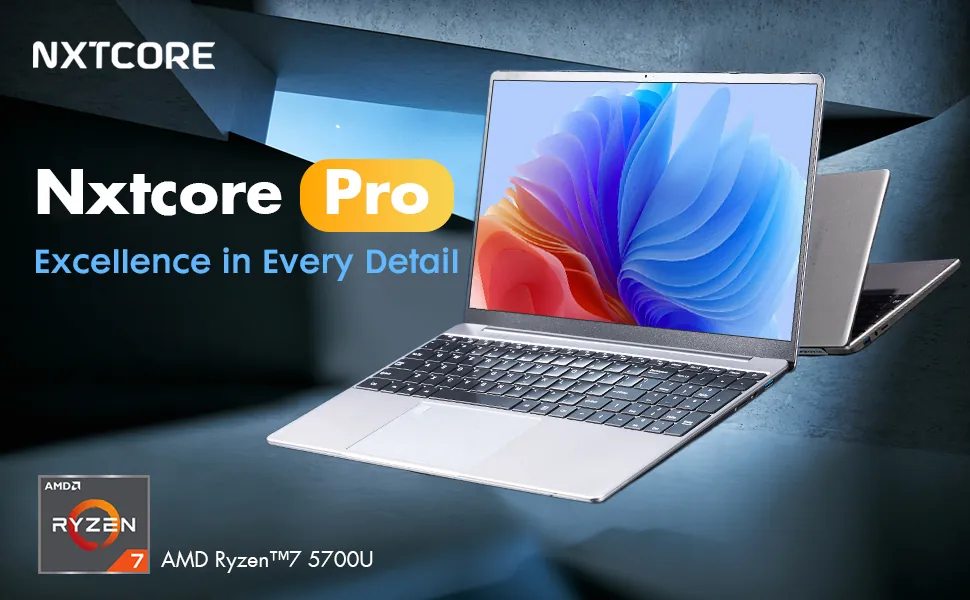
- DaVinci Resolve — Professional-grade video editor used in Hollywood, and the free version includes everything most creators need. Color grading, visual effects, audio mixing — all free. Runs best with more RAM and a faster CPU, so a mid-range NXTCORE Pro 1165G7 ($549) with Iris Xe graphics is a comfortable home for basic editing.
- Clipchamp — Microsoft's built-in video editor (comes with Windows 11). Simple timeline editing, stock footage library, and easy export. Great for quick social media clips.
Communication
- Discord — Not just for gaming anymore. Communities for every interest, great voice and video quality, and excellent screen sharing.
- Zoom — Still the standard for work meetings and virtual classes. Free plan allows unlimited 1-on-1 calls and 40-minute group meetings.
- Thunderbird — Free email client from Mozilla. Manages multiple email accounts, calendars, and contacts in one place. Perfect if you juggle work and personal email.
Development and Learning
If you are a student, aspiring developer, or just curious:
- Visual Studio Code — The most popular code editor in the world. Lightweight, extensible, and supports every programming language. Even non-developers love it for editing configuration files and markdown.
- Python — Download from python.org. The most beginner-friendly programming language, essential for data science, automation, and AI.
- Git — Version control for any project. Even if you are not a developer, Git is increasingly useful for managing documents and collaborative work.
How to Install Everything Efficiently
Instead of downloading each app individually from different websites, use winget (Windows Package Manager) — it is built into Windows 11. Open a terminal and type commands like winget install VideoLAN.VLC or winget install 7zip.7zip. You can even create a script that installs everything at once. Alternatively, visit ninite.com, check all the apps you want, and download a single installer that does everything in one click.
You Do Not Need to Spend a Fortune on Software
Between free software and what comes built into Windows, you can handle work, school, entertainment, and creative projects without spending a cent on apps. The same philosophy applies to hardware — you do not need a $1,500 laptop to get real work done. A well-specced affordable NXTCORE laptop such as the NXTCORE Flex S140N ($329), paired with these free tools, gives you everything most people need. NXTCORE's lineup spans $179 to $899, averaging about $396.
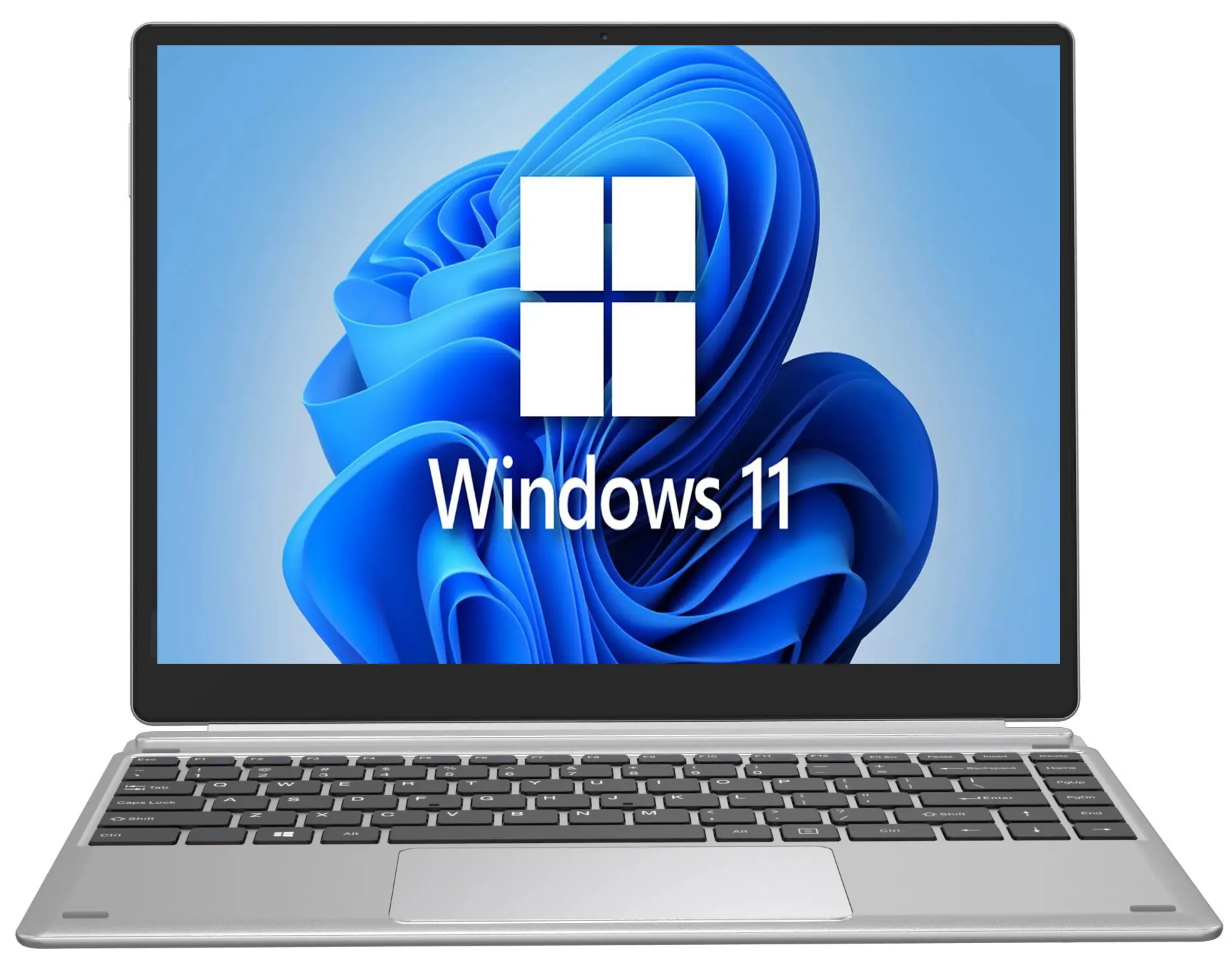
For more guidance on choosing the right specs, check out our breakdown of how much RAM you really need in 2026 and our roundup of the best cheap laptops in 2026.
Frequently Asked Questions
Is free software safe to install on a new laptop?
Yes — as long as you download it from the official website or a trusted source like the Microsoft Store or winget. Every app in this guide is either open-source or from a reputable developer. Avoid third-party "download" sites that bundle extra junk, and keep Windows Defender active for an added layer of protection.
Do I really need to pay for Microsoft Office?
No. LibreOffice and Google Docs both open and save Word, Excel, and PowerPoint files for free. For most students and home users they cover everything Microsoft Office does without a subscription.
What is the fastest way to install all this free software at once?
Use winget (built into Windows 11) to install apps from the command line, or visit ninite.com, tick the apps you want, and download a single installer that sets them all up in one click.
Can a budget laptop run all of these free programs?
Absolutely. Browsers, office suites, and utilities run comfortably on an entry-level machine like the NXTCORE Lite F152G-5095 ($219). Heavier tools such as DaVinci Resolve simply run smoother on a mid-range laptop with more RAM and a faster processor.