Everyday
  About Company
 Refund Policy
 Privacy Policy
 Terms And Conditions
 Support
 Open Ticket
 Contact Us
 Knowledgebase
 News
News
Setting up a new Windows laptop the right way makes the difference between a machine that stays fast and secure for years and one that feels sluggish within weeks. There is nothing quite like cracking open a brand-new laptop — the pristine screen, the fresh keyboard, that new-tech smell. But before you dive into binge-watching or downloading every app in sight, work through these first 10 steps so your laptop runs fast, stays secure, and truly feels like yours.
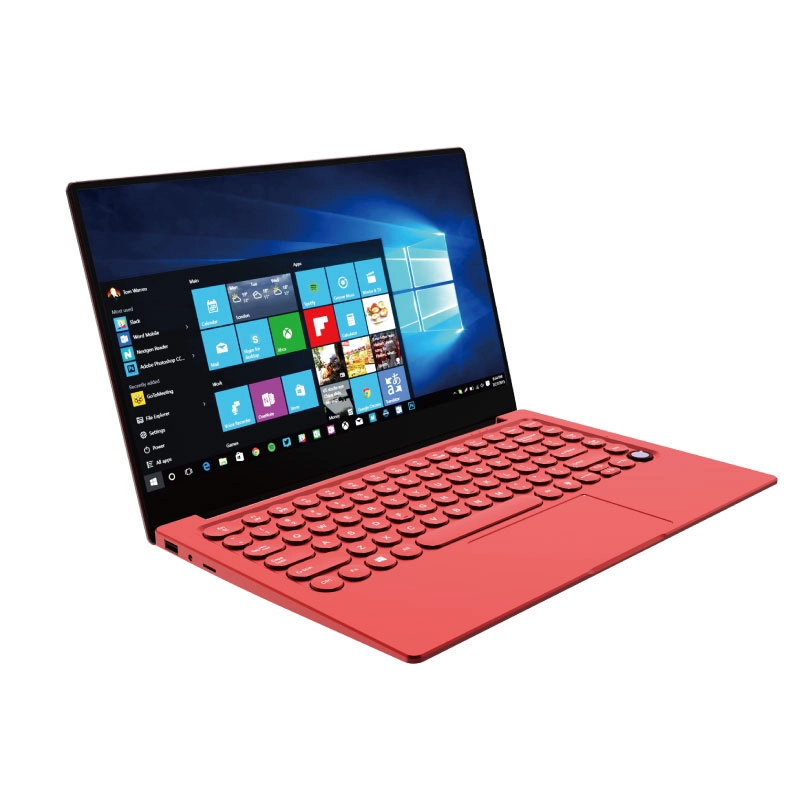
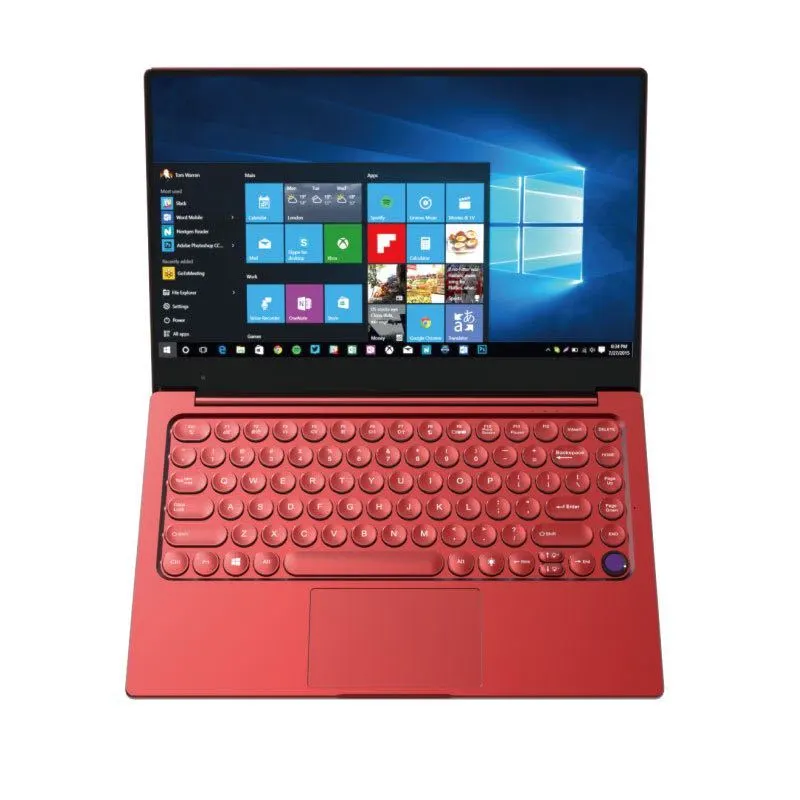
Whether you just picked up a budget-friendly entry model like the NXTCORE Lite (from $179) or a performance machine such as the NXTCORE Ultra GLT163Max ($899), these steps apply to every Windows laptop. Let's walk through the first 10 things you should do, in order.
Your 10-Step New Windows Laptop Setup Checklist
- Run all Windows updates
- Uninstall bloatware
- Set up Windows Security
- Create a system restore point
- Adjust power and display settings
- Set up your browser and sync
- Install essential free software
- Configure file backup
- Personalize your desktop
- Transfer files from your old laptop
1. Run All Windows Updates
This is the single most important thing you can do. Your laptop likely sat in a warehouse for weeks or months before reaching you, and Microsoft pushes critical security patches constantly. Go to Settings → Windows Update and click Check for updates. Let it download and install everything, then restart. You might need to repeat this two or three times until it says you are up to date. Yes, it is tedious. Yes, it is essential.
2. Uninstall Bloatware
Most laptops come packed with apps you never asked for — trial antivirus software, random games, manufacturer utilities you will never open. Head to Settings → Apps → Installed apps and scroll through the list. Anything you do not recognize or need? Uninstall it. Common culprits include antivirus trials, casual games, and various "helper" apps. This frees up storage and reduces background processes that slow you down.
How much preinstalled software you find depends on the brand and model, so it is always worth a quick pass through the installed-apps list on any new machine. If you are still shopping, you can compare current options in NXTCORE's range of affordable everyday laptops.
3. Set Up Windows Security
Windows Defender has become genuinely good. Open Windows Security from the Start menu and make sure everything shows green checkmarks. Enable Real-time protection, Cloud-delivered protection, and Automatic sample submission. Run a quick scan to establish a clean baseline. For most people, the built-in Windows Defender handles the job in 2026 without a paid third-party antivirus.
4. Create a System Restore Point
Before you start installing software and changing settings, create a restore point. Search for Create a restore point in the Start menu, select your system drive, click Create, and name it something like "Fresh Setup." If anything goes wrong later, you can roll back to this clean state. It takes about 30 seconds and could save you hours of troubleshooting down the line.
5. Adjust Power and Display Settings
Go to Settings → System → Power & battery and choose a power mode that fits your needs. "Balanced" is fine for most use cases. While you are there, set your screen timeout and sleep timers. Then head to Display settings and make sure you are running at your laptop's native resolution and recommended refresh rate. If your display supports a higher refresh rate such as 120Hz, enable it — the extra smoothness is immediately noticeable.
Want your battery to last for years, not months? Our essential laptop care tips cover charging habits and maintenance that pay off from day one.
6. Set Up Your Browser and Sync
If you use Chrome, Firefox, or Brave, download it and sign in to sync your bookmarks, passwords, and extensions from your old machine. This one step alone can save you an hour of manual setup. If you are starting fresh, take a moment to install a password manager like Bitwarden (free) — you will thank yourself later.
7. Install Essential Free Software
Every laptop needs a core set of tools. At minimum, grab a media player (VLC), a document suite (LibreOffice, or use Microsoft 365 online for free), and a file compression tool (7-Zip). Stick to official download pages to avoid bundled adware, and skip the "driver updater" and "PC cleaner" utilities — Windows already handles those jobs on its own.
8. Configure File Backup
Do not wait until you lose something important. Set up OneDrive (built into Windows) to automatically back up your Desktop, Documents, and Pictures folders. Go to Settings → Accounts → Windows backup and toggle on folder syncing. You get 5GB free with any Microsoft account. For extra safety, add an external drive for periodic local backups using Windows' built-in backup tool.
9. Personalize Your Desktop
This is the fun part. Right-click your desktop and choose Personalize. Pick a wallpaper, set your accent color, choose light or dark mode, and customize your taskbar. Unpin apps you will not use from the Start menu and pin the ones you will. Small tweaks like turning off taskbar widgets and disabling the news feed make your desktop feel much cleaner and less distracting.
10. Transfer Your Files From Your Old Laptop
If you are upgrading from an older machine, you will want to move your documents, photos, music, and other personal files over. The easiest methods are a USB drive, an external hard drive, or cloud storage such as OneDrive or Google Drive. For large libraries, a wired transfer or a fast USB 3.0 drive will save you plenty of waiting compared with copying over Wi-Fi.
Bonus: Check How Much RAM You Actually Have
Press Ctrl + Shift + Esc to open Task Manager, click the Performance tab, and check your RAM. If you are running 8GB and plan to multitask heavily, keep fewer browser tabs open or close background apps. Not sure if your RAM is enough? Read our guide on how much RAM you actually need in 2026.
Start Right, Stay Fast
The first hour with your new laptop sets the tone for the months and years ahead. Take the time to update, secure, and personalize it now, and you will avoid the headaches that come from cutting corners. Your future self will be grateful.
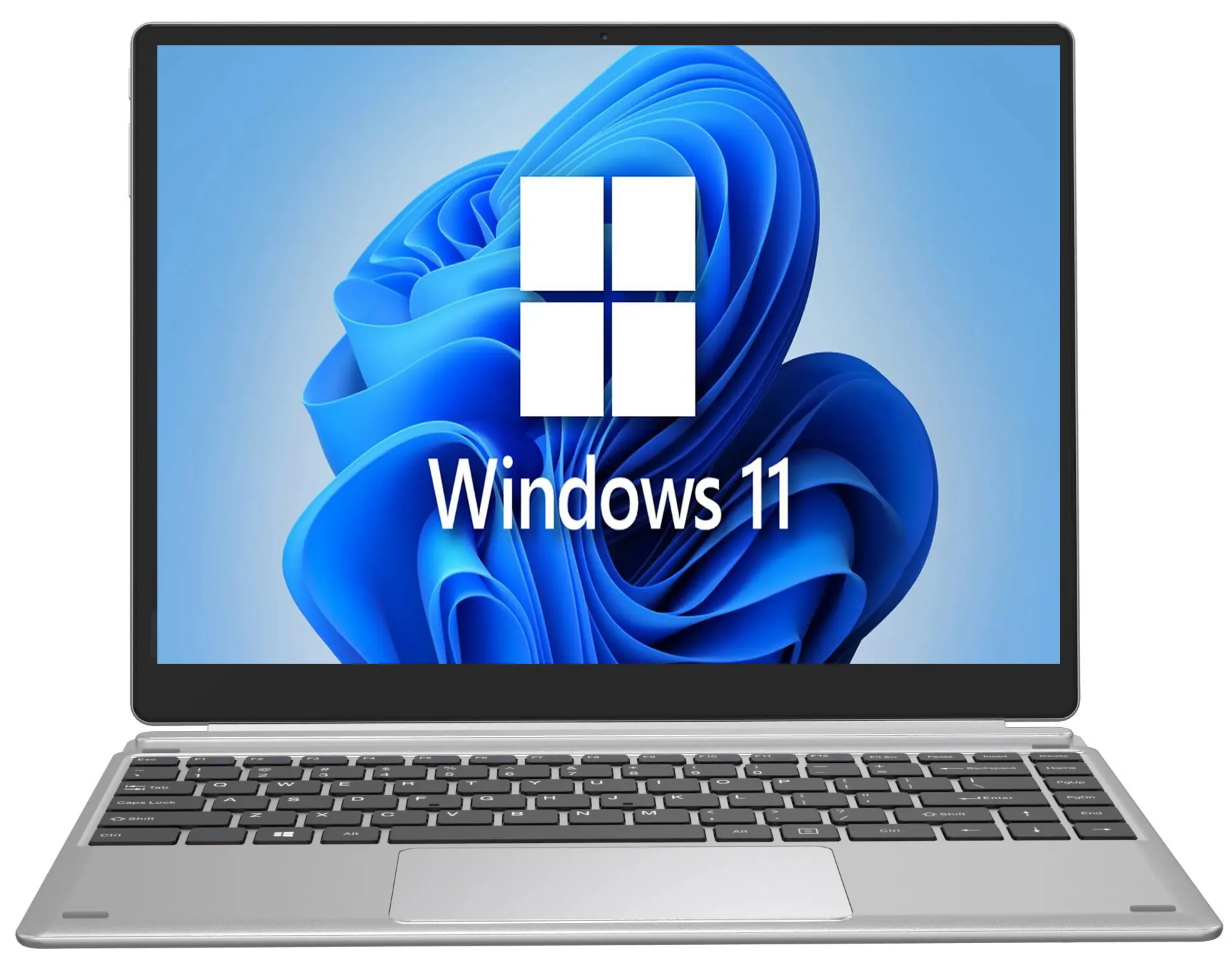
Looking for an affordable new laptop to set up next? Browse NXTCORE's lineup of affordable laptops, which spans $179 to $899 (averaging about $396) — from the entry-level NXTCORE Lite F146-4105 at $179 to the performance-focused NXTCORE Ultra GLT163Max at $899. Still deciding which model fits you? Start with our guide on how to choose the perfect laptop.
Frequently Asked Questions
Do I really need to update a brand-new Windows laptop?
Yes. A new laptop may have sat in storage for months, so it almost always ships with outdated software. Running Windows Update first installs critical security patches and driver fixes that keep your machine safe and running smoothly.
Should I install third-party antivirus on a new laptop?
For most users, no. The built-in Windows Security (Windows Defender) provides strong real-time protection in 2026. Combine it with safe browsing habits and a password manager, and you generally do not need a paid antivirus subscription.
How much RAM do I need for a new Windows laptop?
For everyday browsing, email, and documents, 8GB is a comfortable minimum, while 16GB gives you headroom for heavy multitasking. Our detailed RAM guide for 2026 breaks it down by use case.
How long does it take to set up a new Windows laptop?
Plan for roughly 30 to 60 minutes. Most of that time goes to downloading Windows updates, which can install in the background while you personalize your settings and sign in to your browser and accounts.