Everyday
  About Company
 Refund Policy
 Privacy Policy
 Terms And Conditions
 Support
 Open Ticket
 Contact Us
 Knowledgebase
 News
News
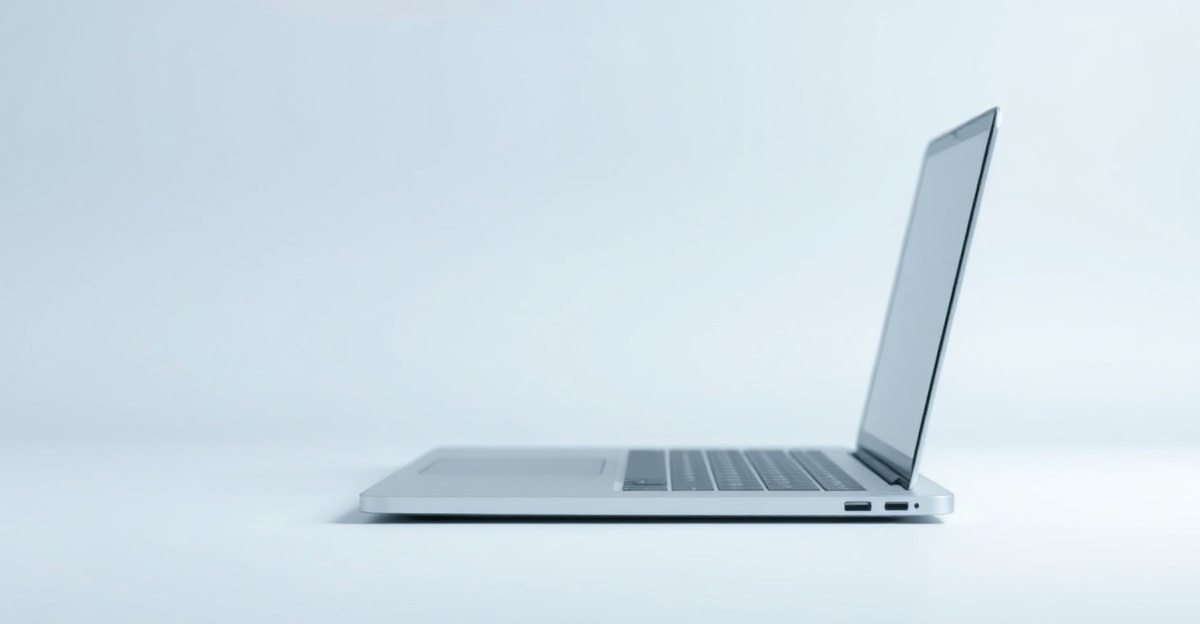
Between back-to-back lectures, a lecture hall with exactly one shared outlet, and a backpack that is already heavy with textbooks, a student laptop has one very specific job: get through a full day on campus and still have charge left for the evening study session. The best cheap laptops for students in 2026 keep the price under $400 while nailing the three things that dorm-and-campus life actually demands — battery that survives your class schedule, a weight you will not resent by 4 p.m., and enough headroom to run the everyday software your courses assign.
This guide is written for that reality, not for a spec-sheet beauty contest. Every laptop below ships with Windows 11 Pro, a one-year warranty, a 90-day return window, and free shipping across the US and Canada, so you can commit knowing there is a way out if a model does not fit your routine. We have curated the picks specifically for the student use case: writing papers, joining Zoom and Teams classes, living in a browser full of research tabs, annotating readings, and carrying the thing everywhere.
Battery, Weight, and Software: The Three Things That Actually Decide Your Day
Reviewers love to argue about processor generations, but for someone walking from a 9 a.m. seminar to an afternoon lab, the priorities are simpler. Before you compare any two models, weigh them against these three questions:
- Will it last my class schedule? If you are away from your dorm from morning until late afternoon, all-day battery matters more than raw speed.
- Will I hate carrying it? A laptop that feels fine in a store gets heavy after a semester of hauling it across a large campus.
- Will it run what my classes require? Most coursework lives in a browser and an office suite — but a few majors need more, and it is worth checking before you buy.
The rest of this guide is organized around those three questions, then finishes with the specific NXTCORE models that answer them best under $400.
All-Day Battery: Getting Through Classes Without Hunting for an Outlet
This is the single most under-appreciated spec for students. Outlets in lecture halls are scarce and usually already claimed, so a laptop that needs a top-up by lunch quietly reshapes your whole day around finding power.
The good news is that the low-cost processors in this price band — Intel's Celeron and Pentium Silver chips, plus the low-wattage Core i5 in the step-up Pro model — are designed for efficiency rather than brute force, which is exactly why they sip power. Manufacturer ratings and published reviews for these low-TDP platforms generally point to a full working day of light productivity on a single charge. Your real mileage will be lower than any headline figure, and it drops fastest with three things: screen brightness cranked to maximum, sustained video calls, and a browser holding thirty tabs. Keep brightness near 50 percent, close the tabs you are not reading, and a morning-to-afternoon run between charges is a realistic target for these machines.
- Turn on Windows 11 battery saver below 40 percent — it throttles background sync and noticeably extends the last stretch of the day.
- Prefer the browser version of Teams, Zoom, or your LMS when you can; native apps often keep more awake in the background.
- Carry the charger only on long days. For most schedules you will not need it, which is the whole point of choosing an efficient chip.
Weight and Portability: What You Will Actually Carry Across Campus
A laptop you carry five days a week is a fitness decision as much as a computing one. The sub-$400 picks here come in two footprints, and the right one depends on how far and how often you walk.
- 14-inch Lite models are the easy-carry choice — the smallest, lightest option here, ideal for commuters and anyone crossing a large campus between distant buildings.
- 15.6-inch models trade a little portability for more screen, which helps when you want a reading open beside a draft. Better for students who mostly move between a dorm desk and a nearby library.
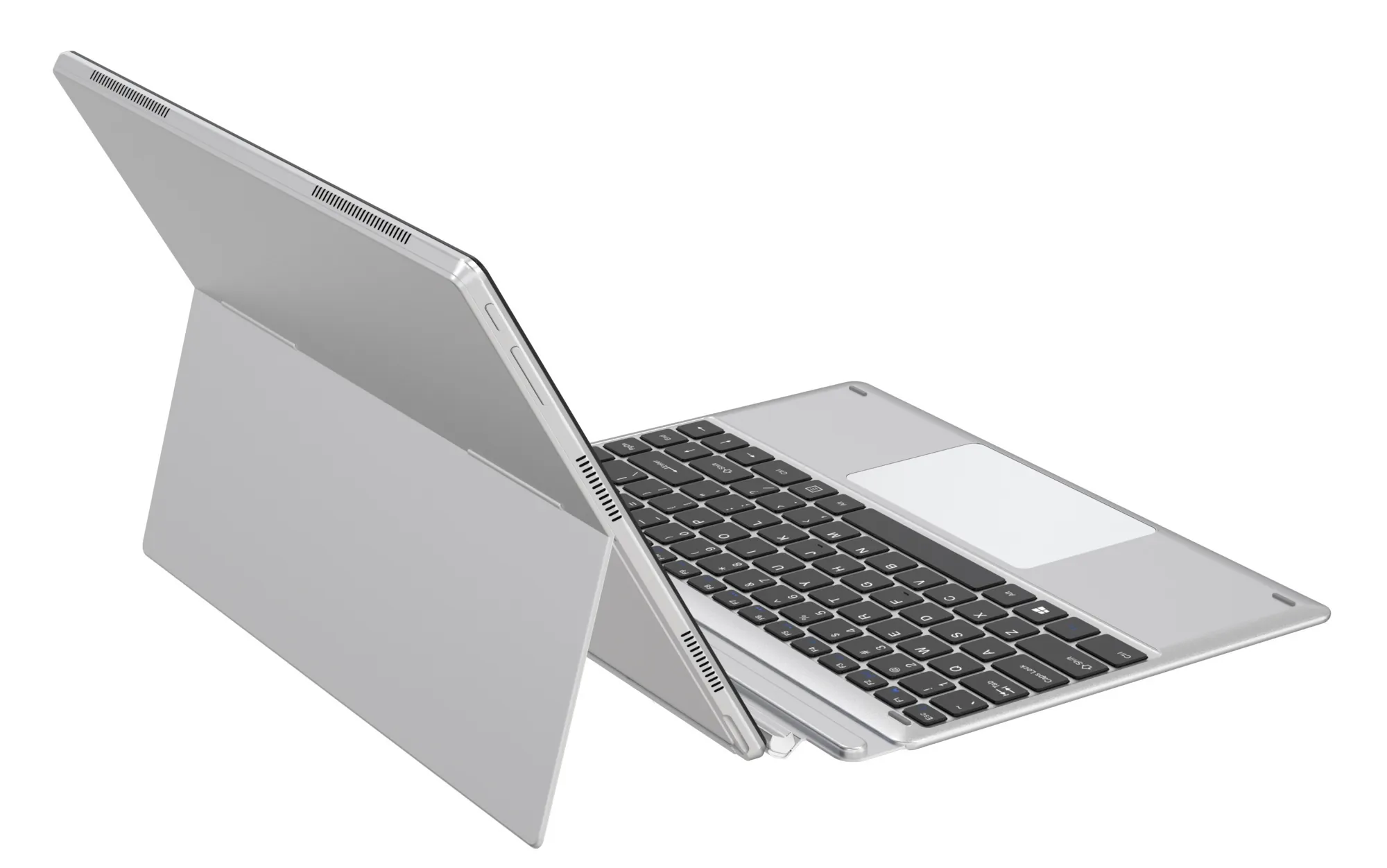
- Convertibles add a hinge and touch layer; slightly heavier for their size, but they double as a note-taking tablet, which can replace a separate device.
A practical tip that saves both money and your shoulder: skip the dedicated laptop bag. A $15–$30 padded sleeve tucked inside the backpack you already own protects the machine just as well and keeps the total load lighter.
Running the Software Your Courses Actually Assign
Here is the reassuring part: the overwhelming majority of college software is light. If your workload looks like the list below, any 8GB model in this guide handles it comfortably, and even the 4GB models cope if you are disciplined about open apps.
| Typical student software | Runs well on these budget laptops? |
|---|---|
| Microsoft 365 (Word, Excel, PowerPoint) | Yes — smooth on every pick; Windows 11 Pro is included |
| Google Workspace (Docs, Sheets, Slides) | Yes — browser-based, works fine even on 4GB |
| Zoom, Microsoft Teams, Google Meet | Yes — use the browser version on 4GB machines for best results |
| Canvas, Blackboard, Moodle (your LMS) | Yes — these live in the browser, no install needed |
| Zotero / Grammarly / PDF annotation | Yes — light on resources, 8GB recommended for many tabs |
| VS Code / Python for intro CS | Workable on 8GB; the Pro model is the comfortable choice |
| MATLAB, AutoCAD, Adobe Creative Suite, SPSS | Demanding — possible on the Pro but a heavier machine is better long term |
The dividing line is simple. If you are a humanities, business, social science, or general-studies major, your software list stops around the middle of that table and any pick here is enough. If you are in engineering, computer science, architecture, or media production, aim for 8GB at minimum and read the note on the Pro model below — or budget more for a workstation-class machine, because no sub-$400 laptop will run heavy design suites well for four years.
The Best NXTCORE Laptops for Students Under $400
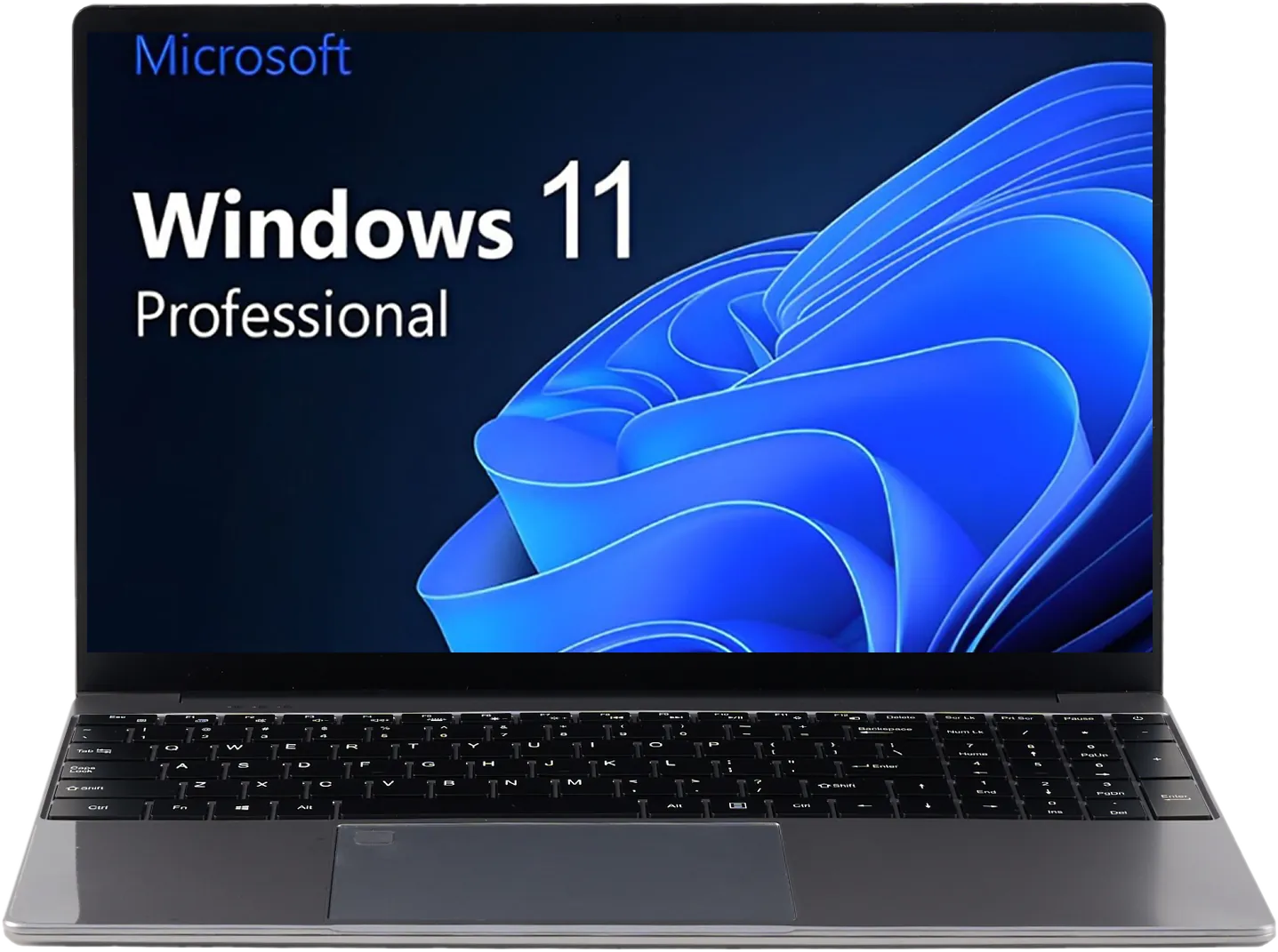
These six models are the subset of the NXTCORE range that fits campus life and stays under $400. They are ordered from most portable and affordable up to the most capable, so you can find the point where battery, weight, and performance meet your major and your budget. Prices display in USD, CAD, EUR, or GBP automatically based on your location.
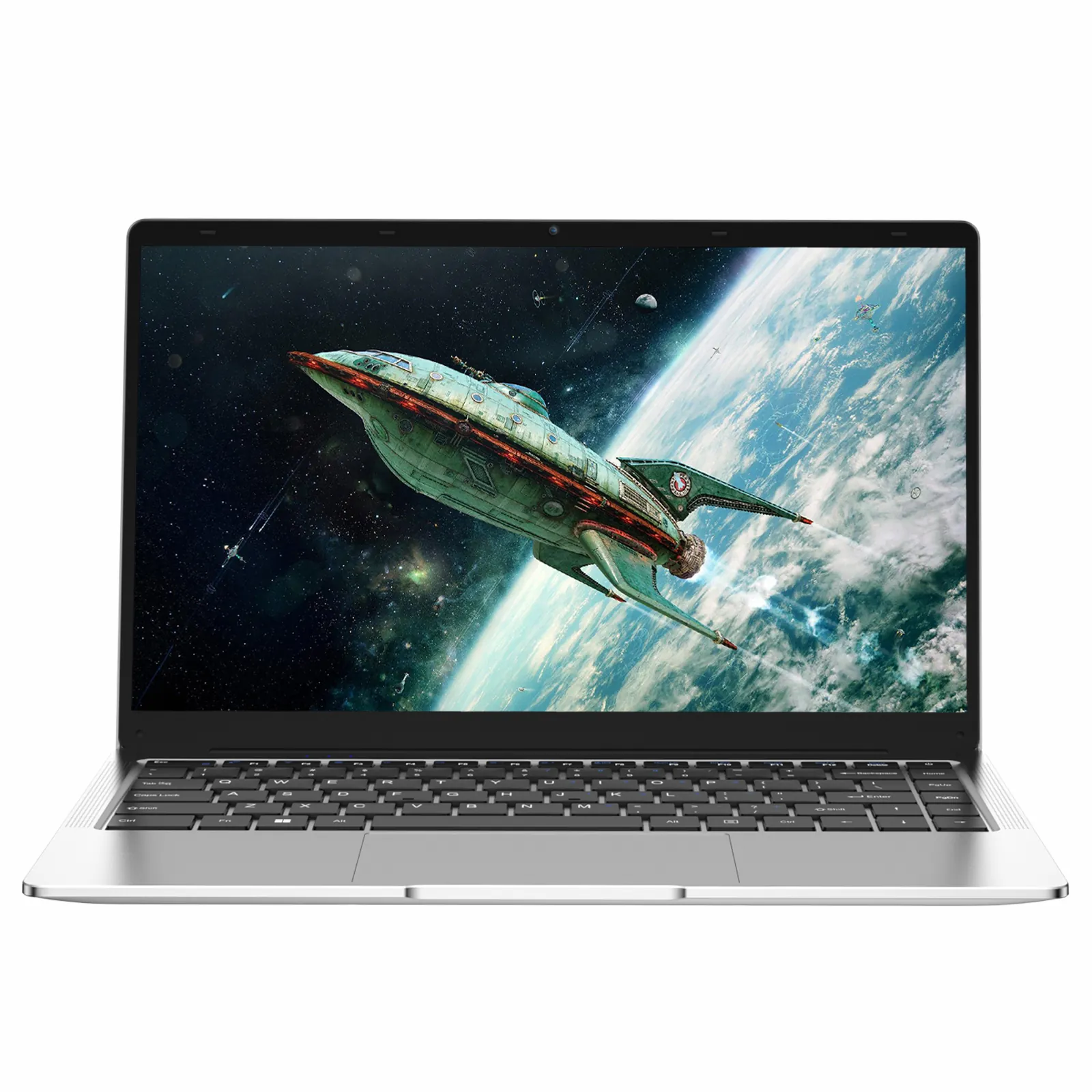
NXTCORE Lite F146-4105 — The Lightest, Cheapest Way In ($179)
At $179, the NXTCORE Lite F146-4105 is the entry point for students who need to keep upfront cost as low as possible. Its 14-inch frame is the most backpack-friendly option here, and the efficient Intel Celeron 4105U platform is built to stretch a charge across a day of lectures. With 4GB of RAM it is happiest running one or two things at once — a document and a handful of browser tabs, a video lecture, an LMS — so it suits humanities and general-studies students who live in Google Workspace and the browser. Lean on cloud storage and keep your open-tab count sensible and it will carry you through the term.
NXTCORE Lite G141J-N5095 — A Little More Speed, Still Featherweight ($199)
The NXTCORE Lite G141J-N5095 at $199 keeps the light, easy-carry 14-inch format but steps up to the newer Intel Celeron N5095, which handles everyday multitasking a bit more smoothly than the entry chip. If you want the portability of the cheapest model with a touch more responsiveness for switching between apps during class, this is the sweet spot for many first-year students.
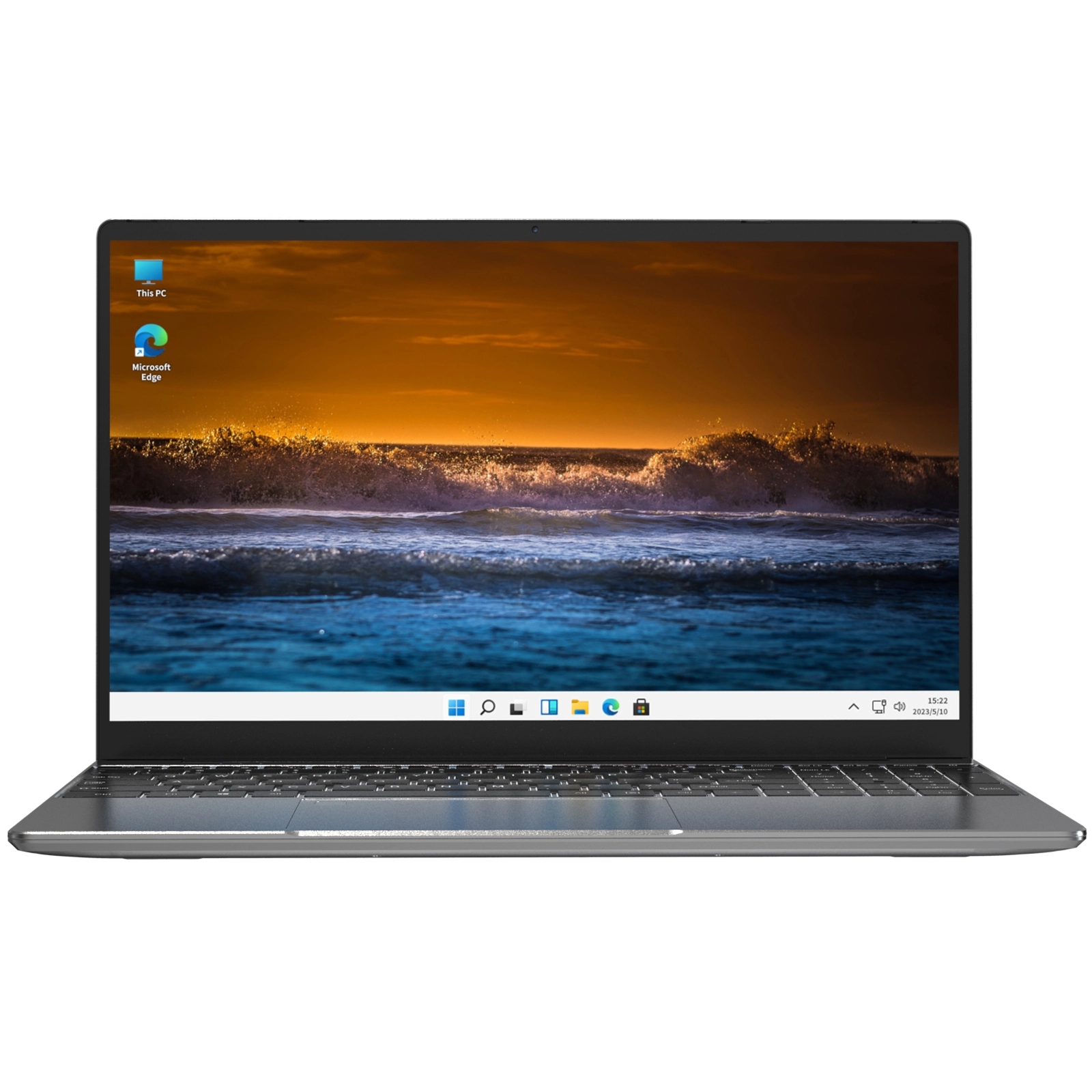
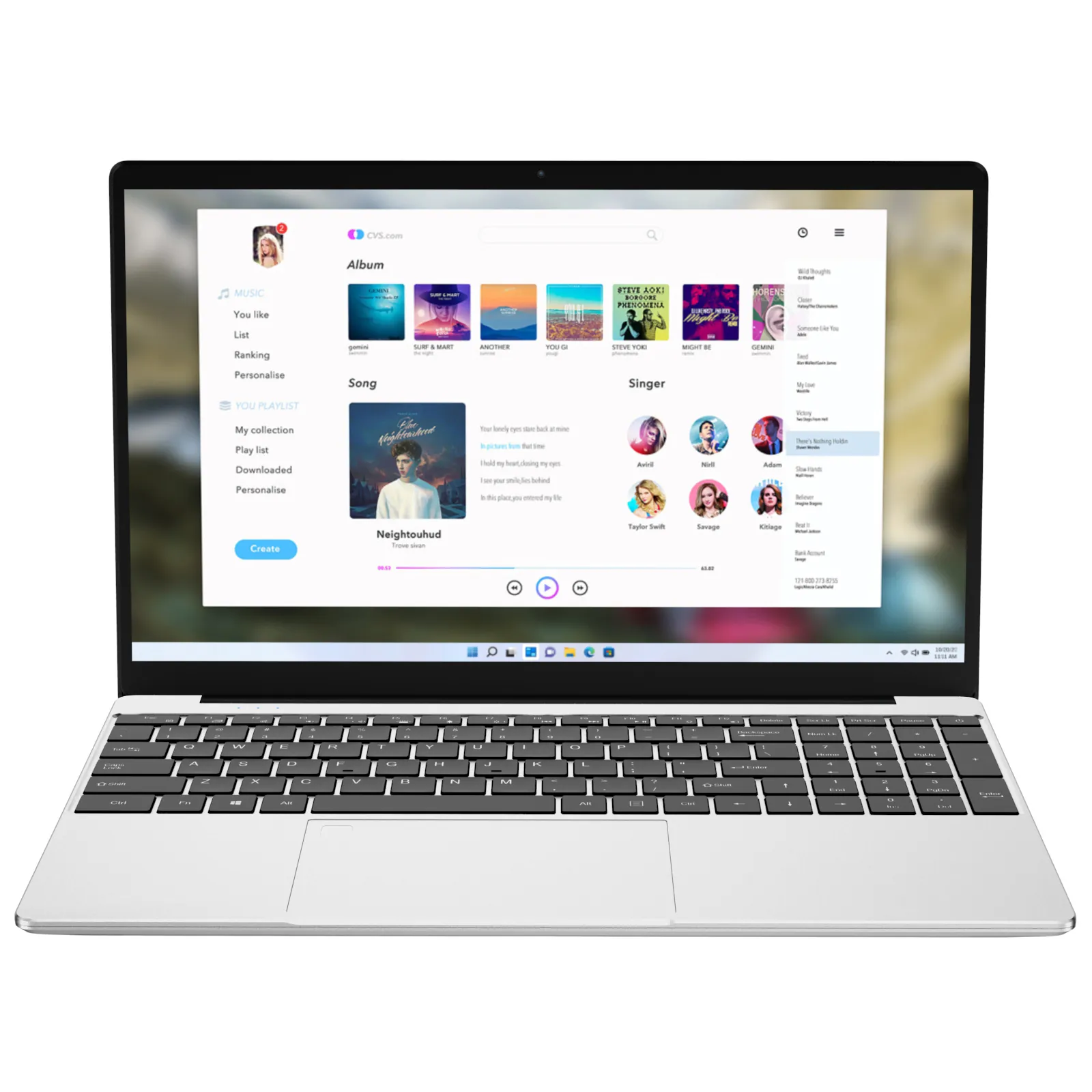
NXTCORE Lite F152G-5095 — Best All-Rounder for Coursework ($219)
For most students, the NXTCORE Lite F152G-5095 at $219 hits the best balance in the range. The 8GB of RAM is the reason it makes the top of the list: it is the difference between comfortably keeping a research browser, a note app, a music stream, and a video call open together, versus constantly closing things to stay smooth. The larger 15.6-inch display gives you room to keep a source and your draft side by side, which cuts down on window-switching during long writing sessions. If your campus routine centers on a dorm desk and a nearby library rather than all-day cross-campus treks, the extra screen is worth the small step up in size.
NXTCORE Flex S140N — Flexible Everyday Pick ($329)
The NXTCORE Flex S140N at $329 sits in the middle of the range as a well-rounded everyday machine for students who want a bit more polish and versatility than the Lite tier without moving into performance-laptop pricing. It is a sensible choice if you want one dependable laptop for four years of note-taking, papers, and video classes.
NXTCORE Flex Y156N — Best for Handwritten Notes and PDF Annotation ($359)
If you take math, science, or engineering courses — or you simply retain more from writing by hand — the NXTCORE Flex Y156N at $359 is built for you. Its convertible hinge lets the screen fold flat into tablet mode, so you can sketch diagrams, work through equations, and mark up lecture PDFs directly on the display instead of fighting to type them. That single feature can replace a separate tablet, which makes the price easier to justify. Note that a compatible stylus is a small extra purchase, and convertibles carry a bit more weight than a plain clamshell of the same size.
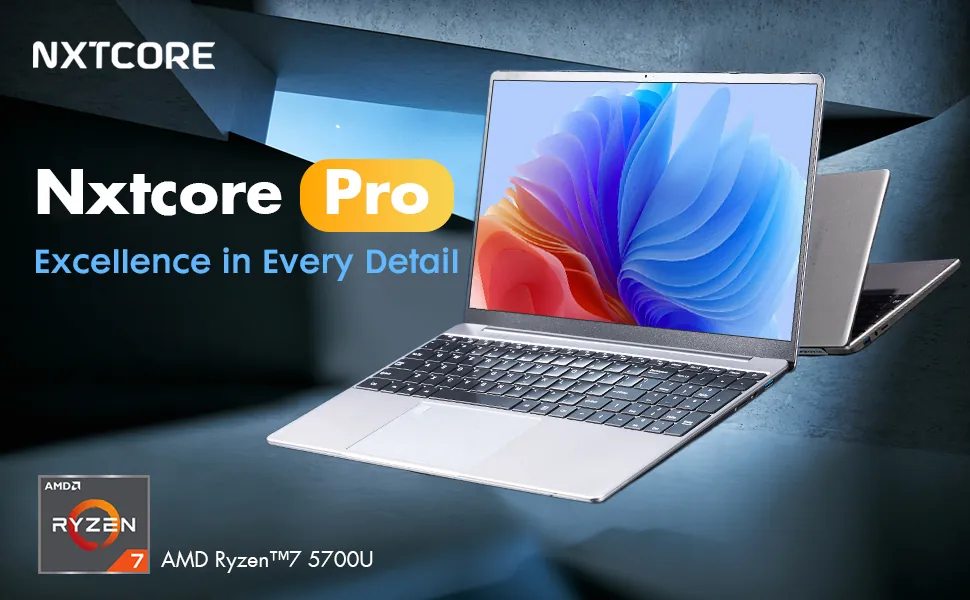
NXTCORE Pro 1030NG7 — Step Up for Coding and Heavier Coursework ($369)
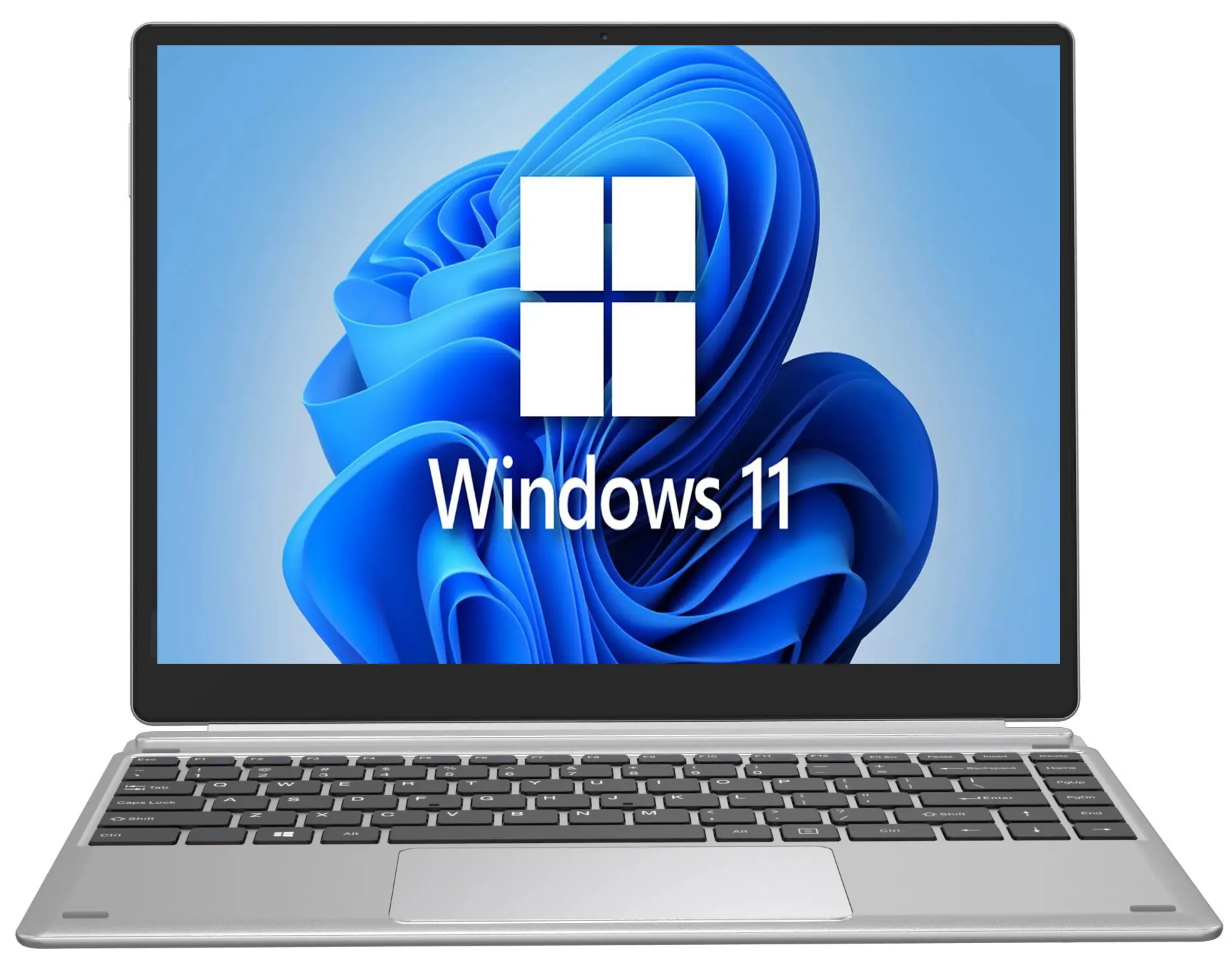
When your major pushes past documents and the browser — introductory computer science, data work, light design — the NXTCORE Pro 1030NG7 at $369 is the most capable machine you can get here while staying under $400. Its low-power Core i5 platform gives compilers, IDEs like VS Code, and multi-application workflows noticeably more room to breathe than the Celeron-based Lite models, without giving up the efficiency that keeps it going through a day of classes. If you expect your software demands to grow across four years, this is the pick that ages best.
Quick Comparison: Which Student Pick Fits You
| Model | Price | Best for |
|---|---|---|
| Lite F146-4105 | $179 | Tightest budget, lightest 14-inch carry |
| Lite G141J-N5095 | $199 | Light and portable with a bit more speed |
| Lite F152G-5095 | $219 | Best all-rounder — 8GB, bigger 15.6-inch screen |
| Flex S140N | $329 | Versatile do-everything everyday laptop |
| Flex Y156N | $359 | Handwritten notes and PDF annotation |
| Pro 1030NG7 | $369 | Coding, data, and demanding majors |
Do You Really Need 8GB, or Is 4GB Enough for Your Major?
The honest answer depends on how you study. Our full RAM guide covers the details, but here is the student shorthand:
- 4GB works for humanities and general-studies students who write in one document with a handful of tabs open. Expect to close apps you are not using.
- 8GB is the comfortable choice for most people — research with many tabs, a video call, notes, and music all at once without stutter.
- 16GB is only worth chasing if you are in engineering, CS, or media production running heavy professional software, which is beyond what a sub-$400 laptop is built for.
Because you cannot upgrade RAM on most budget laptops, this is the one spec worth prioritizing over screen size or storage. If your budget truly caps at the entry models, a Chromebook is another route — see our Chromebook vs Windows comparison — though you lose the ability to install full Windows software your courses may require.
Laptop or Tablet for Note-Taking?
Plenty of students wonder whether a tablet can replace a laptop. For writing papers, running full Windows software, and juggling multiple windows, a laptop wins comfortably — a physical keyboard is simply faster for the thousands of words you will type each week. Where tablets shine is handwritten notes and reading. The neat trick with the Flex Y156N is that it does both: clamshell for typing, folded flat for handwriting, so you do not have to choose. Our laptop vs tablet breakdown maps the decision to specific majors if you are still torn.
A Few Dorm and Campus Essentials to Budget For
- Padded sleeve ($15–$30): slips into your existing backpack — all the protection, none of the extra weight.
- USB flash drive or small external SSD ($25–$50): a backup for essays and projects the week before finals is cheap insurance.
- Cable lock ($20–$35): libraries and shared dorm spaces are where laptops walk off; a lock deters the opportunist.
- A second charger for your bag: optional, but it means you never lose a day to a charger left in your room.
Student Laptop FAQ
Which of these has the best battery for back-to-back classes?
The efficiency-focused Celeron and Pentium Silver models — the Lite and Flex tiers — are built to stretch a charge across a day of light coursework, and the Pro 1030NG7 pairs a low-wattage i5 with the same all-day goal. On any of them, keeping brightness near 50 percent and using Windows 11 battery saver is what turns a rated figure into a real morning-to-afternoon run.
Will a sub-$400 laptop actually last all four years of college?
For document-and-browser workloads, yes — these tasks are not getting heavier, so a well-cared-for budget laptop keeps pace for years. Every model here includes a one-year warranty and a 90-day return window, so you can confirm it fits your routine risk-free. If your major's software will clearly grow more demanding over four years, start with the Pro 1030NG7, which has the most headroom to age into.
Can these run Microsoft 365, Google Workspace, and my school's LMS?
Yes. Windows 11 Pro is included on every model, so Microsoft 365 installs normally, Google Workspace runs in any browser, and learning systems like Canvas, Blackboard, and Moodle are all browser-based — nothing extra to install. On 4GB models, use the browser version of Zoom or Teams rather than the desktop app for the smoothest calls.
I carry my laptop everywhere — which is the lightest?
The 14-inch Lite models (F146-4105 and G141J-N5095) are the most portable picks here and the easiest on your shoulder during long walks between buildings. If you want more screen and mostly move between a dorm desk and a nearby library, the 15.6-inch Lite F152G-5095 is a reasonable step up in size.
Which is best if I prefer handwriting my notes?
The Flex Y156N. Its screen folds flat into tablet mode so you can write equations, sketch diagrams, and annotate PDFs by hand, then flip back to a keyboard for typing papers — replacing the need for a separate tablet. Budget a little extra for a compatible stylus.
I'm a computer science or design major — is any of these enough?
For introductory coding, VS Code, and Python, the Pro 1030NG7 is the comfortable choice and the best value under $400. For heavy professional suites — AutoCAD, the full Adobe apps, MATLAB, or SPSS at scale — no sub-$400 laptop will keep you happy for four years, and you should plan for a workstation-class machine. Everything below the Pro in this guide is aimed at coursework that lives in a browser and an office suite.
Do these come with Windows and Office, or do I pay extra?
Every model ships with Windows 11 Pro included at the listed price. Microsoft Office is separate — but most schools provide Microsoft 365 free to enrolled students, so check with your institution before buying a subscription.
The Bottom Line for Students
If you want one recommendation, the NXTCORE Lite F152G-5095 at $219 is the best all-rounder for most students: 8GB of RAM for real multitasking, a roomy screen for writing, and efficient battery for a day of classes. On the tightest budget, the Lite F146-4105 at $179 is the lightest and cheapest way in. Prefer handwriting? The Flex Y156N doubles as a notes tablet. And if your major leans technical, the Pro 1030NG7 gives you room to grow. Browse the full 2026 laptop guide or the everyday-laptops collection to compare them side by side.