Everyday
  About Company
 Refund Policy
 Privacy Policy
 Terms And Conditions
 Support
 Open Ticket
 Contact Us
 Knowledgebase
 News
News

Best Laptops for Seniors in 2026 — Simple, Big-Screen & Easy to Use
If you are searching for the best laptops for seniors, you probably are not shopping for yourself — you are trying to find a computer a parent or grandparent can actually enjoy. That means text they can read without squinting, a screen big enough to see the grandkids on a video call, and a machine that turns on and simply works. The good news: the laptop that fits an older adult best is almost never the expensive one. It is the simple, readable, no-fuss one — and those start at just $179.
Too many stores steer families toward $700 machines packed with gaming graphics and 16GB of RAM — features a person who mainly wants to check email and see the grandchildren will never touch. For everyday senior use the sweet spot sits between $179 and $359, and that is exactly where the NXTCore everyday laptops live, with free shipping to the US and Canada.
Readability Comes First: Why the Screen Matters Most
For most seniors, the number-one reason a computer gets abandoned is simple: the text is too small and too hard to read. Before processors or storage, get the display right, and the rest of the experience falls into place.
- Go big, not tiny. A 14-inch or 15.6-inch screen shows larger text and bigger buttons than a cramped 11- or 13-inch model. For aging eyes, more screen is genuinely easier — this is the one place where bigger is better.
- Use Windows 11 text scaling. Open Settings, then Display, and raise Scale to 125% or 150%. Every menu, email and web page gets larger instantly — no new glasses required.
- Prefer a matte, anti-glare finish where possible. Glossy screens mirror lamps and windows; a less reflective panel is kinder to older eyes in a bright kitchen or sunny living room.
- Turn on high-contrast and Night Light. Windows 11 includes larger cursors, bold high-contrast themes and a warm Night Light mode that reduces eye strain in the evening.
- Full HD helps, but scaling matters more. A sharp 1080p panel keeps enlarged text crisp instead of blurry — pair it with 125% scaling for the most comfortable reading.
What Else Actually Matters in a Senior's Laptop
Once the display is sorted, only a short list of things really count for an older adult — and it looks nothing like a spec-obsessed reviewer's checklist:
- An SSD, always. Solid-state storage means the laptop is ready in seconds instead of grinding for two minutes. This single feature removes the most common complaint seniors have about computers.
- Simplicity over features. A clean Windows 11 desktop with only a handful of apps beats a machine buried in trial software and pop-ups that confuse and worry first-time users.
- A comfortable, full-size keyboard. Well-spaced keys on a 14-inch-or-larger laptop are far easier for older hands than the shrunken keys on ultra-thin 13-inch models.
- A built-in HD webcam. Every pick here has one, so video calls with family work straight out of the box — just confirm it is 720p or better.
- Light enough to move. Under about 4 pounds is easy to carry from the kitchen table to the armchair, without being so small the screen and keys become fiddly.
Our Senior-Friendly Picks
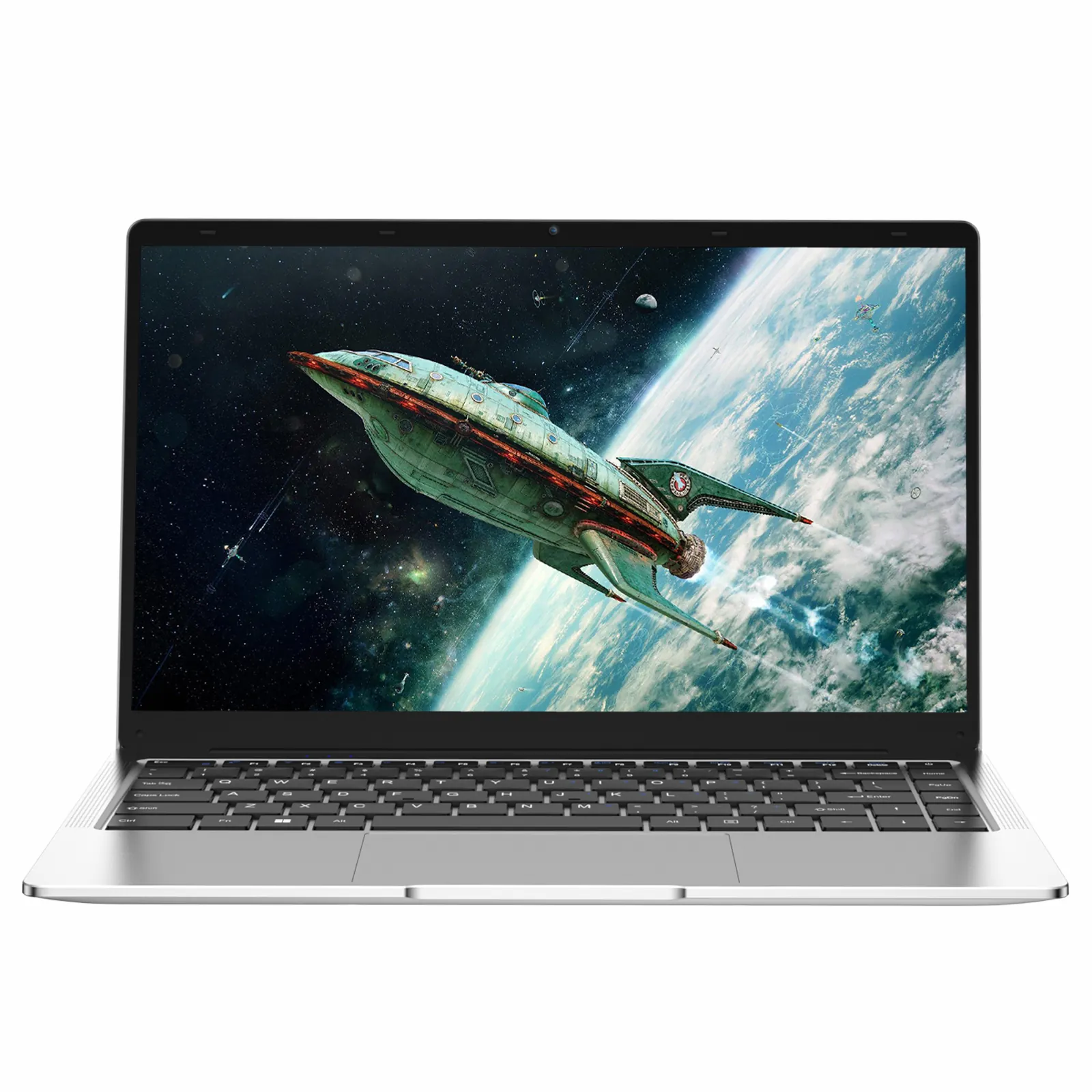
1. NXTCore Lite F146-4105 — $179 (Best Overall)
The NXTCore Lite F146-4105 is the easiest laptop to recommend for a senior, and not only for the $179 price. It does the everyday jobs — email, browsing, video calls — without a single feature to get lost in.
- 14-inch display — large enough for comfortable, scaled-up reading
- 8GB RAM — smooth for email, the web and video calls at the same time
- 256GB SSD — starts in seconds, no waiting and no frustration
- Windows 11 Pro — a clean, modern, bloatware-free desktop
- Efficient, quiet, low-heat processor with no noisy fan
- Under 4 pounds — easy to move around the house
- Free shipping to the US and Canada
The reason this one works so well for older adults is the clean Windows 11 experience: no antivirus trials, no random games, no subscription pop-ups — just the desktop and the apps they actually use. For someone uneasy with technology, that calm, uncluttered screen makes all the difference.
Gift-buying tip: set it up before you hand it over. Create their Microsoft account, install Chrome or Firefox, bookmark their email, pin Zoom, and raise display scaling to 125%. Thirty minutes now saves hours of phone calls later.
2. NXTCore Flex Y156N — $359 (Biggest, Most Readable Screen)
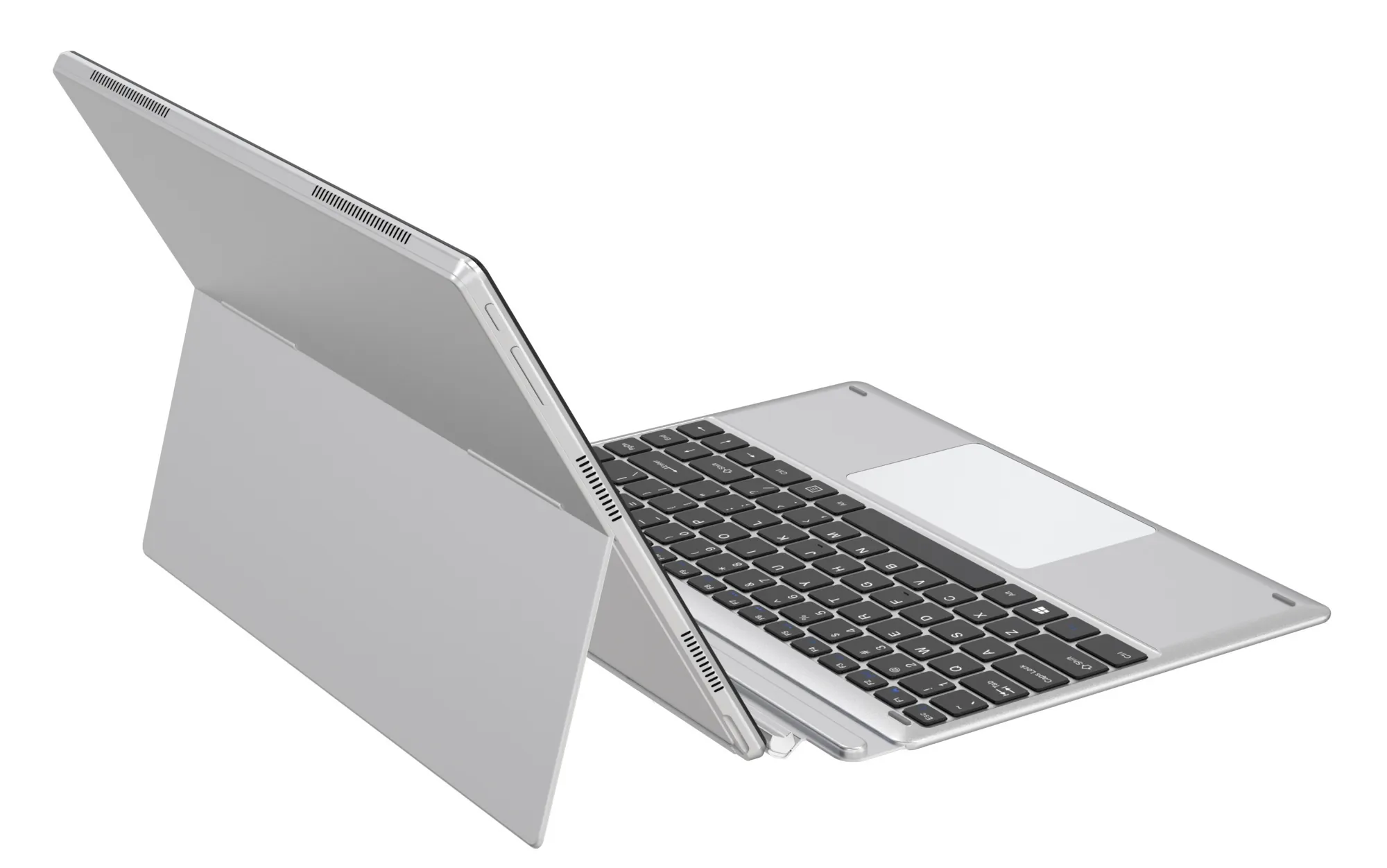
If failing eyesight is the main concern, size solves a lot of problems. The NXTCore Flex Y156N at $359 steps up to a larger 15.6-inch-class display — more room for enlarged text, bigger on-screen buttons, and a full-size keyboard that is comfortable to type on for hours.
- Larger everyday display — the roomiest, most readable screen in this lineup
- 8GB RAM and a fast SSD for the same snappy, instant-on feel
- Windows 11 Pro with the same clean, bloatware-free setup
- Full-size keyboard with well-spaced keys for easier typing
- Free shipping to the US and Canada
Best for: seniors who find any 14-inch screen a little small and simply want the biggest, clearest view for reading email, news and photos. Confirm the exact panel size and options on the product page before ordering, since configurations can vary.
3. NXTCore Flex S140N — $329 (Best for Tablet Users)
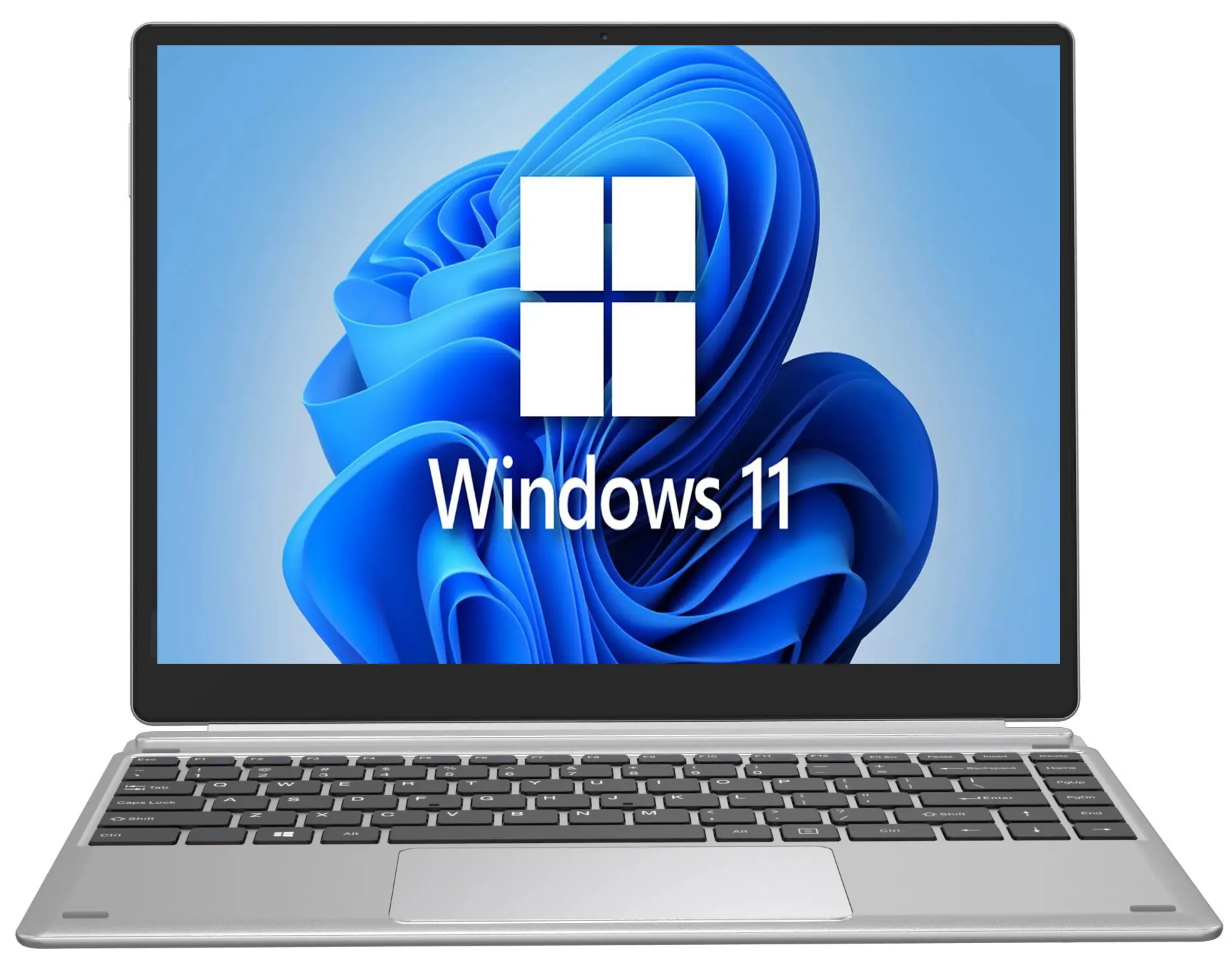
Some older adults find tapping the screen far more natural than a trackpad. If your parent already uses a smartphone or tablet happily but wrestles with a laptop touchpad, the NXTCore Flex S140N at $329 brings that same tap-what-you-want habit to a real computer.
- Roomy everyday display that is comfortable to read
- 8GB RAM and a fast SSD for the same snappy everyday feel
- Windows 11 Pro with the same clean, bloatware-free setup
- A more premium build for daily room-to-room use
- Free shipping to the US and Canada
Best for: seniors comfortable with a phone or tablet who find a basic trackpad frustrating. If a touchscreen is a must-have, verify the current configuration on the product page, since availability varies by model.
Quick Comparison — Senior Laptop Picks
| Model | Price (USD) | Best for |
|---|---|---|
| NXTCore Lite F146-4105 | $179 | Best overall value — email, browsing and video calls |
| NXTCore Lite G141J-N5095 | $199 | A little more headroom at the entry level |
| NXTCore Flex S140N | $329 | Seniors already comfortable tapping a phone or tablet |
| NXTCore Flex Y156N | $359 | The biggest, most readable screen for tired eyes |
The Everyday Tasks Seniors Actually Do
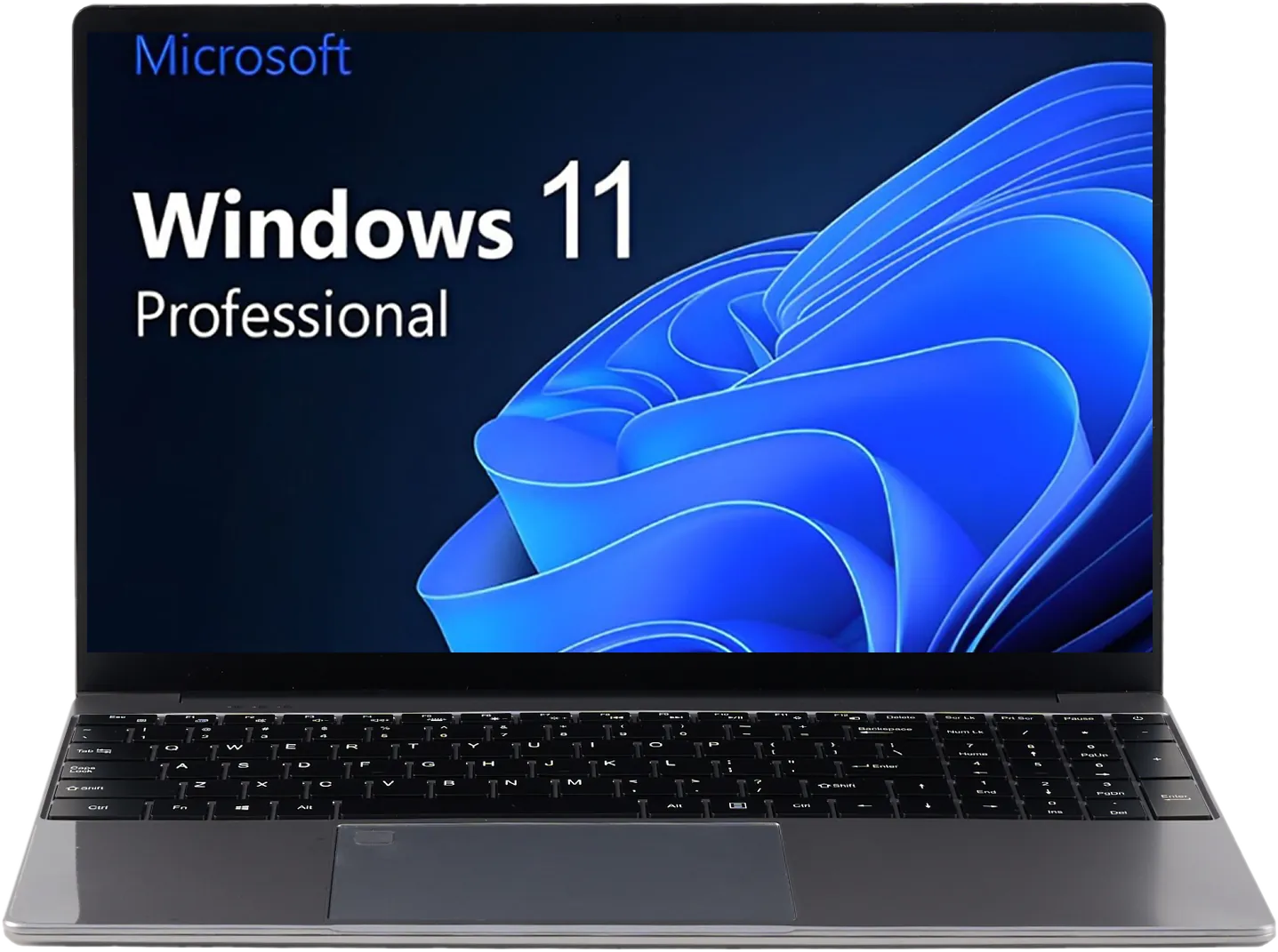
Almost everything a senior wants from a computer comes down to four things. Any pick above handles all of them comfortably — here is what each one looks like in practice:
Email and staying in touch
Gmail, Outlook.com or Yahoo Mail all run in the browser — nothing to install. Bookmark their inbox, bump text scaling to 125%, and reading and replying becomes effortless. Teach them to open email from the bookmark rather than searching for it, which quietly protects them from look-alike scam sites.
Video calls with the family
This is the task that makes the whole laptop worthwhile. Every pick here has a built-in HD webcam and microphone, so Zoom, Google Meet, Microsoft Teams and FaceTime (in the browser) work out of the box. Pin their preferred app to the taskbar, set it to auto-start, and a call with the grandchildren is one click away on a screen big enough to actually see them.
Photos of the grandkids
The built-in Windows 11 Photos app opens pictures family members email or share, and the 256GB SSD leaves plenty of room to keep them. Create one clearly labelled Photos folder on the desktop, and viewing a grandchild's latest snapshots — or a whole holiday album — stays simple on a large, bright display.
Browsing, news and everyday errands
Reading the news, checking the weather, watching YouTube, ordering groceries or refilling a prescription all happen in Chrome or Firefox. With scaled-up text and a couple of pinned bookmarks, the web stops being intimidating and starts being useful.
Simple Setup: Get It Ready Before You Hand It Over
Whichever laptop you choose, a thoughtful 30-minute setup is what turns a confusing box into a computer a senior can use confidently and independently.
Make it readable
- Raise text size: Settings > Display > Scale, set to 125% or 150% so everything is larger.
- Enlarge the cursor: Settings > Accessibility > Mouse pointer and touch — make it bigger, and a black pointer is often easier to spot.
- Turn on the text cursor indicator: Settings > Accessibility > Text cursor, so the blinking cursor is easy to find in a document.
- Try Night Light: Settings > Display > Night light for a warmer, easier-on-the-eyes screen in the evening.
Keep the desktop uncluttered
- Pin only the essentials to the taskbar: browser, email, video-call app, Photos and File Explorer — remove the rest.
- Add large desktop shortcuts for Email, Browser and their video-call app.
- Hide the clutter: right-click the taskbar, open Taskbar settings, and turn off Widgets, Chat and Task View.
- Simplify Start: unpin apps they will not use, leaving only the five or six that matter.
Keep them safe from scams
Seniors are targeted more than any other group by online scams, so a few settings matter as much as the laptop itself:
- Confirm Windows Security real-time protection is on — it is built into Windows 11, so no paid antivirus is needed.
- Install uBlock Origin in their browser to block the fake virus-warning ads that prey on older users.
- Give them a standard user account and keep an admin account for yourself, so malware cannot install itself with their permission.
- Leave automatic updates on so security patches arrive without any action from them.
- Bookmark the bank and email and teach them to use those bookmarks instead of searching — the simplest defence against phishing.
Frequently Asked Questions
What screen size is best if my parent struggles to read small text?
Go as large as is still portable. A 15.6-inch-class display like the NXTCore Flex Y156N gives the most room for enlarged text and bigger buttons, while the 14-inch Lite F146-4105 is a fine, lighter alternative. Whichever you pick, raise Windows 11 display scaling to 125% or 150% — that does more for readability than any spec on the box.
How do I set up video calls so my parent can see the grandchildren easily?
Every pick here has a built-in HD webcam, so no extra hardware is needed. Install the family's app of choice — Zoom, Google Meet or Teams — pin it to the taskbar, and set it to start automatically. Then run one practice call with them. Once they see the grandkids fill a big, clear screen, it usually becomes their favourite reason to open the laptop.
Can they view and store family photos on a budget laptop?
Yes. The built-in Windows 11 Photos app opens anything shared by email or link, and a 256GB SSD holds thousands of pictures. Make one clearly labelled Photos folder on the desktop so nothing gets lost, and a larger screen makes browsing an album genuinely enjoyable.
My parent worries about scams and pop-ups — is a laptop safe for them?
With a little setup, yes. These NXTCore laptops ship clean — no trial antivirus or nagging pop-ups — and Windows 11's built-in Security covers the basics. Add an ad-blocker, give them a standard (non-admin) account, and bookmark their bank and email so they never have to search for them. Those steps remove the most common ways older users get caught out.
Can I help fix things remotely when they get stuck?
This is one of the best reasons to choose these models. Because they run Windows 11 Pro, Remote Desktop is included — so you can log in from your own computer and sort out a problem without driving across town or talking a frustrated parent through menus over the phone.
Should I just get them an iPad instead?
iPads are lovely but limiting: file management is awkward, some sites misbehave in mobile Safari, and a decent keyboard case adds $100 or more. A laptop gives a familiar desktop, a real keyboard and a full browser. If your parent already loves a tablet, the touch-friendly NXTCore Flex S140N is a happy middle ground. Still weighing it up? Our Chromebook vs Windows laptop comparison helps too.
How long will one of these last before it needs replacing?
For senior-level use — email, browsing, video calls and photos — expect 4 to 6 comfortable years. Those tasks do not get more demanding over time the way gaming or video editing do, so a laptop that handles them today will still handle them years from now. Curious how much memory to look for? See how much RAM you actually need, or what a $200 laptop can really do.
Why NXTCore Suits Senior Shoppers
A few things make NXTCore a natural fit for this audience:
- A low-risk entry price. Starting at $179, you are not gambling $700 on whether a parent will take to it.
- Big, readable everyday screens from 14 to 15.6 inches — the single most important feature for older eyes.
- Windows 11 Pro with Remote Desktop, so you can help from anywhere.
- A clean, bloatware-free setup — no pop-ups or trial software to confuse or worry a first-time user.
- Free shipping to the US and Canada with no surprise checkout costs.
- A short, clear lineup — only a handful of everyday models to choose from, so picking the right one is simple.
Final Thoughts
Choosing a laptop for a senior comes down to three things: a screen they can read, a desktop that stays simple, and an SSD so it never keeps them waiting. A NXTCore everyday laptop from $179 covers all three and ships free to the door.
Set it up before you give it, keep the desktop tidy, bookmark their favourite sites, and run one practice video call. You will save yourself a stack of tech-support calls — and give your parent or grandparent the confidence to enjoy their computer on their own.
Shop NXTCore everyday laptops from $179 — browse the collection.